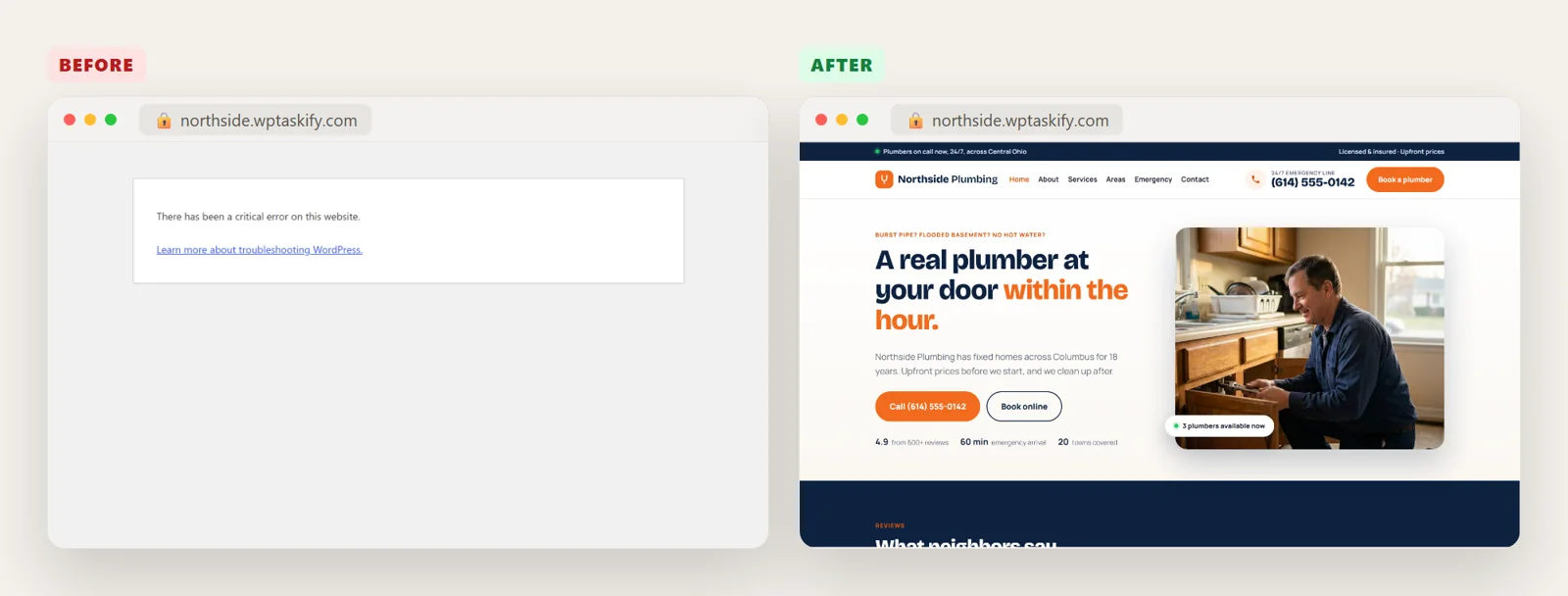
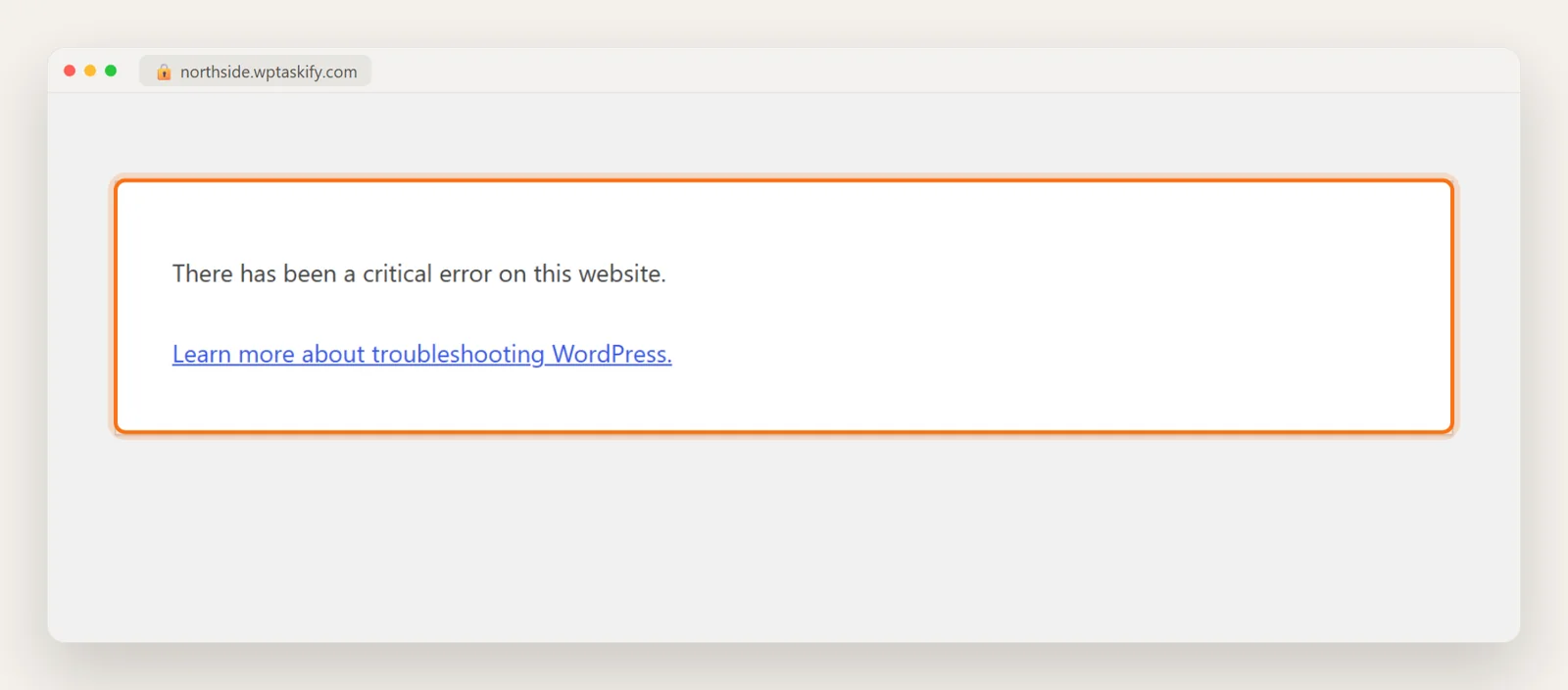
What does "There has been a critical error on this website" mean?
It means PHP stopped with a fatal error while WordPress was building the page. Since WordPress 5.2, instead of a blank white page, WordPress catches the crash, shows this short message to visitors, and quietly records what went wrong.
The message itself never tells you the cause. It looks the same whether a contact form plugin broke or your theme did. The details go to two places you can read: an email to the site admin, and the PHP error log. Once you read either one, the fix is usually a two-minute job.
On the login page the message is slightly longer: "Please check your site admin email inbox for instructions." That line is the clue for the fastest fix below.
What causes the WordPress critical error?
In real sites the cause is nearly always one of these, roughly in this order:
- A plugin update or a new plugin. The plugin calls a function that does not exist, or clashes with another plugin.
- Your host upgraded PHP. Old code that ran on PHP 7 can fail on PHP 8. A classic example is
create_function(), which PHP 8.0 removed. Any plugin still using it crashes every page. - A theme change or an edit to functions.php. One missing bracket in a code snippet is enough.
- PHP running out of memory. The log says "Allowed memory size of ... bytes exhausted".
- A half-finished WordPress or plugin update, which leaves files missing or mixed between versions.
To test this article, we broke a real WordPress site on purpose. We added an old plugin called "Contact Form Lite" that uses create_function(), on PHP 8.3. Every screenshot below comes from that site.
Fix 1: Check your email for "Your Site is Experiencing a Technical Issue"
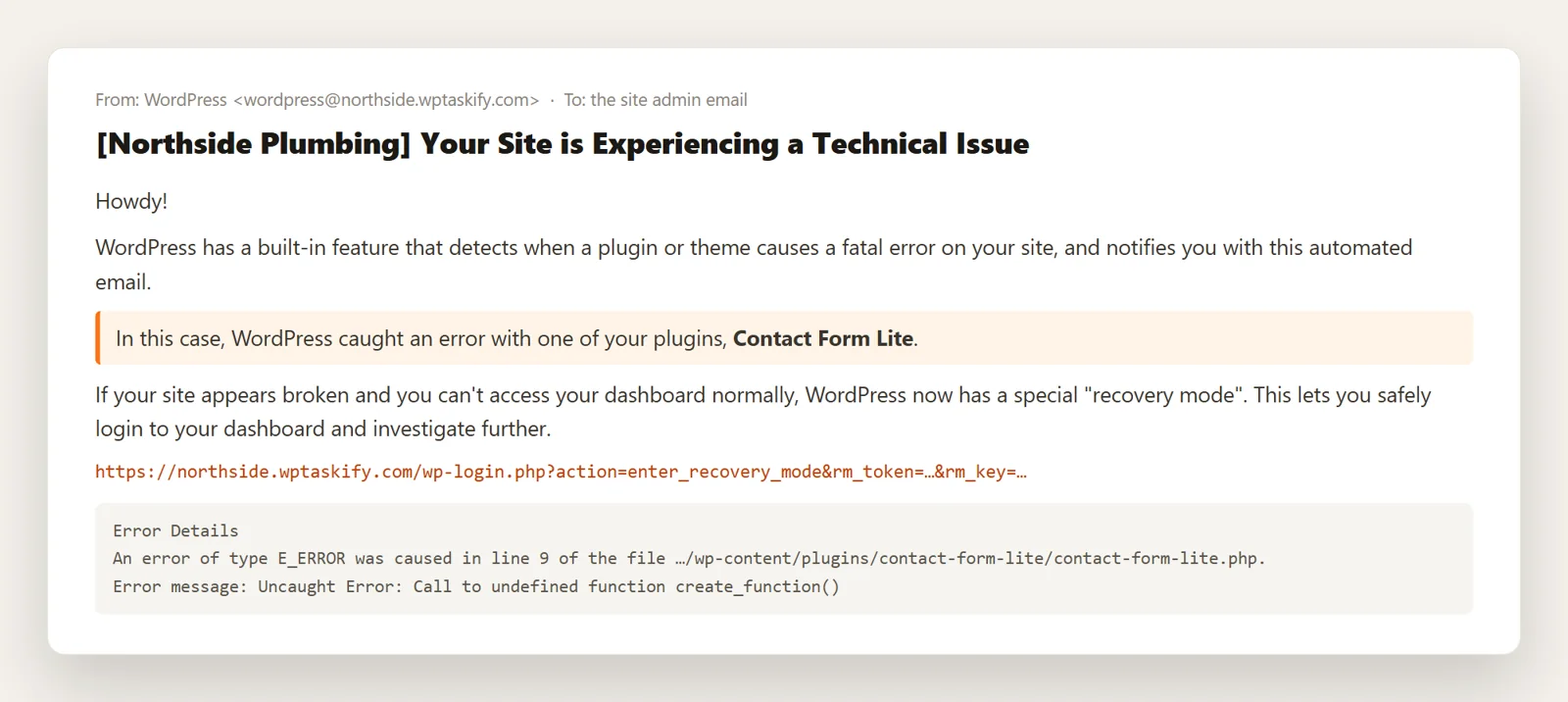
When WordPress catches a fatal error, it emails the Administration Email Address from Settings, then General. Search your inbox (and spam) for this subject:
[Your site name] Your Site is Experiencing a Technical Issue
The email tells you three things you need:
- Which plugin or theme caused it ("WordPress caught an error with one of your plugins, Contact Form Lite").
- The exact file and line under Error Details.
- A recovery-mode link that logs you in safely. It expires after one day, and WordPress sends a new one if the error happens again.
If the admin email is an old address nobody reads, the email is gone. Skip to Fix 3.
Fix 2: Log in with recovery mode and deactivate the plugin
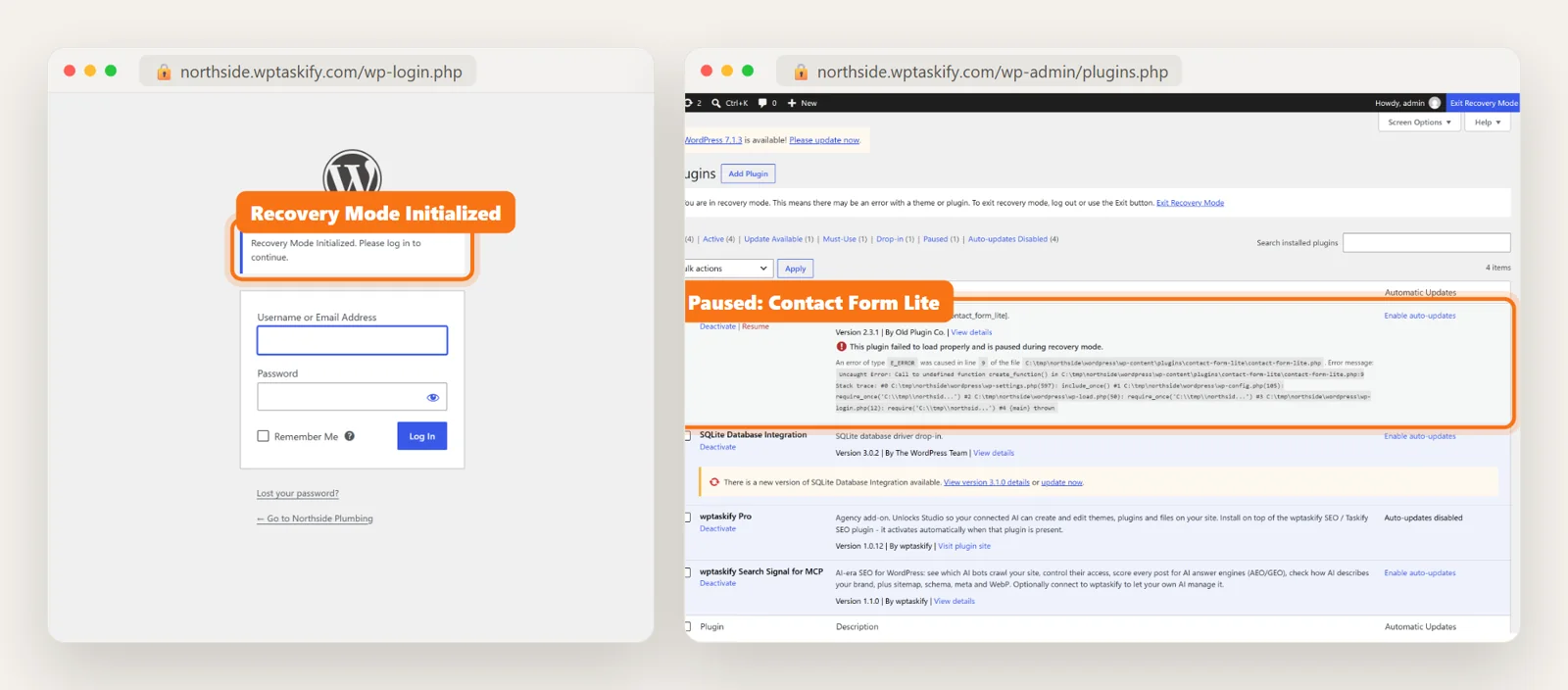
Click the link in the email. WordPress shows "Recovery Mode Initialized. Please log in to continue." Log in as usual.
In recovery mode, WordPress pauses only the broken plugin or theme for you, so the dashboard loads while visitors still see the error. A red notice says "One or more plugins failed to load properly". Then:
- Go to Plugins. The broken one is marked "This plugin failed to load properly and is paused during recovery mode", with the error underneath.
- Click Deactivate.
- Click Exit Recovery Mode in the top bar, then load your site in a private window to confirm it is back.
If the culprit is the theme, go to Appearance, then Themes, and activate a default theme such as Twenty Twenty-Five.
Fix 3: No email? Turn on the debug log and read the error
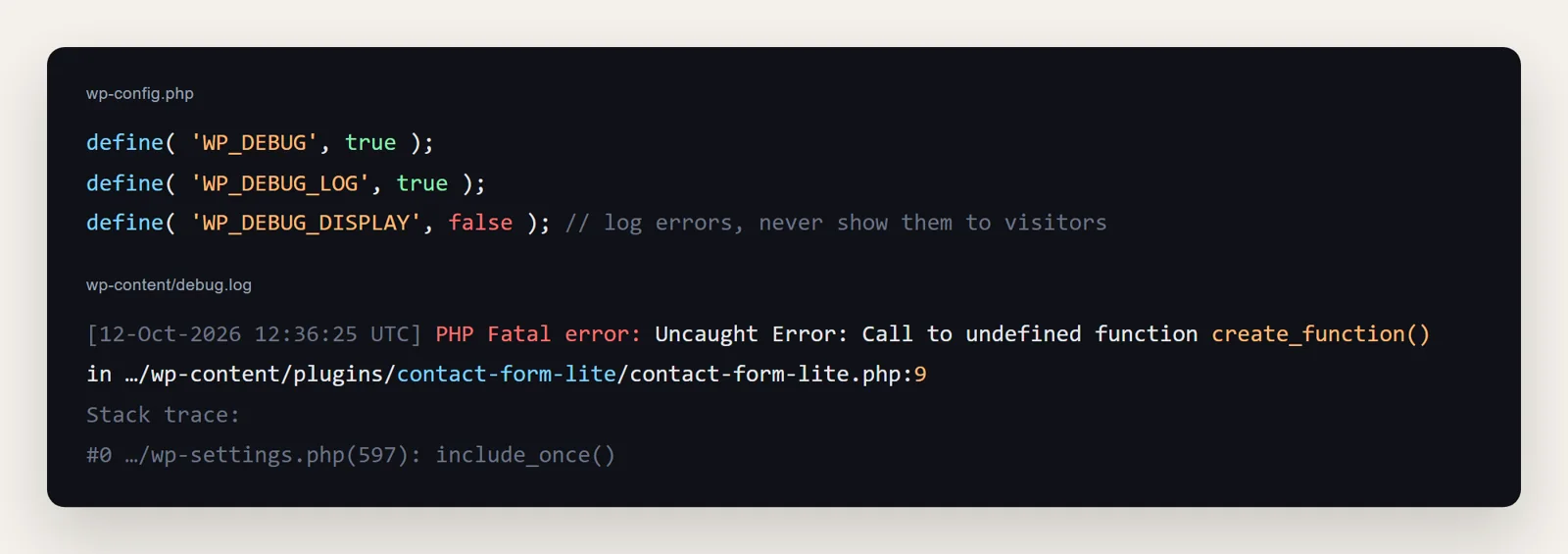
The debug log shows the same details as the email. Open wp-config.php in your host's File Manager or over SFTP. Find define( 'WP_DEBUG', false ); and replace it with:
define( 'WP_DEBUG', true );
define( 'WP_DEBUG_LOG', true );
define( 'WP_DEBUG_DISPLAY', false );
Reload the broken page once, then open wp-content/debug.log. Look at the last line that says "PHP Fatal error". The folder name after /plugins/ or /themes/ is the culprit, and the number after the colon is the line.
Keep WP_DEBUG_DISPLAY set to false so visitors never see raw errors. When you are done, set WP_DEBUG back to false. A debug log on a busy site grows quickly.
What if the error shows only on one page, or only in wp-admin?
That is a useful clue. WordPress loads different code in different places, so where the error appears tells you where to look.
- Only on one page or post type, such as the shop or a page with a form: a plugin that runs only there, like a page builder add-on, a form or a WooCommerce extension.
- Only in wp-admin, while the site itself loads: an admin-only plugin, or a plugin settings screen. Recovery mode is the quickest way in.
- Everywhere, including the login page: something that loads on every request, usually a plugin, the theme's functions.php, or wp-config.php itself.
In every case, the error email and the debug log name the file. Trust the file path over guesses.
Fix 4: Disable the plugin by renaming its folder (when wp-admin is down)
If you cannot get into wp-admin at all, disable the plugin from the file system. WordPress cannot load a plugin it cannot find, so it deactivates it on the next request.
- Connect with your host's File Manager or an SFTP app such as FileZilla.
- Go to
wp-content/plugins/. - Rename the culprit's folder, for example
contact-form-litetocontact-form-lite.off. - Reload your site.
Don't know which plugin it is? Rename the whole plugins folder to plugins.off. If the site loads, rename it back, then reactivate plugins one at a time in wp-admin until the error returns. The last one you turned on is the cause.
Is it the theme? Rename the active theme's folder in wp-content/themes/. WordPress falls back to a default theme, as long as one is installed.
Renaming deletes nothing. Your settings stay in the database, so when a fixed version is out, you rename the folder back.
Fix 5: When it is not a plugin or theme
- "Allowed memory size exhausted" in the log. Add
define( 'WP_MEMORY_LIMIT', '256M' );to wp-config.php, above the line that says "That's all, stop editing". If it still fails, your hosting plan's PHP limit is lower. Ask your host to raise it. - It started right after a PHP upgrade. Update the plugin or theme named in the error first. If there is no update, most hosts let you switch the PHP version back in the control panel while you find a replacement. Treat that as a short-term fix: old PHP versions stop getting security updates.
- Core files after a failed update. Re-upload a fresh copy of WordPress (not
wp-contentorwp-config.php), or go to Dashboard, then Updates, and click "Re-install version". - Nothing in the log at all. Your host may write PHP errors to its own log. Look for
error_logfiles in the site folder, or ask support for the PHP error log. - Still stuck. Restore the most recent backup from before the error started.
How to fix it with your AI (even when WordPress is down)
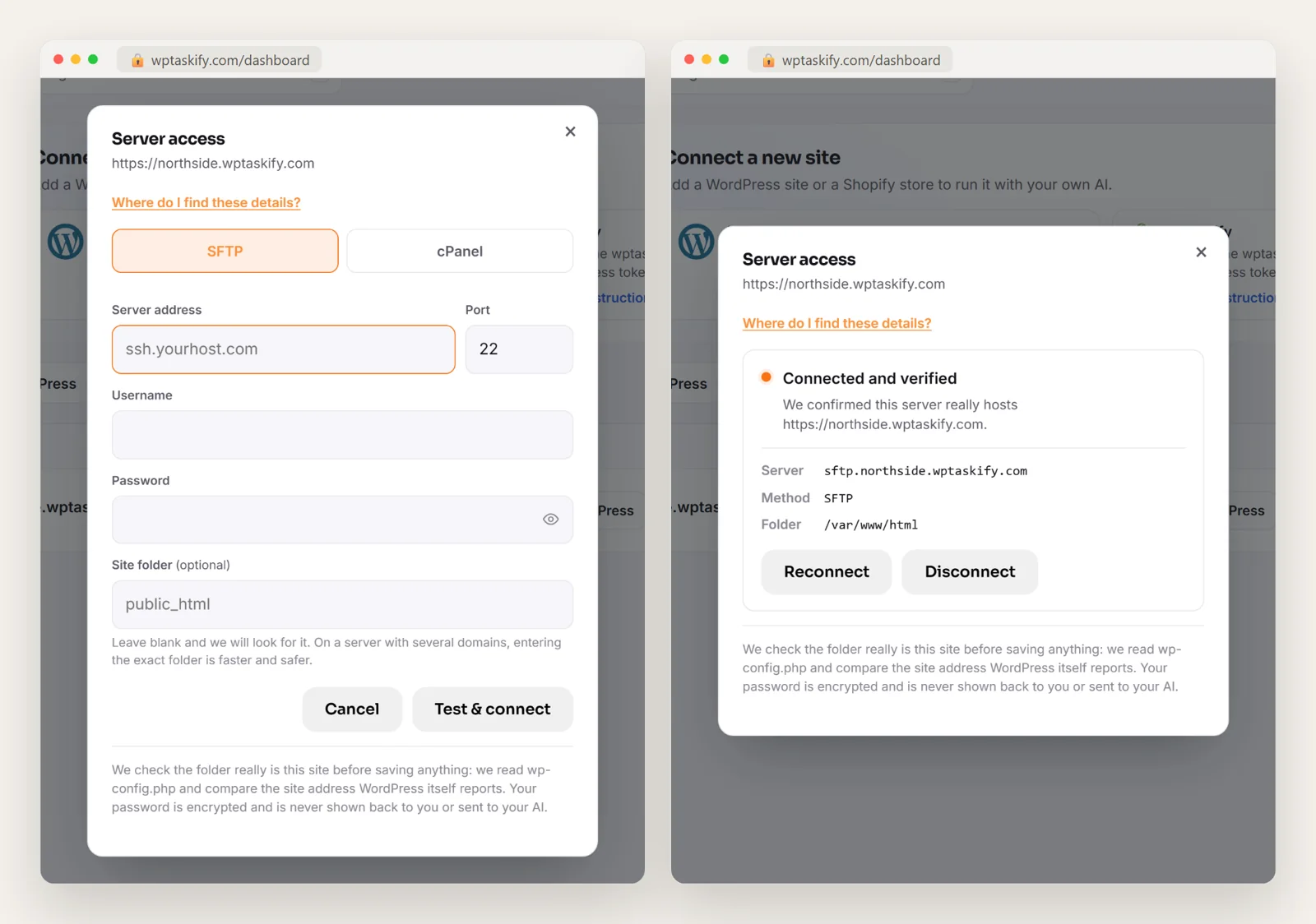
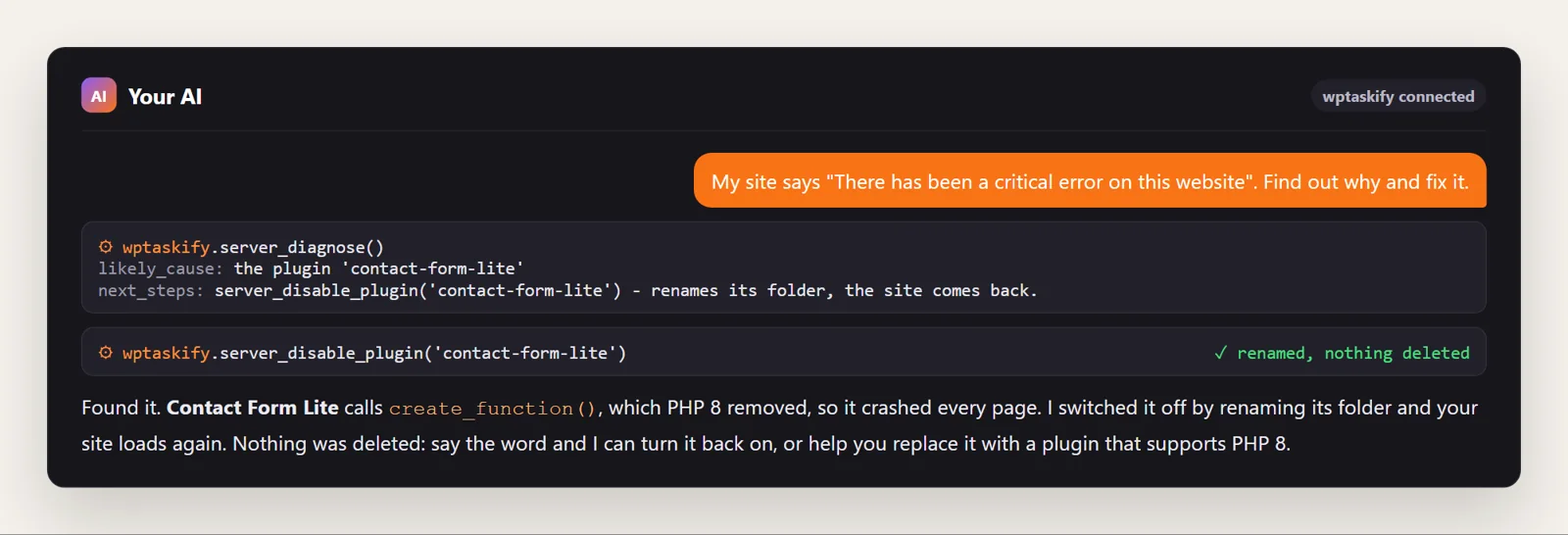
The normal WordPress tools need WordPress to be running, and during a critical error it is not. That is why wptaskify has server access. You add your SFTP or cPanel login once, and wptaskify checks that the folder really is your site by reading wp-config.php and matching the site address. After that, your AI (Claude or ChatGPT, connected through wptaskify) can work on the files directly.
Server access is included on every wptaskify plan, including the free one. The password is stored encrypted and is never shown to you or to your AI.
What does the AI actually do?
You describe the problem in plain words. These are the tools it uses, in order:
server_diagnosereads the error log and works out whether the cause is a plugin, the theme or something else. It changes nothing. It only reports the likely cause and the next step.server_disable_pluginrenames the guilty plugin's folder, the same safe fix as Fix 4.server_enable_pluginputs it back.server_disable_thememakes WordPress fall back to a default theme when the theme is the cause.server_set_debugturns logging on or off in wp-config.php. It backs the file up first and keeps errors hidden from visitors.server_undoputs a file back to how it was before the last change.
On our test site, the diagnosis named contact-form-lite straight from the log. One rename later, the site loaded again.
After the fix: how to stop it happening again
- Replace or update the plugin that broke. If it has not been updated in a year or more, it will likely break again on the next PHP version.
- Turn debug logging off once you have the answer.
- Keep a working admin email in Settings, then General, so the next recovery email reaches you.
- Back up before updates. A full backup of files and database turns a bad update into a five-minute restore. See full-site backups with wptaskify.
- Update one plugin at a time on important sites, and load the site after each one.