
What is llms.txt?
llms.txt is a small text file you put at the root of your website, next to robots.txt. It is written in Markdown and meant to be read by large language models (LLMs) and the AI tools built on them.
A web page is full of menus, cookie banners, scripts and layout. An AI tool that wants to understand your business has to dig the useful part out of all that. llms.txt hands it the useful part directly: who you are, what you do, and which pages answer which questions.
The format was proposed by Jeremy Howard of Answer.AI in September 2024, at llmstxt.org. Since then thousands of sites, many of them documentation sites, have published one.
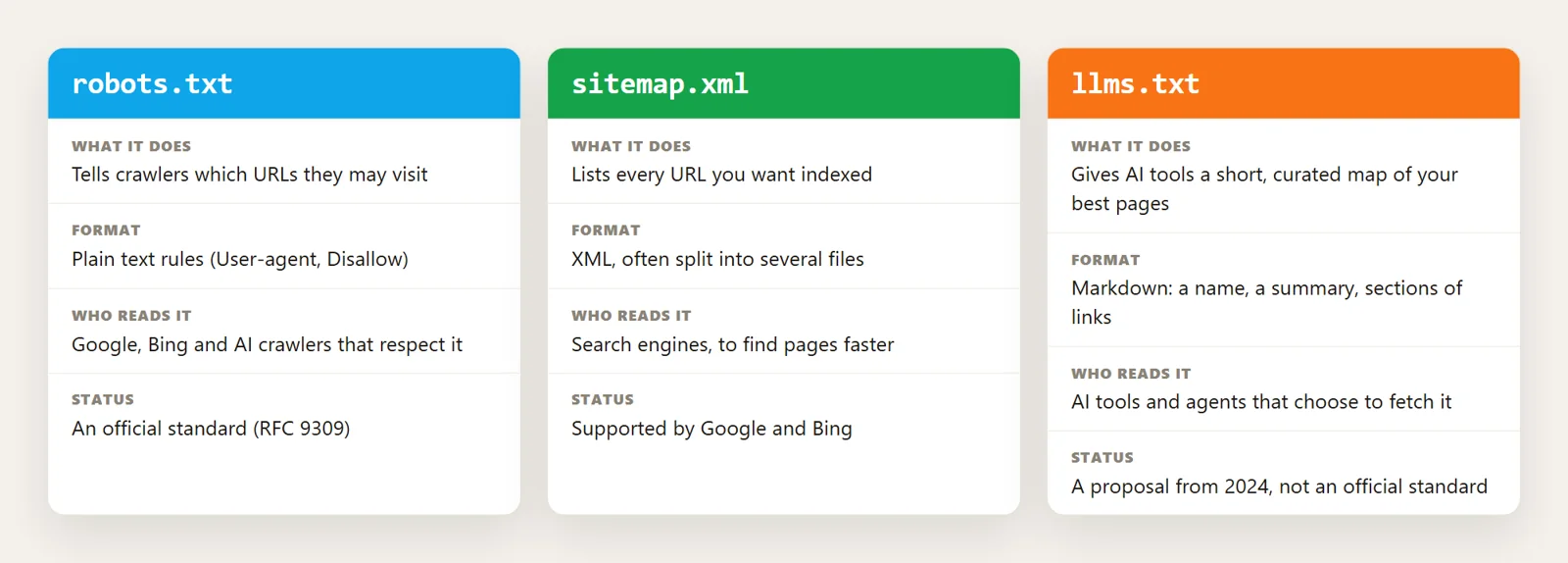
llms.txt vs robots.txt vs sitemap.xml
The three files sit side by side at your site root, but they do different jobs:
- robots.txt says where crawlers are allowed to go. It controls access.
- sitemap.xml lists every URL you want search engines to find. It is complete, not curated.
- llms.txt picks your best pages and explains them in a sentence each. It is a guide, not a list of everything.
llms.txt does not block or allow anything. If you want to control which AI bots crawl your site, that is robots.txt's job. See which AI bots are crawling your WordPress site.
What goes in an llms.txt file?
The proposal keeps the format simple. In order:
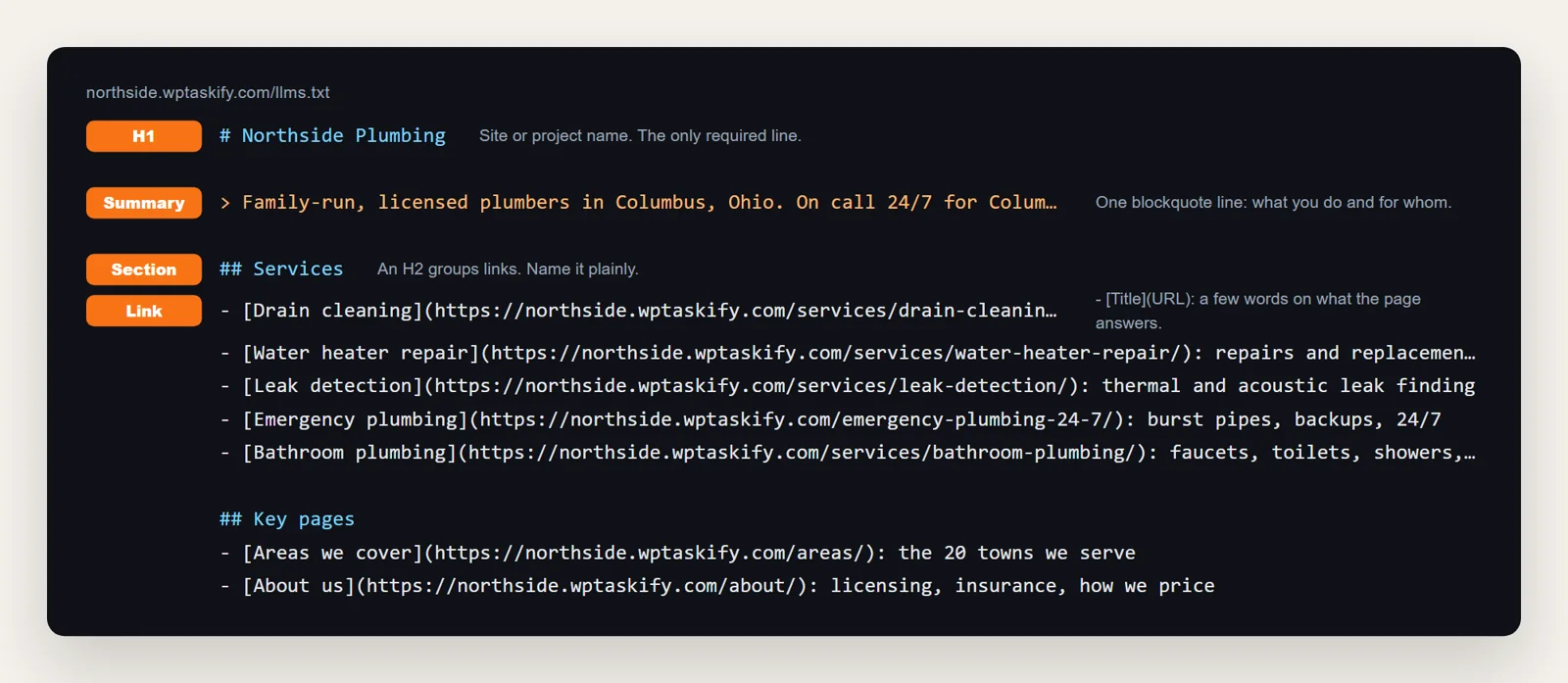
- # Your name. An H1 with the site or company name. This is the only required line.
- > One-line summary. A blockquote saying what you do and for whom.
- Optional details. A short paragraph or a few bullet facts, like location, hours or what you do not do.
- ## Sections of links. Each H2 groups related pages. Under it, one line per page:
- [Page title](URL): what this page answers. - ## Optional. A section with that exact name holds links an AI can skip if it is short on space.
Some sites also publish llms-full.txt, with the full text of every listed page in one file. That suits documentation. For a business site, the short llms.txt is enough.
Real llms.txt examples
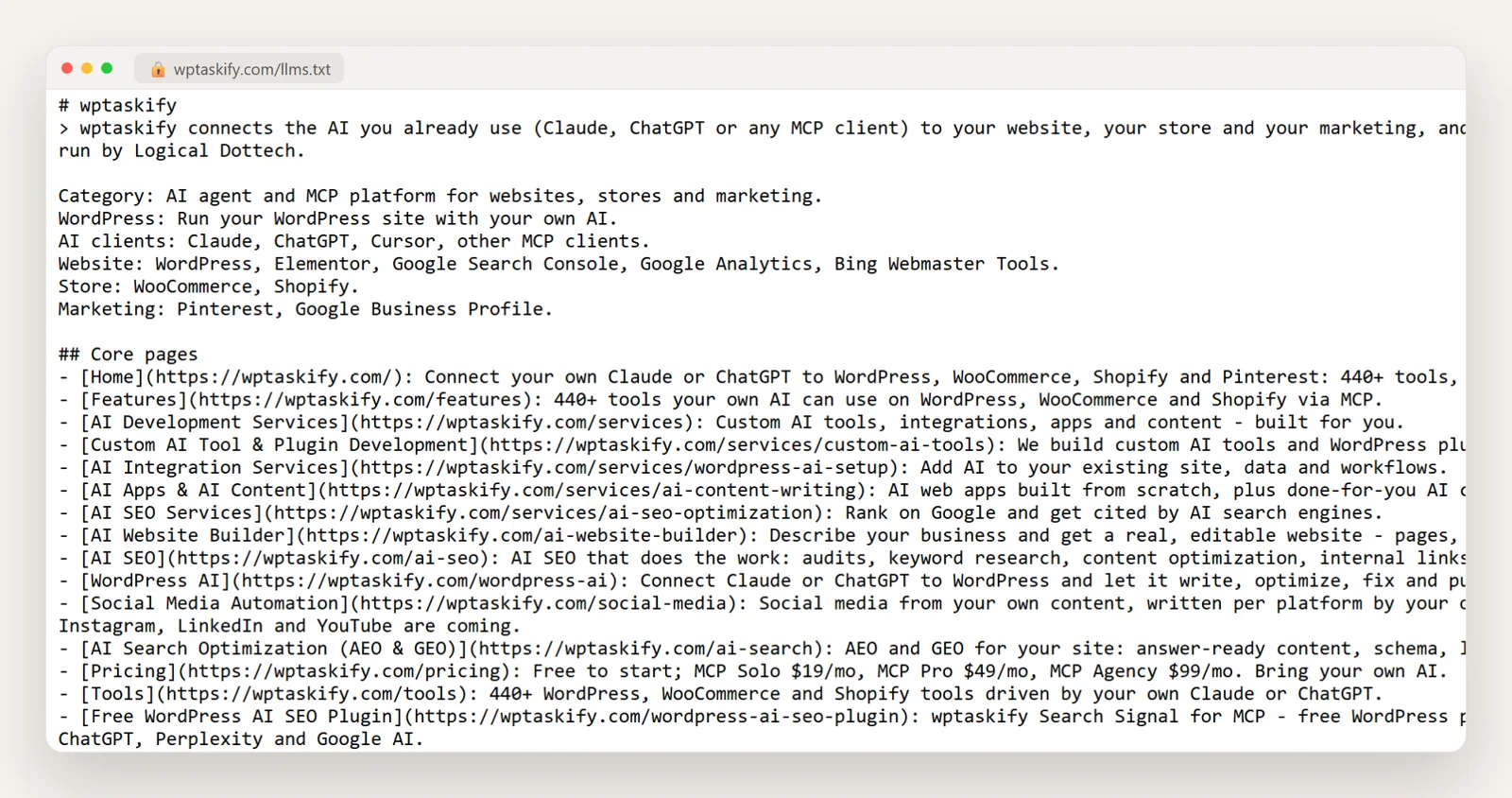
The best way to understand the format is to read a few. Here are two real files.
A software company. Our own file at wptaskify.com/llms.txt opens with one sentence on what the product does, then plain facts (category, supported platforms), then core pages, tools and guides, each with a one-line note.
A local business. The file for our demo plumbing site is much shorter: the name, one line with the area and phone number, five service pages, the areas page, About and Contact. That is all a local business needs.
What the good examples share: short notes written for a reader, no keyword lists, and only pages worth reading.
Do ChatGPT, Claude and Google actually read llms.txt?
Honest answer: sometimes, and nobody has promised it helps rankings.
- Google has said its search does not use llms.txt. It will not change your Google rankings.
- AI assistants and agents can read it when they fetch your site, for example when someone asks an assistant to look at your website or a coding agent is pointed at your docs. Several AI companies publish llms.txt files for their own documentation.
- No major AI company has said its answers rank or cite sites because they have an llms.txt.
So treat it as cheap insurance, not a growth hack. It takes ten minutes, it cannot hurt, and when an AI tool does read it, it gets an accurate summary of your business instead of guessing from your menu. The things that move AI citations most are still clear pages, real answers and structured data. See how to get your WordPress content cited by AI.
Option 1: Generate llms.txt automatically with a plugin (free)
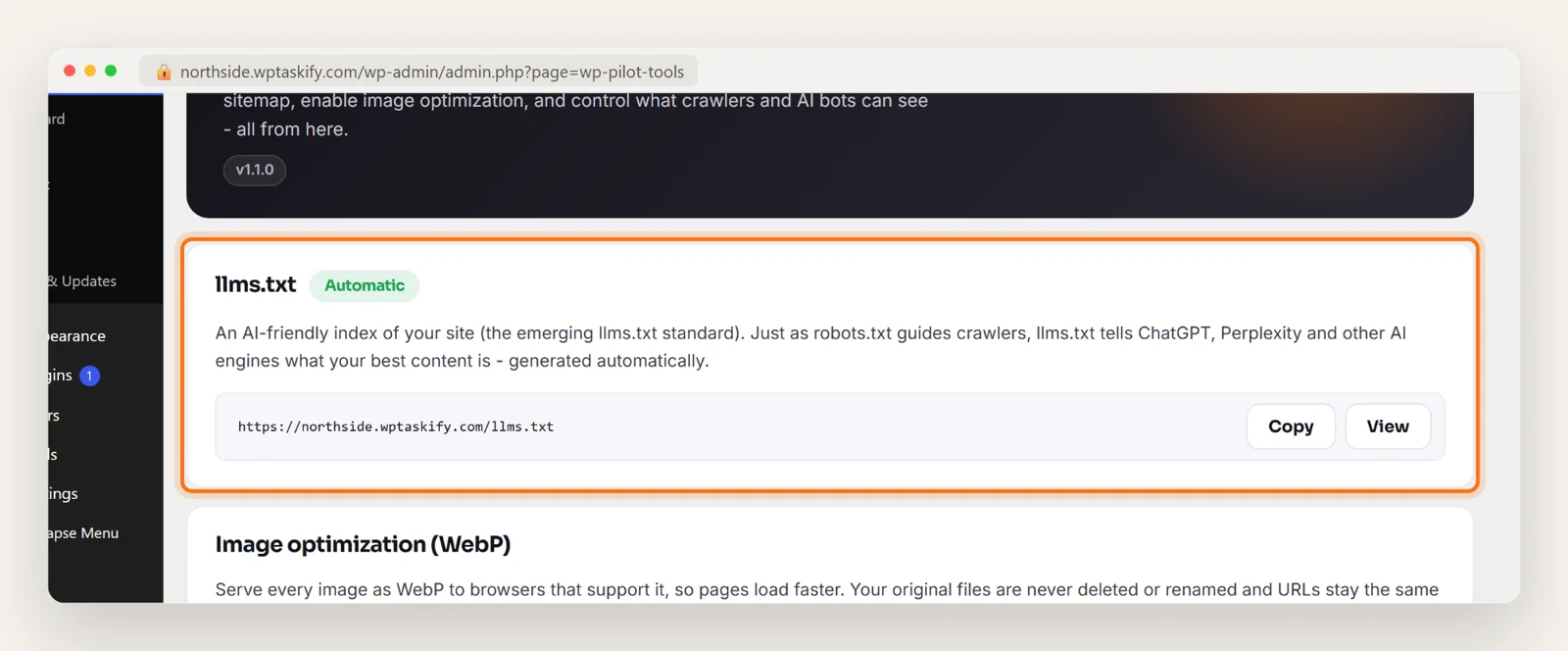
The quickest way on WordPress is a plugin that builds the file from your pages and keeps it up to date. Several SEO plugins now offer this. The free wptaskify Search Signal plugin turns it on automatically: install it, and yoursite.com/llms.txt starts serving a file built from your pages and latest posts, with a short note for each one taken from its content.
You can find it under wptaskify, then Tools, with Copy and View buttons. Nothing to configure.
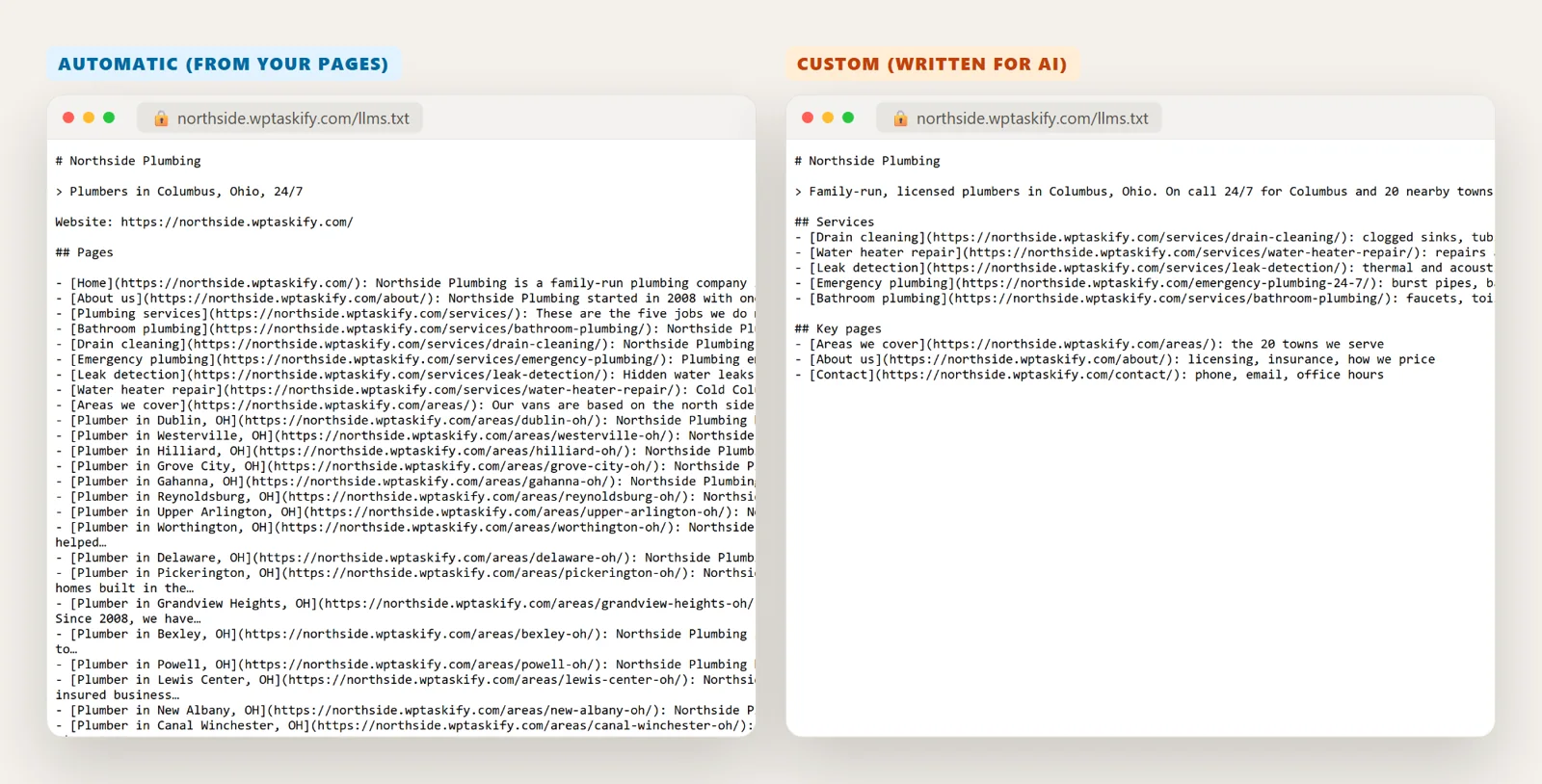
The trade-off: an automatic file lists pages in menu order with the first words of each page as its note. That is a decent start, but it is not as sharp as a file written by someone who knows which pages matter.
Option 2: Write a custom llms.txt (better)
A hand-written file is better because you choose the pages and write the notes. Compare the two versions of the same site below: the automatic one lists everything, while the custom one is short and says exactly what each page answers.
Use this template and fill it in:
# Your Business Name

> One sentence: what you do, for whom, and where.

## Services
- [Service one](https://yoursite.com/service-one/): the problem it solves, price range
- [Service two](https://yoursite.com/service-two/): ...

## Key pages
- [About](https://yoursite.com/about/): who you are, licences, how you work
- [Pricing](https://yoursite.com/pricing/): plans and what is included
- [Contact](https://yoursite.com/contact/): phone, email, hours
To publish it without a plugin, save it as llms.txt and upload it to your site root (the same folder as wp-config.php, often public_html) with your host's File Manager or SFTP. A real file in the root is served before anything WordPress generates.
Option 3: Let your AI write it for you
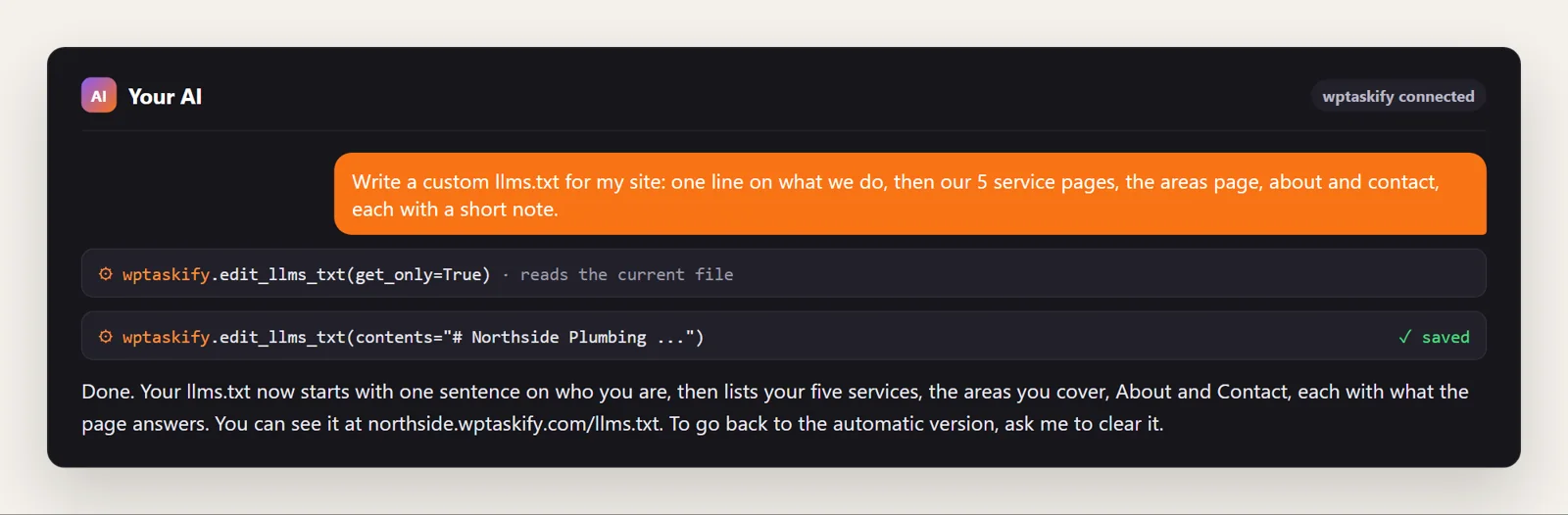
If your WordPress site is connected to Claude or ChatGPT through wptaskify, you can skip the template. Ask in plain words, and your AI reads your real pages and writes the file with the edit_llms_txt tool. It saves it as a custom llms.txt that replaces the automatic one. Ask it to clear the file and the automatic version comes back.
This works best when you tell it what matters: "put the five service pages first", "leave out old blog posts", "mention we cover 20 towns". Editing llms.txt this way needs the wptaskify Pro add-on on a paid plan.
llms.txt for an online store
A store has thousands of product URLs, and listing them all defeats the point. Instead, link to what helps someone decide:
- Your main category pages, with a note on what each range covers.
- Shipping, returns and warranty pages. AI assistants get asked about these constantly.
- Size guides, buying guides and comparison pages.
- A handful of best-selling products at most.
Leave the full product list to your sitemap.
How to check your llms.txt is working
- Open
yoursite.com/llms.txtin a private browser window. You should see plain text, not your theme or a 404 page. - If you get a 404 with a plugin, go to Settings, then Permalinks, and click Save once. That refreshes WordPress's rewrite rules.
- If you see an old version, clear your caching plugin and CDN cache.
- Check every link in it opens a real page, and update the file when you add or remove important pages.