How to use this WordPress SEO checklist
This list is ordered by what breaks rankings most often, not by what sounds clever. The first group can make your whole site invisible to Google, so start there. The checks inside each group take a few minutes each.
Every screenshot comes from a real WordPress site we set up for testing: a local plumbing business with 131 pages. If you want the bigger picture of how AI fits into WordPress SEO, read the complete guide to AI SEO for WordPress. This page is the checklist.
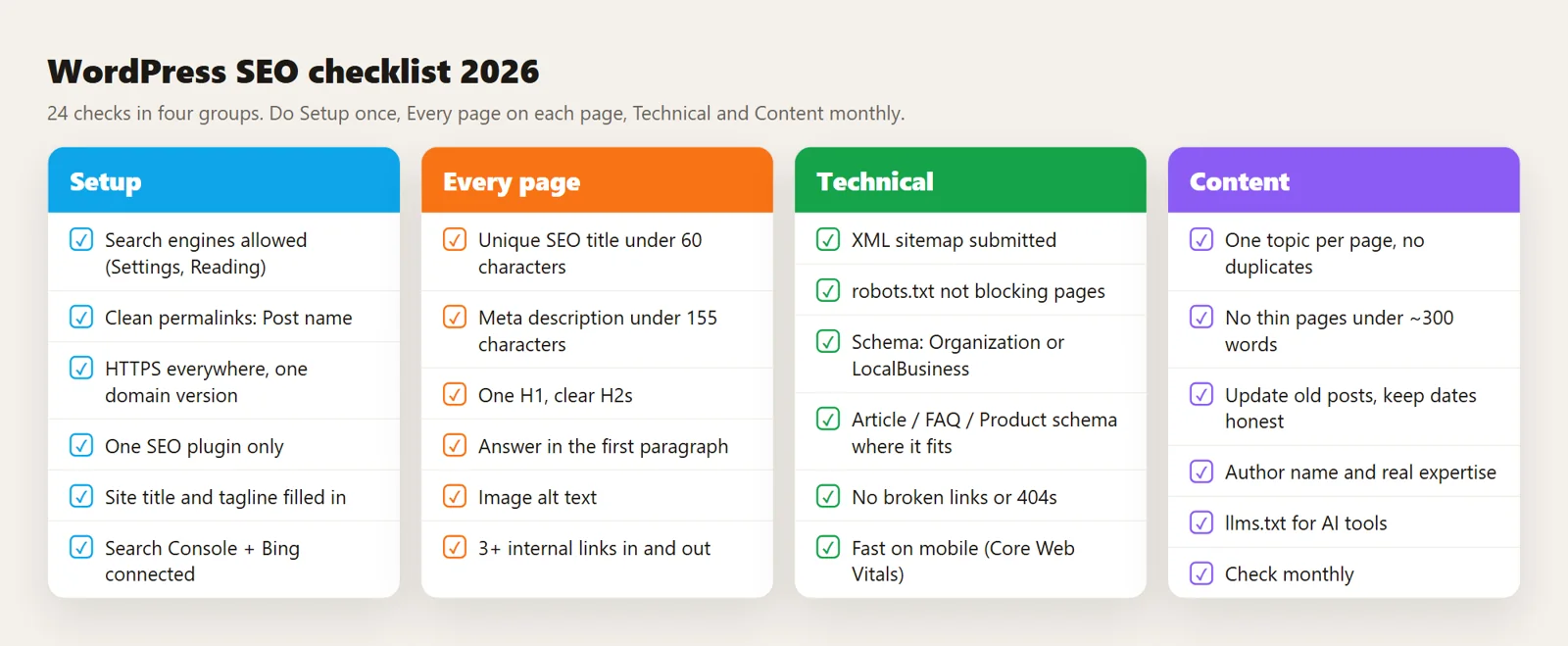
Setup checks (do these once)
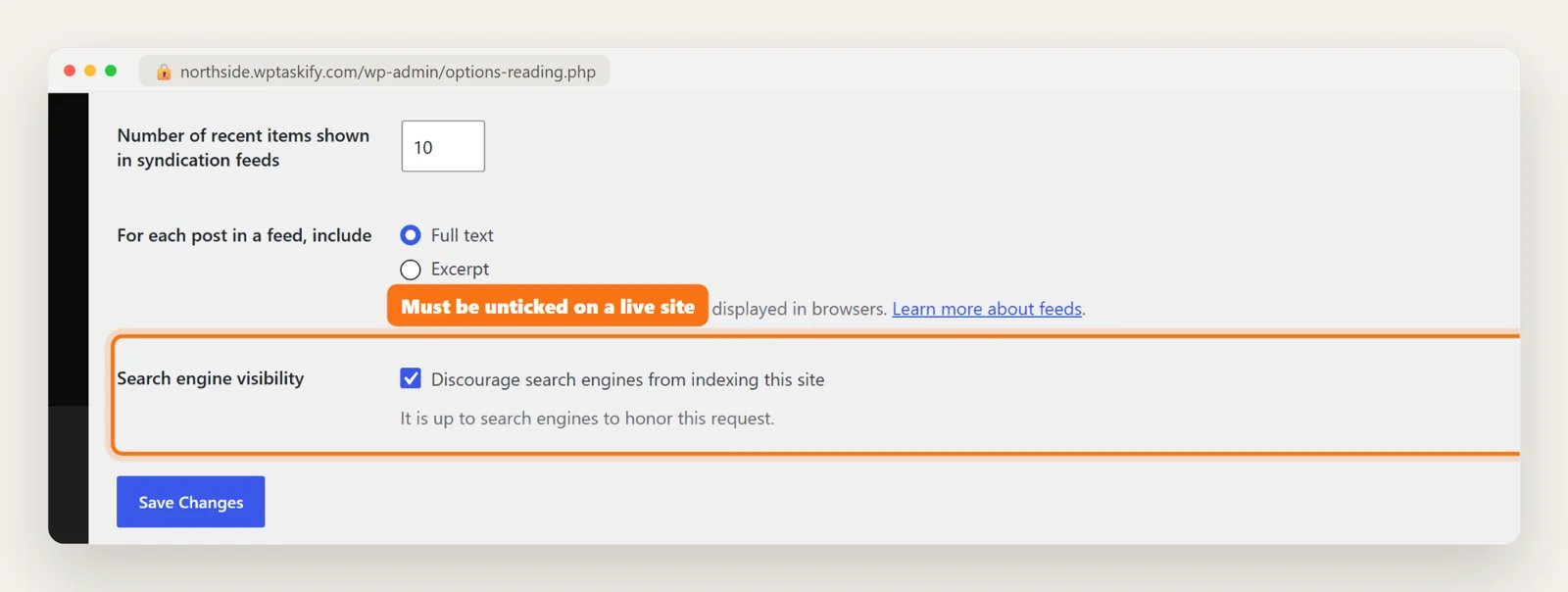
- Search engines are allowed. Go to Settings, then Reading. "Discourage search engines from indexing this site" must be unticked on a live site. It is often left ticked after a site is built, and it quietly keeps the whole site out of Google.
- Clean permalinks. Settings, then Permalinks, then "Post name", so URLs read
/drain-cleaning/, not/?p=123. Change this on a new site only, or set up redirects, because it changes every URL. - HTTPS and one domain version. Your site should load on https, and both
wwwand non-www should end up at the same address. - One SEO plugin only. Two SEO plugins print two sets of titles and schema. Pick one, or switch one plugin's output off.
- Site title and tagline. Settings, then General. Many themes and plugins use these in titles and search results.
- Google Search Console and Bing Webmaster Tools connected, with your sitemap submitted. Without them you cannot see what Google sees.
Site title, tagline and one SEO plugin
Two setup checks deserve a closer look because they are easy to miss.
Title and tagline: write the tagline the way a customer would describe you, with what you do and where, such as "Plumbers in Columbus, Ohio, 24/7". Leave the default "Just another WordPress site" and it can end up in search results.
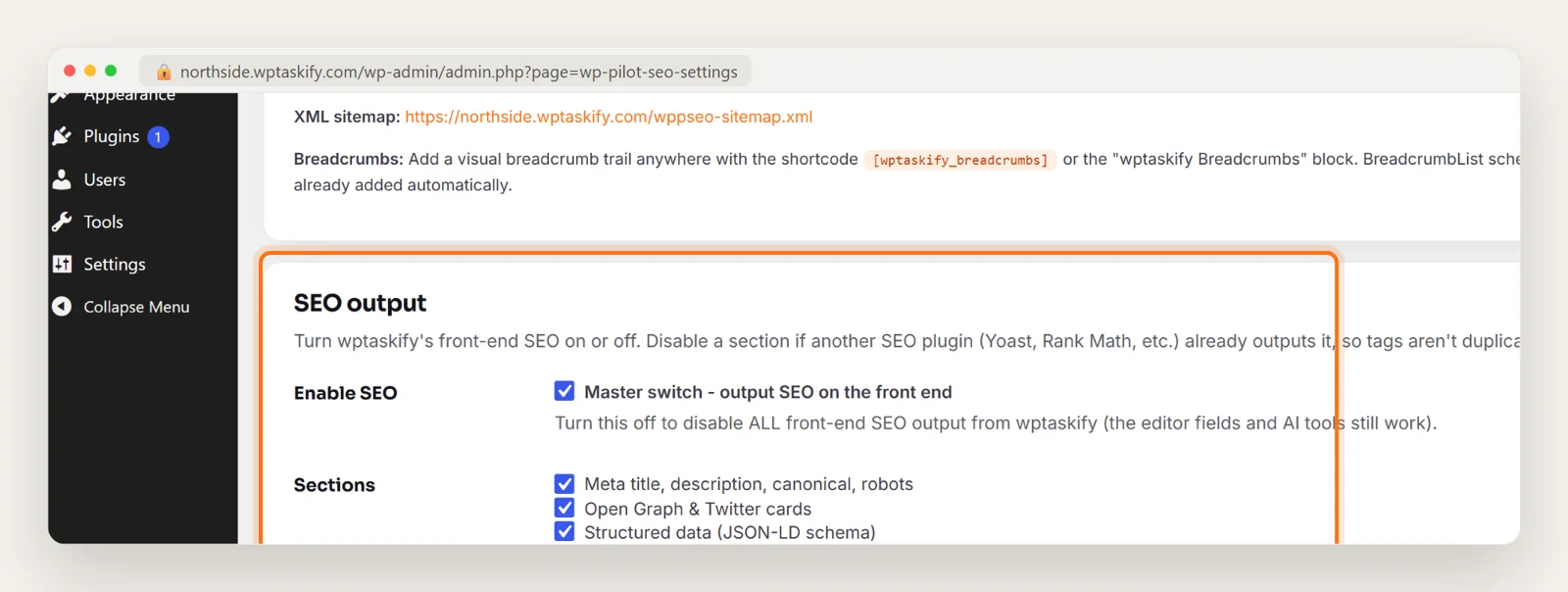
One SEO plugin: if you run two, turn one plugin's front-end output off. Most SEO plugins have a switch for this. In the free wptaskify plugin it is under wptaskify, then SEO, then SEO output, with separate switches for meta tags, social tags, schema and the AI answer block.
Every page: title, meta description and headings
- A unique SEO title under about 60 characters, with the main topic near the start. No two pages should share a title.
- A meta description under about 155 characters. Google does not rank on it, but it often shows it in results, so it decides whether people click.
- One H1 (usually the page title) and clear H2s that read like the questions people ask.
- The answer in the first paragraph. Searchers and AI tools both look for it there.
To check what Google actually receives, open the page, right-click, choose View Page Source, and search for <title>, description, canonical and ld+json.
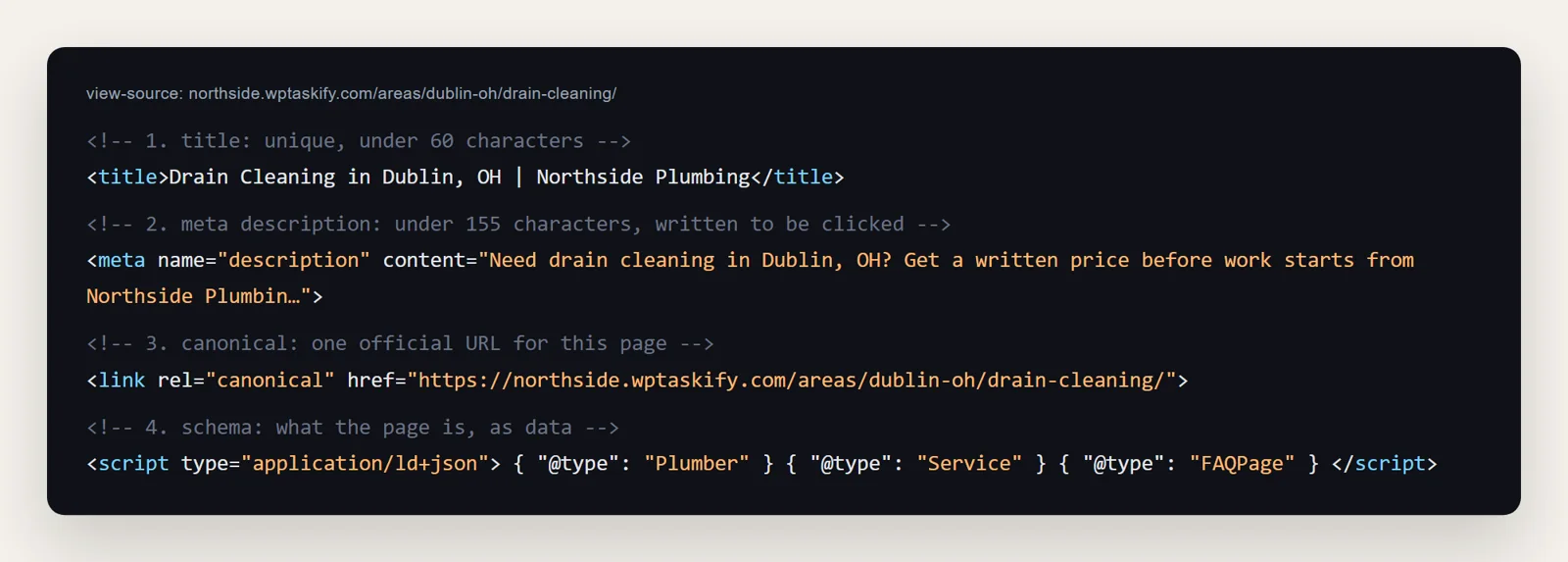
How to add a meta description in WordPress
WordPress has no meta description field by default. You add one with an SEO plugin:
- Install an SEO plugin (any of the popular ones, or the free wptaskify plugin).
- Edit the page or post. Scroll below the editor to the plugin's SEO box.
- Fill in the SEO title and meta description, then click Update.
- View the page source to confirm the new
<meta name="description">is there.
On a big site, writing these one by one takes days. That is the kind of job worth handing to AI, with a human check before anything goes live (see the last section).
Every page: alt text and internal links
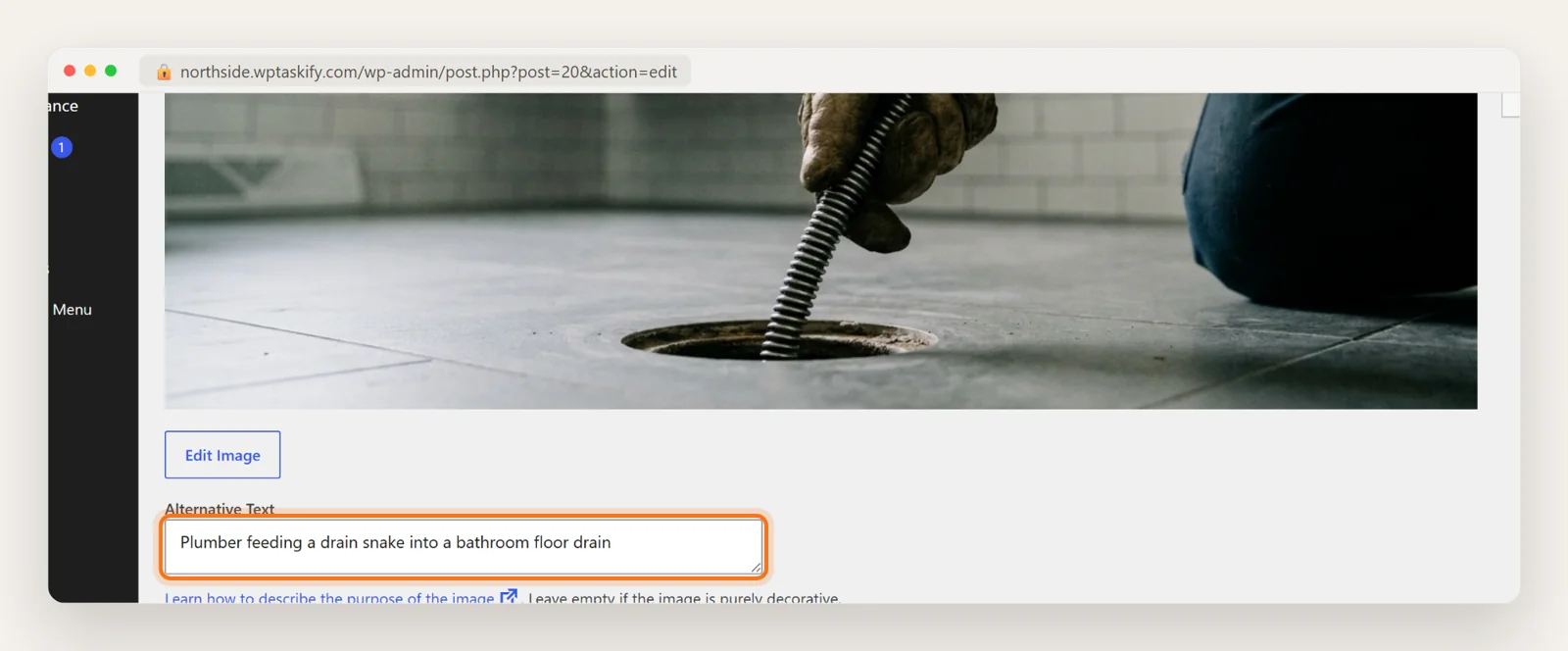
- Alt text on every meaningful image. In the Media Library, open the image and fill in Alternative Text with what the picture shows, in plain words. Leave it empty only for decorative images.
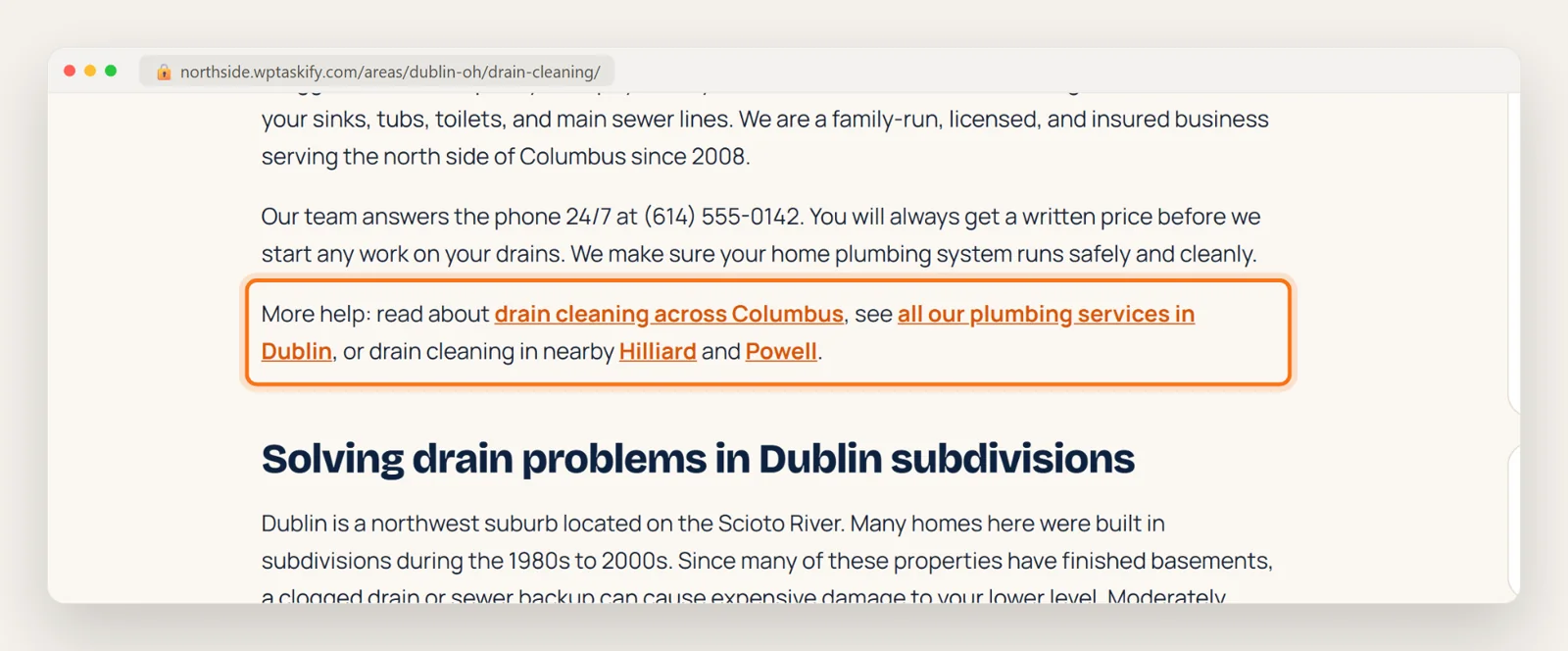
- Three or more internal links in and out. Every page should link to related pages, and be linked from them. A page nothing links to is hard for Google to find and rank.
What internal links look like on a real page
Internal links work best inside the text, with words that describe the page you are linking to. "Drain cleaning across Columbus" tells a reader and Google far more than "click here". Link down to detail pages, up to hub pages, and across to related ones.
Technical checks (monthly)
- XML sitemap exists, lists only pages you want indexed, and is submitted in Search Console.
- robots.txt is not blocking pages or folders you want in Google. Open
yoursite.com/robots.txtand read it. - Organization or LocalBusiness schema on the site, with your real name, phone and address.
- Article, FAQ or Product schema where it fits the page.
- No broken links or 404s. Fix or redirect them.
- Fast on mobile. Test key pages in Google PageSpeed Insights and fix the largest problems it lists first.
Content checks (monthly)
- One topic per page. Two pages chasing the same search compete with each other. Merge them or give each a clearly different topic.
- No thin pages. Pages with a few lines of text rarely rank. Expand them with real, specific detail, or merge them.
- Update old posts, and keep dates honest. Change the "updated" date only when the content really changed.
- A real author and real expertise shown on the page: who wrote it and why they know.
- llms.txt for AI tools. A short map of your best pages for AI assistants. See what llms.txt is and how to add one to WordPress.
- Repeat monthly. SEO drifts: plugins change output, pages get added, links break.
What about WordPress SEO keywords?
Many people look for a "keywords" field in WordPress. Here is the short version: Google ignores the meta keywords tag, so filling one in does nothing for rankings.
What works instead:
- Pick one main search phrase per page, the words a customer would type.
- Use it in the SEO title, the H1, the URL and the first paragraph, written naturally.
- Cover the related questions people ask in H2s, instead of repeating the phrase.
- Never target the same main phrase on two pages.
Keyword tools such as Semrush or Google Keyword Planner show how many people search each phrase and how hard it is to rank.
Run this whole checklist with your AI
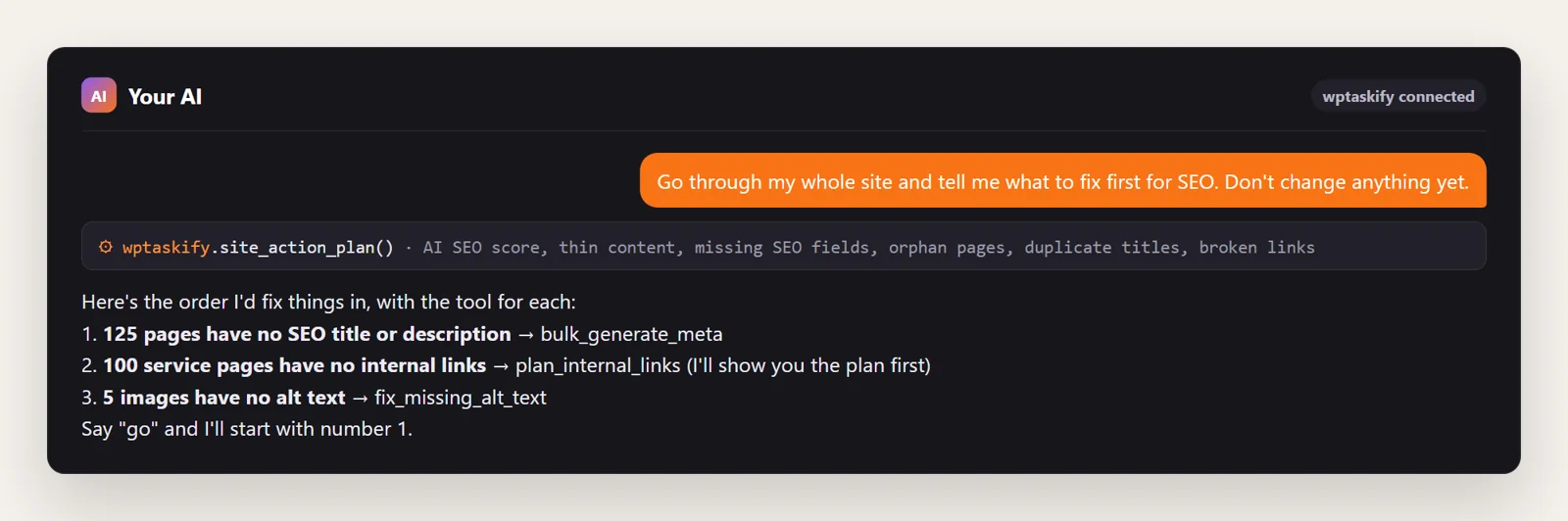
Checking 24 things across hundreds of pages by hand is where most site owners give up. If your WordPress site is connected to Claude or ChatGPT through wptaskify, you can ask for an audit in one sentence. The site_action_plan tool runs the audits (SEO score, thin content, missing SEO fields, orphan pages, duplicate titles, broken links) and returns a ranked list of what to fix first, with the tool for each fix.
Nothing changes until you say so, and bulk or risky changes wait in your approval inbox.