
What a redirect does, and when you need one
A redirect sends anyone who opens an old URL to a new one, automatically. Without it, people following an old link, a bookmark or a Google result land on a 404 page, and the links other sites gave you stop counting for anything.
You need a redirect when you:
- change a page's slug (its address),
- merge two pages into one, or delete a page that has a close replacement,
- restructure the site, for example moving services under
/services/, - move to a new domain or from http to https.
301, 302, 307, 308 or 410: which one to use
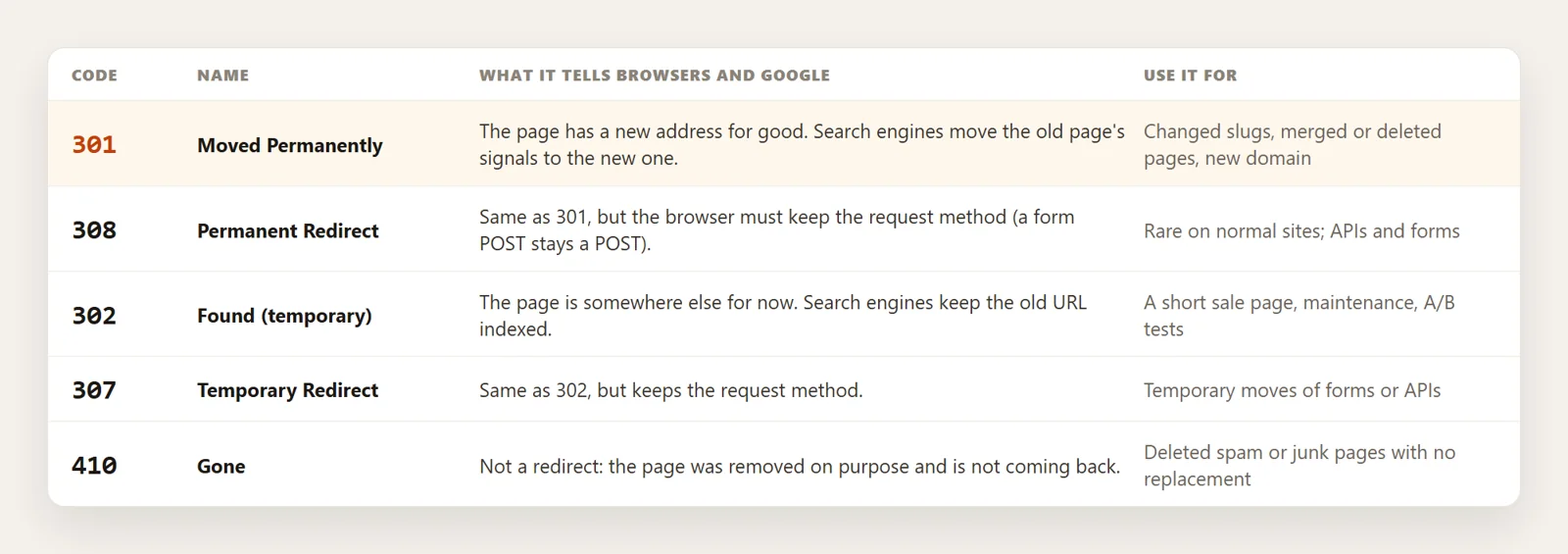
For almost every WordPress job, the answer is 301. Use 302 only when the move really is temporary and the old page is coming back.
What WordPress already does on its own
WordPress has one built-in redirect: when you change the slug of a published post, it remembers the old slug and sends visitors to the new address. It does not do this for pages, and it does not handle deleted content, merged pages or custom paths. That is why most sites need a redirect plugin.
Method 1: Redirect a page with the Redirection plugin
Redirection is free, has been around for years, and is the plugin we use in this guide. After installing it, run its short setup, then:
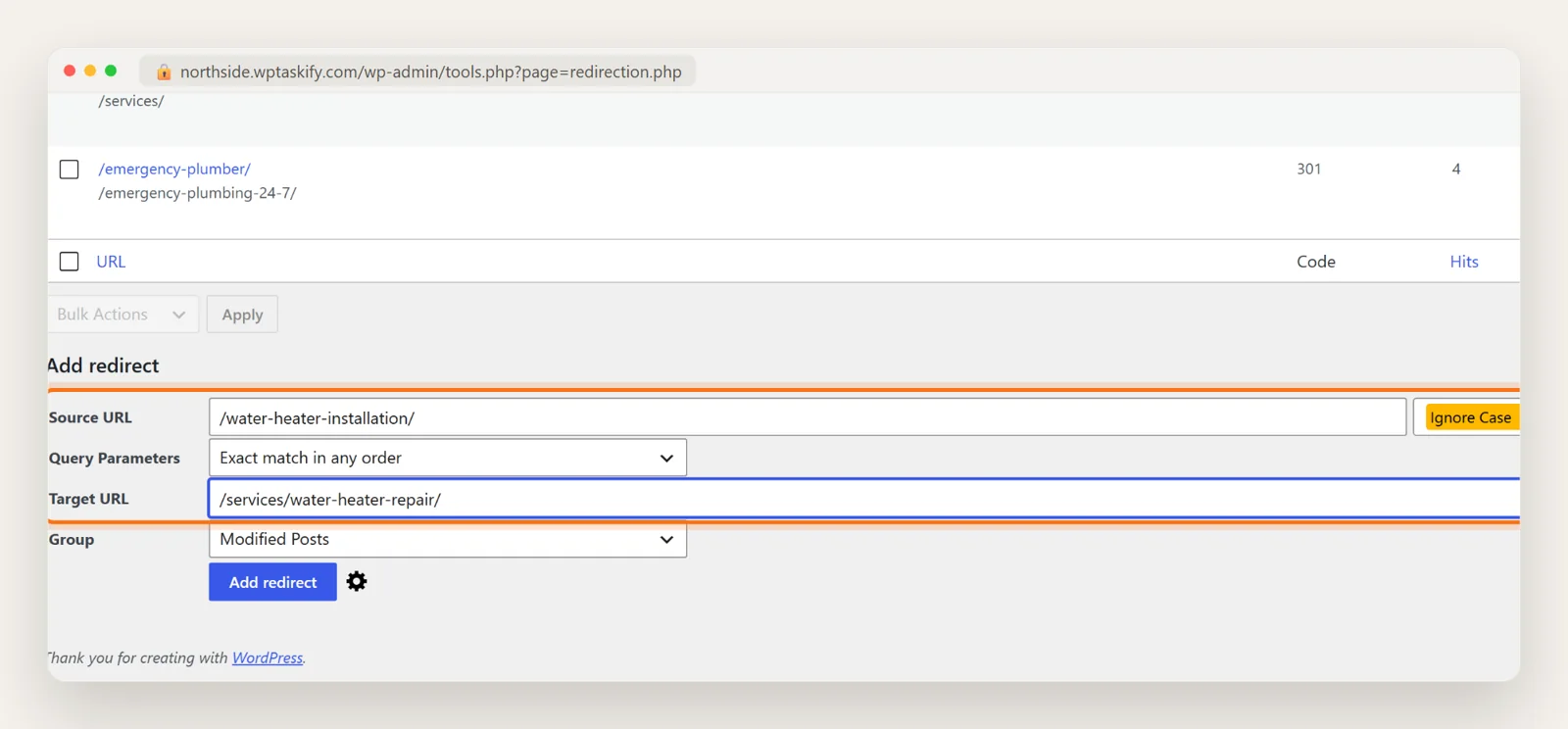
- Go to Tools, then Redirection.
- Under Add redirect, type the old path in Source URL, starting with a slash, for example
/water-heater-installation/. - Type the new page in Target URL. It suggests your pages as you type.
- Click Add redirect. The default is a 301.
Your redirects, with hit counts
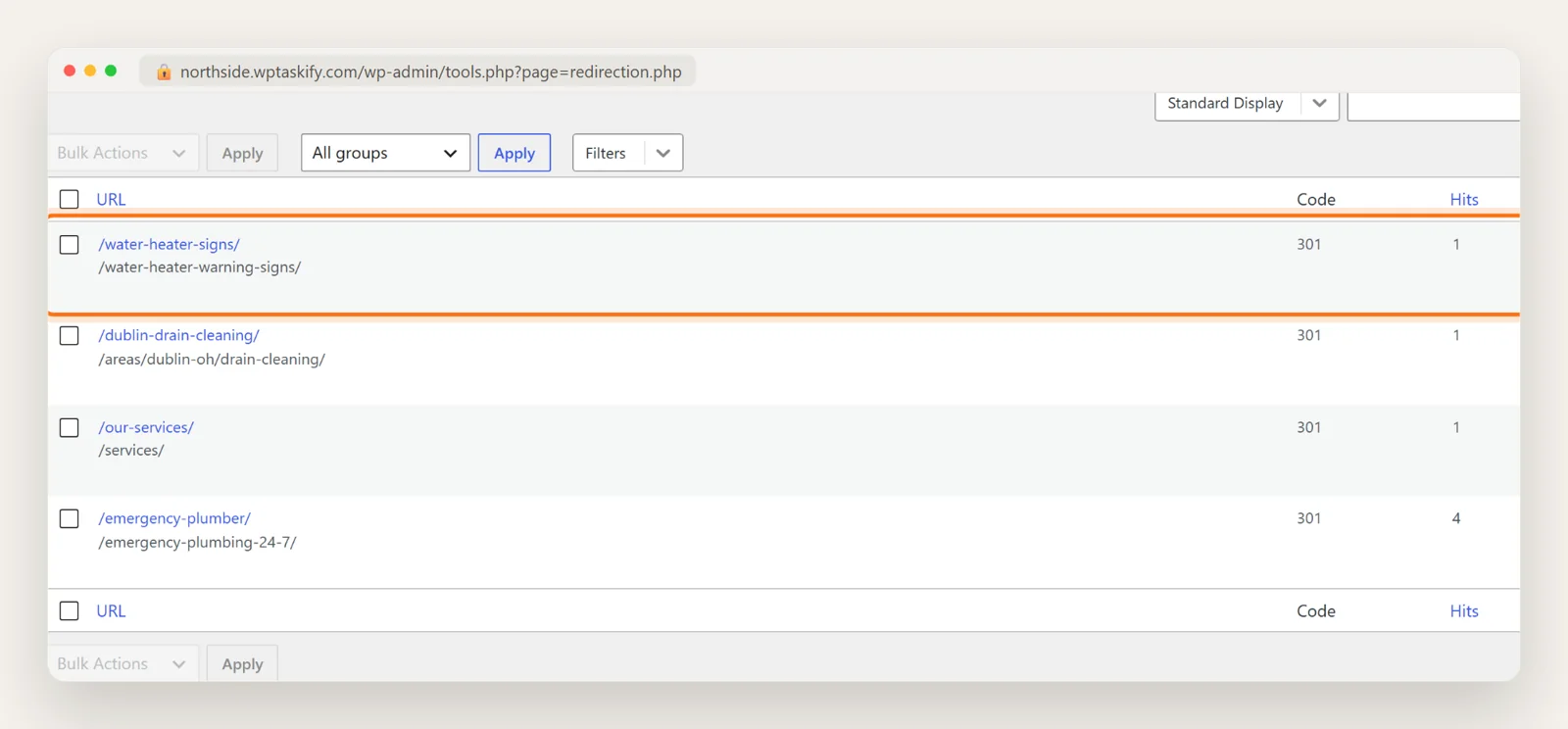
Every redirect shows up in one list with its code, how many times it has been used and when. The hit count tells you which old URLs still get traffic. A redirect that has had zero hits for a long time is usually safe to remove, but keep permanent redirects for at least a year, as Google recommends.
Create redirects automatically when you change a slug
Redirection can watch your posts and pages and add a redirect every time a slug changes. Turn it on under Tools, then Redirection, then Options, then URL Monitor, and pick posts and pages.
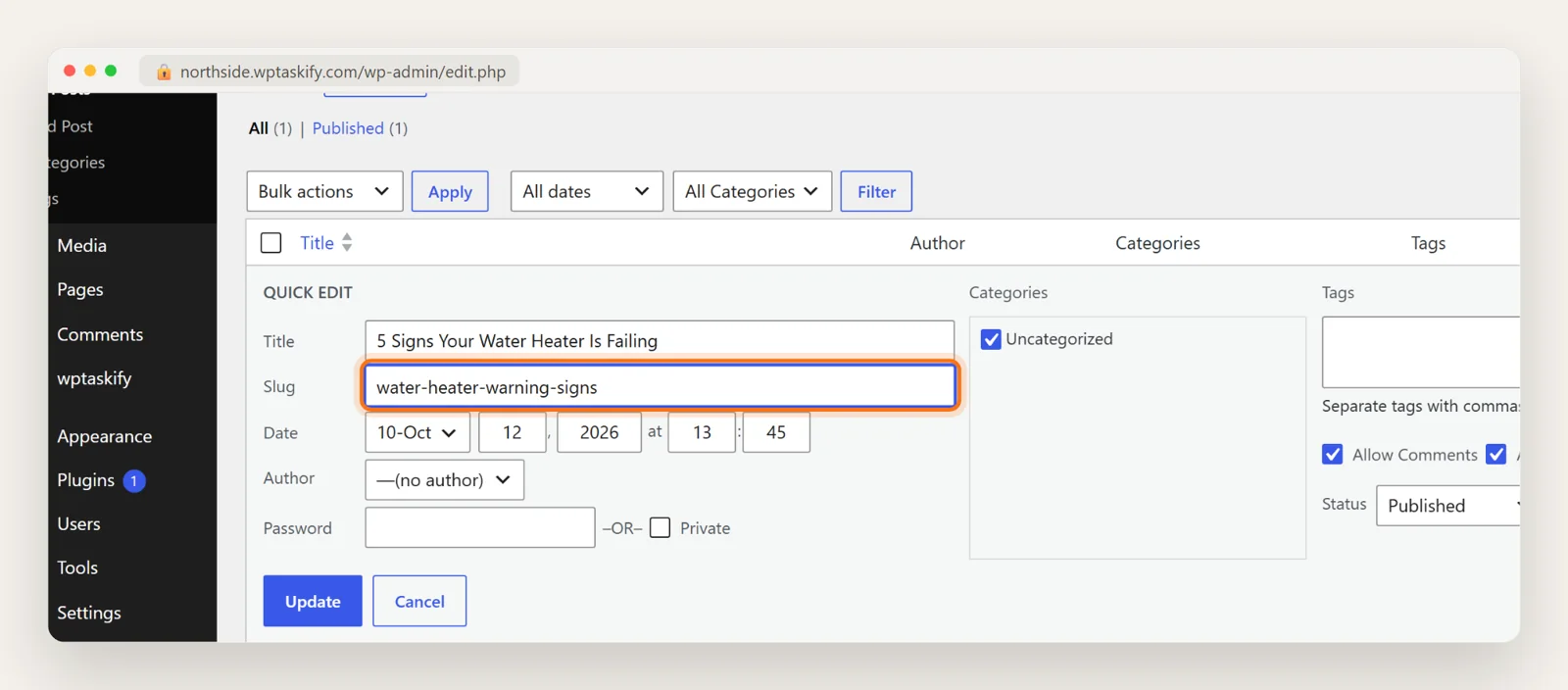
On our test site we changed a post's slug from water-heater-signs to water-heater-warning-signs with Quick Edit. The plugin added the 301 from the old address to the new one by itself, in a group called Modified Posts. This matters most for pages, which WordPress does not redirect on its own.
Find the 404s worth redirecting
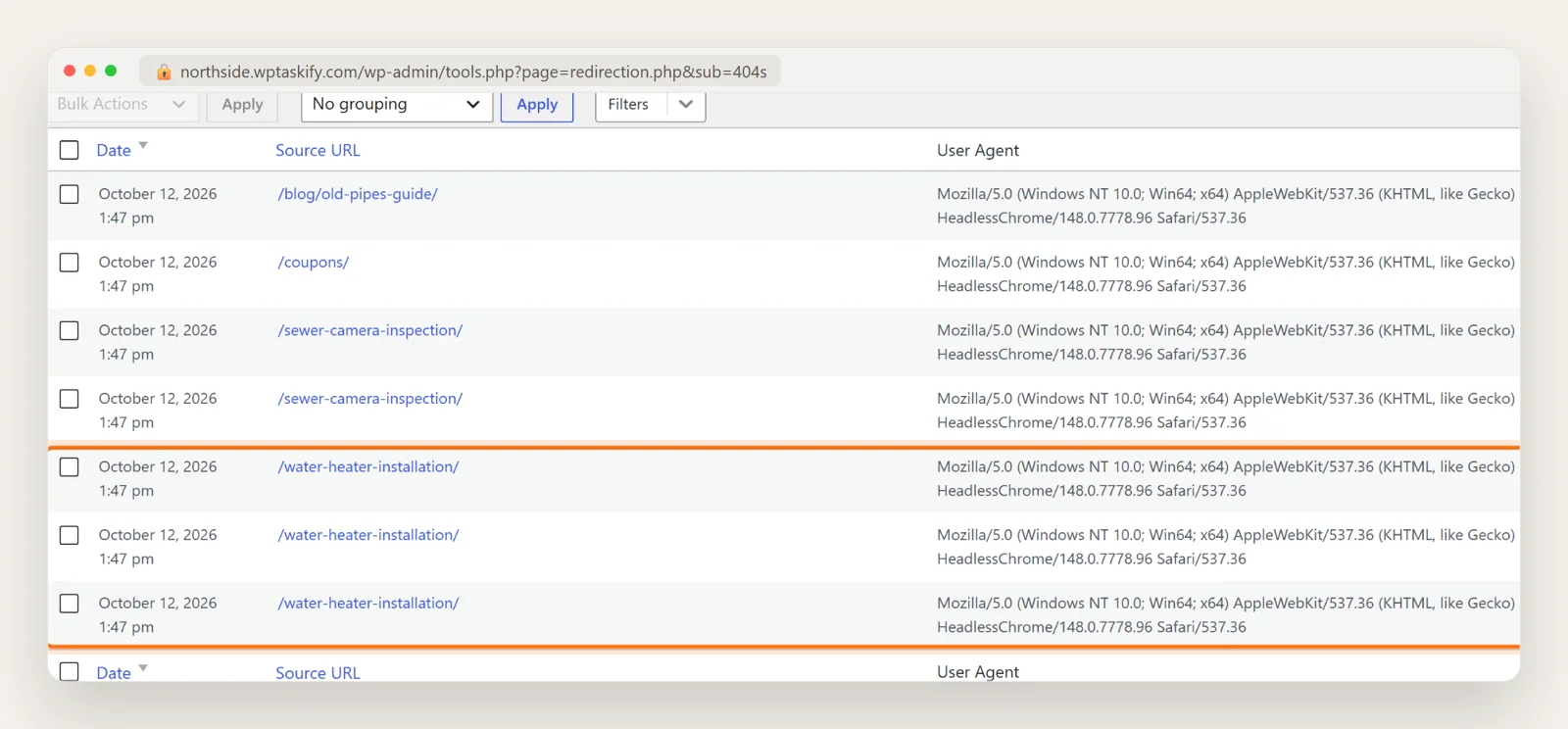
Redirects are not only for pages you move yourself. Old links on other sites, typos and pages from a previous version of your site all end in 404 errors. Redirection keeps a log of them under Tools, then Redirection, then 404s.
Look for URLs that repeat. On our test site, /water-heater-installation/ was hit three times: real people looking for a page that does not exist, and we have a close match, so it gets a redirect. Not every 404 deserves one. Random paths from bots (/coupons/ here) can be ignored. Do not send every 404 to the home page: Google treats that like a 404 anyway, and visitors are confused.
Method 2: Redirect with .htaccess (no plugin)
On Apache and LiteSpeed hosting, you can add redirects to the .htaccess file in your site's root folder, above the # BEGIN WordPress block:
Redirect 301 /old-page/ https://example.com/new-page/These run before WordPress loads, so they are fast. The downsides: one typo can take the whole site down with a 500 error, there are no hit counts, and nothing warns you about loops. Download a copy of the file first, and take a backup before editing it. On Nginx hosting there is no .htaccess; your host adds a return 301 rule to the server config.
Method 3: Ask your AI to fix 404s with redirects
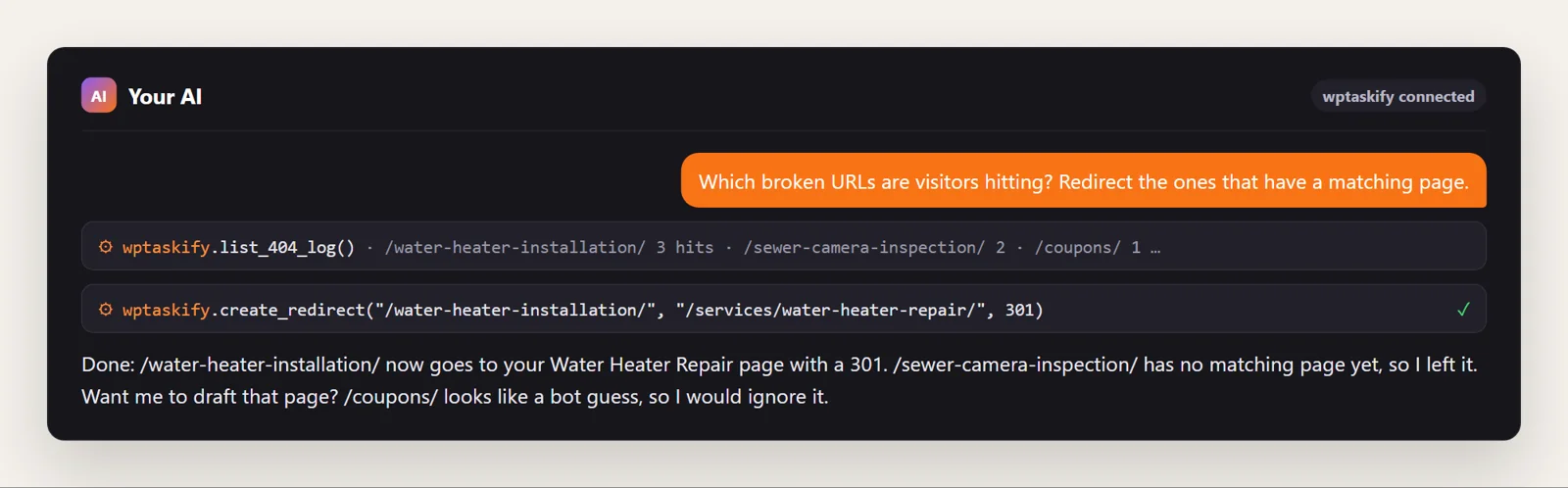
If your site is connected to Claude or ChatGPT through wptaskify, you can hand this job over in one sentence. list_404_log reads the Redirection 404 log, create_redirect adds a 301 (or another code you name), and list_redirects and delete_redirect help clean up duplicates. These tools work through the Redirection plugin, so it needs to be installed, and creating redirects needs a paid plan. There is also a free redirect tool page.
How to check that a redirect works
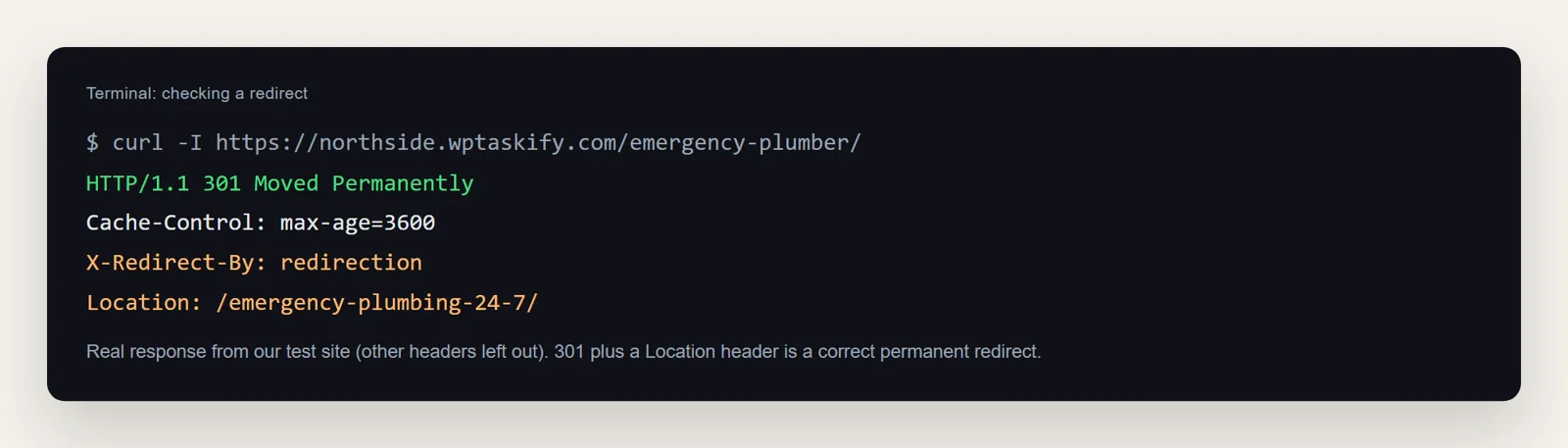
Open the old URL in a private window: you should land on the new page. To see the code, use your browser's developer tools (Network tab) or any HTTP header checker, or run curl -I with the old URL. You want 301 Moved Permanently and a Location header with the new address.
Common redirect mistakes
- Chains. A goes to B, B goes to C. Point A straight at C. Each extra hop slows visitors down.
- Loops. A goes to B and B goes back to A. The browser shows "too many redirects". Usually two rules, or a plugin rule fighting an .htaccess rule.
- 302 for a permanent move. Search engines keep the old URL. Switch it to 301.
- Everything to the home page. Redirect to the closest matching page, or let the URL return 404 if nothing matches.
- Internal links still pointing at old URLs. The redirect works, but update your menus and links so they point to the new address directly.
Redirects are one part of site health. See the WordPress SEO checklist for the rest.