
What is a WordPress child theme?
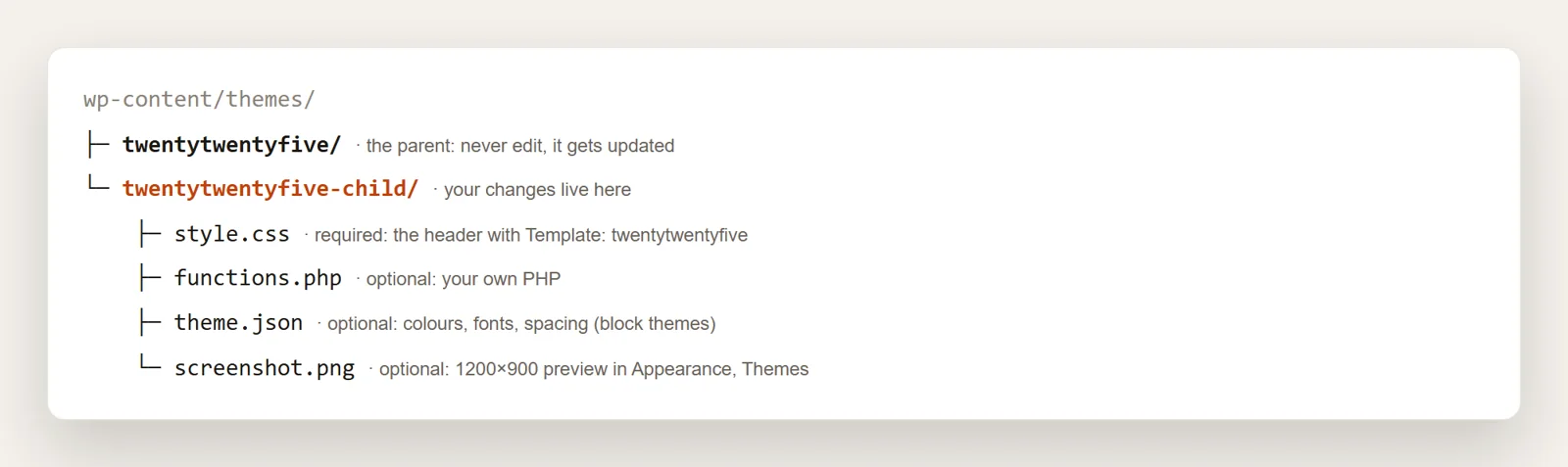
A child theme is a theme that borrows everything (templates, styles, features) from another theme, called the parent, and adds or overrides only what you change.
Why it matters: when the parent theme updates, its files are replaced. Any edit you made directly inside the parent, such as a line in functions.php or a tweak to header.php, is gone. Edits made in a child theme live in a different folder, so the parent can update safely and your changes stay.
Do you actually need a child theme?
Not always. You need one when you change theme files:
- adding code to functions.php,
- editing a template file such as header.php or single.html,
- adding a lot of custom CSS you want to keep in a file.
You usually do not need one when you only use the built-in tools: the Site Editor in block themes (Appearance, then Editor) saves your changes in the database, and the Customizer in classic themes does the same. Those survive theme updates. If all you want is a few lines of CSS, Appearance, then Customize, then Additional CSS is enough.
Step 1: Create the child theme folder
Connect to your site with your host's File Manager or SFTP and open wp-content/themes/. Create a new folder. By convention it is the parent's folder name plus -child, for example twentytwentyfive-child. Use lowercase letters and hyphens, no spaces.
Step 2: Add style.css with the Template line
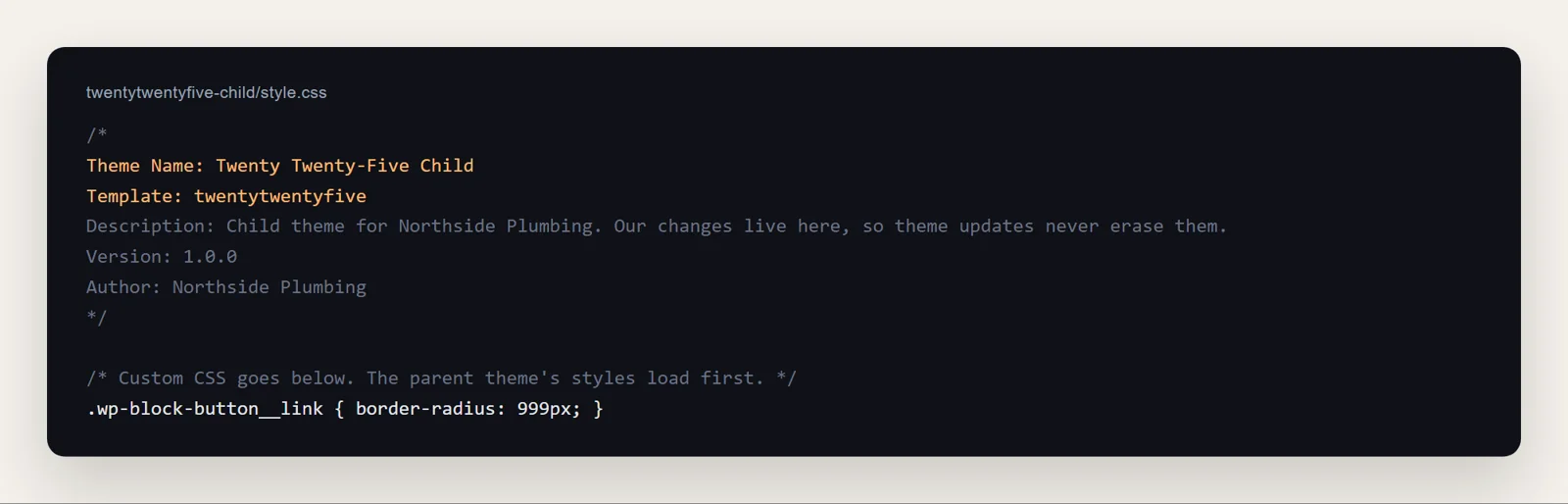
Create a file called style.css in the new folder. The comment at the top is what makes it a child theme. Only two lines are required:
Theme Name:the name shown in Appearance, then Themes.Template:the folder name of the parent theme, exactly as it appears in wp-content/themes. Not its display name:twentytwentyfive, not "Twenty Twenty-Five".
A wrong Template value is the most common reason a child theme shows as "broken" in the themes list. Your own CSS goes below the comment.
Step 3: Add functions.php (optional)
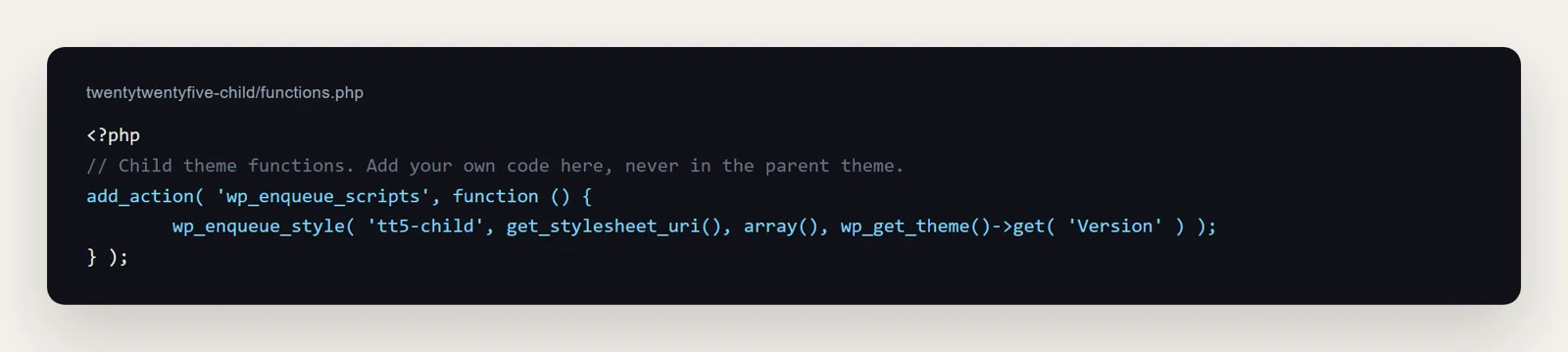
functions.php in a child theme does not replace the parent's: both run, the child's first. Use it for your own code. Make sure the child's stylesheet is actually loaded:
- Block themes (like Twenty Twenty-Five) do not load a child's style.css on their own, so enqueue it, as below.
- Classic themes: also enqueue the parent's stylesheet if the parent does not do it for you:
wp_enqueue_style( 'parent-style', get_template_directory_uri() . '/style.css' );
A PHP mistake in functions.php can take the site down, so keep a backup and see how to fix a critical error if it happens.
Step 4: Add theme.json for a block theme (optional)
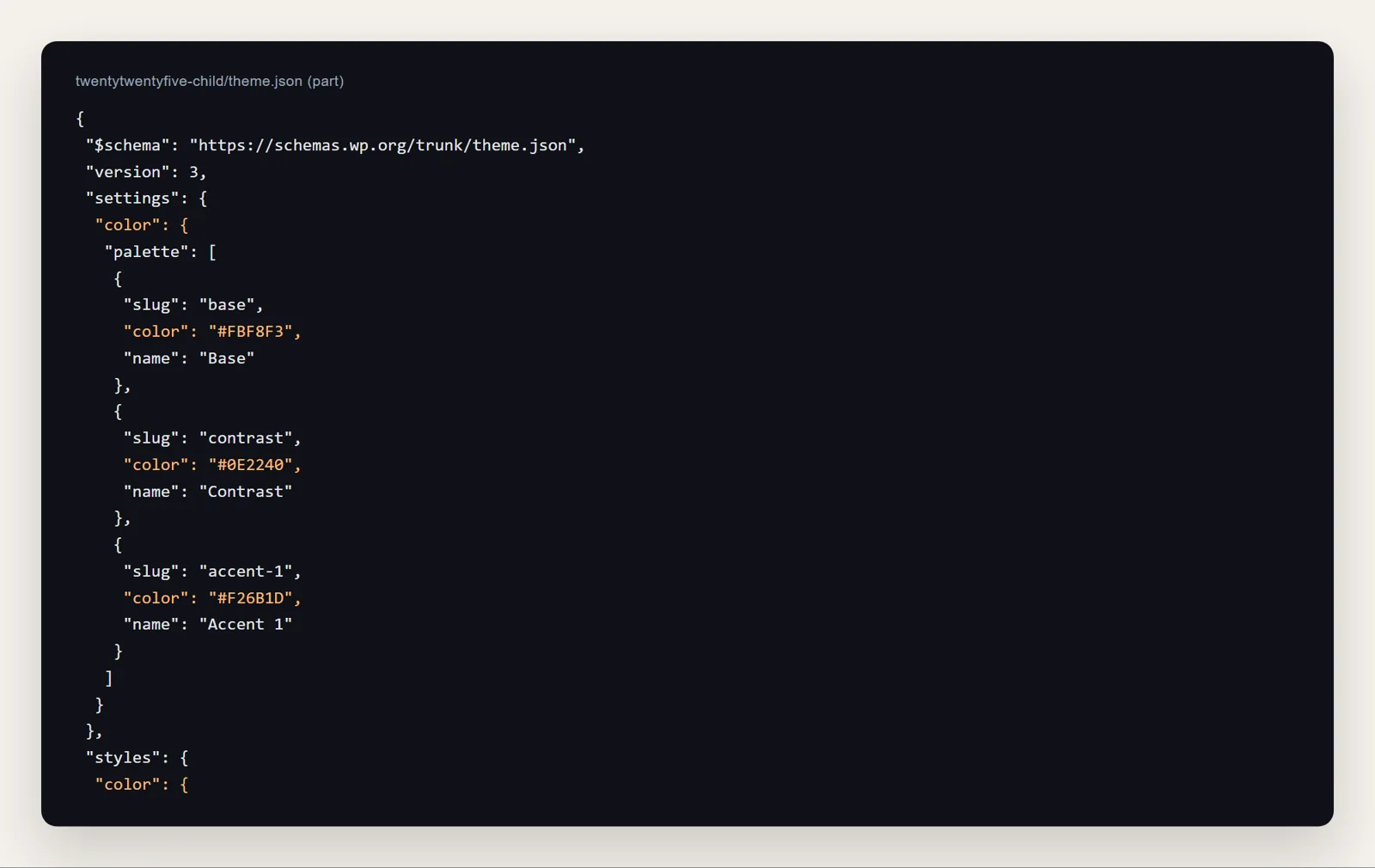
In block themes, colours, fonts and spacing live in theme.json. A child theme's theme.json is merged with the parent's, so you only list what you change. Ours sets a three-colour palette (cream, navy, orange) and uses it for the background, text, links and buttons.
Step 5: Activate it and check it
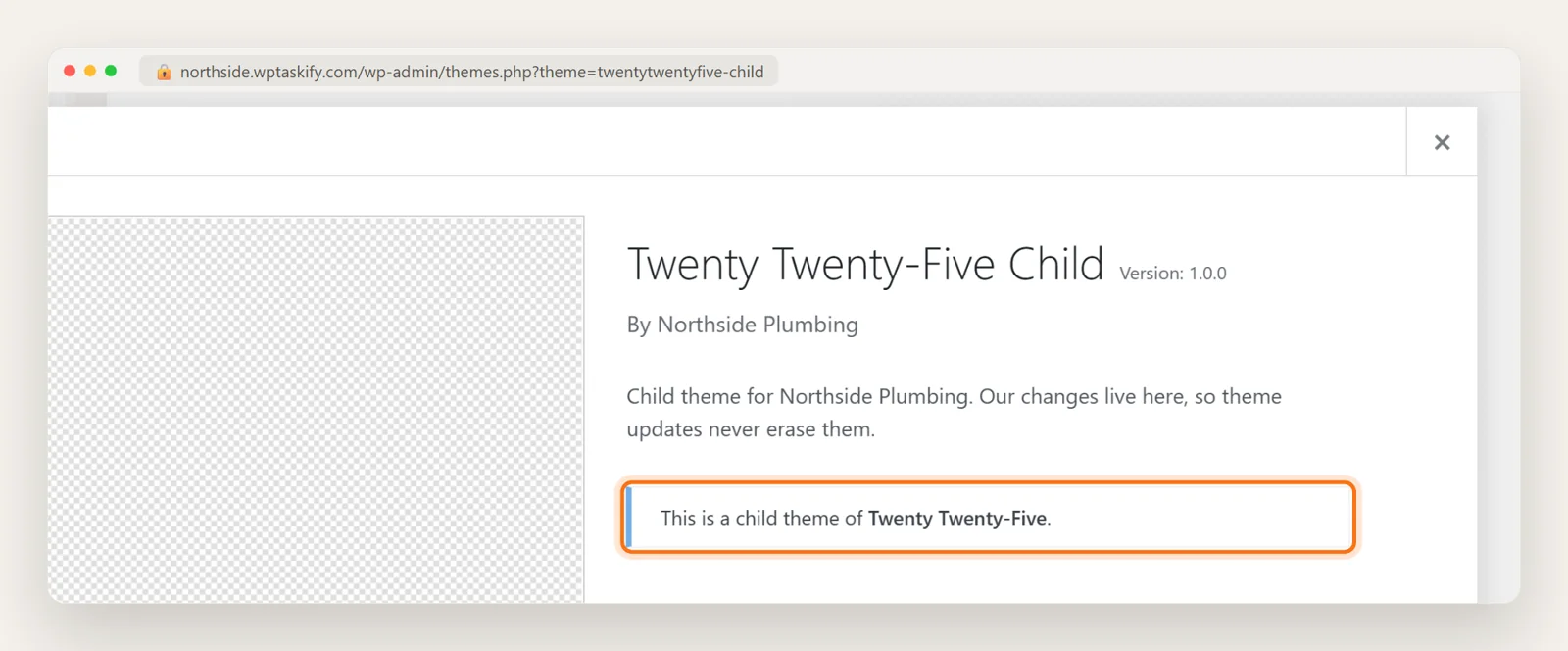
Go to Appearance, then Themes. The child theme appears next to its parent. Click Theme Details: WordPress confirms the link with the line "This is a child theme of Twenty Twenty-Five". Use Live Preview first, then Activate.
Keep the parent installed. A child theme cannot run without it. Add a screenshot.png (1200 by 900 pixels) to the child folder if you want a proper preview instead of the empty checkerboard.
What changes, and what stays the same
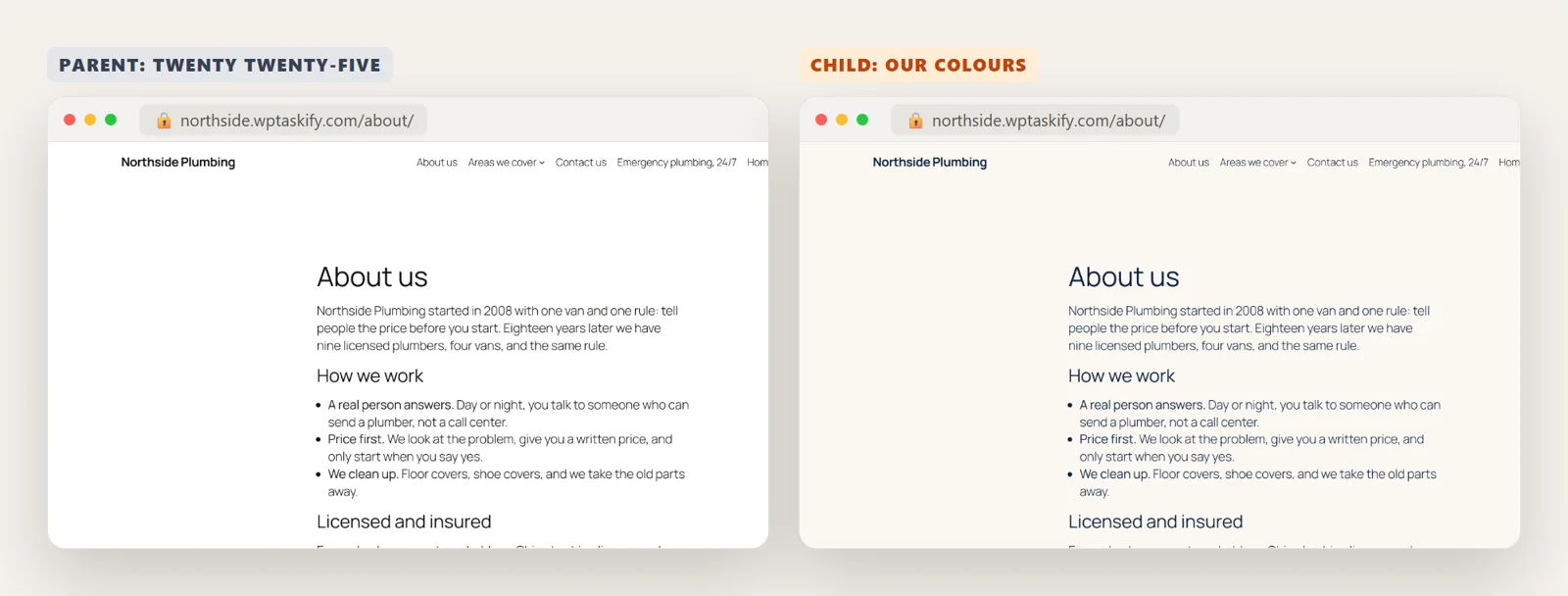
After activating, every page uses the parent's templates and layout, with your overrides on top. On our test site, the only difference is the colours from the child's theme.json: a cream background and navy text. Same content, same layout, and the parent can now update safely.
To change a template, copy that one file from the parent into the same place in the child folder (for example templates/single.html or header.php) and edit the copy. WordPress uses the child's version whenever one exists.
Other ways to create a child theme
- Upload a zip. Zip the child folder, then go to Appearance, then Themes, then Add New, then Upload Theme.
- Create Block Theme plugin. The official plugin from the WordPress team can create a child of the active block theme from inside the Site Editor.
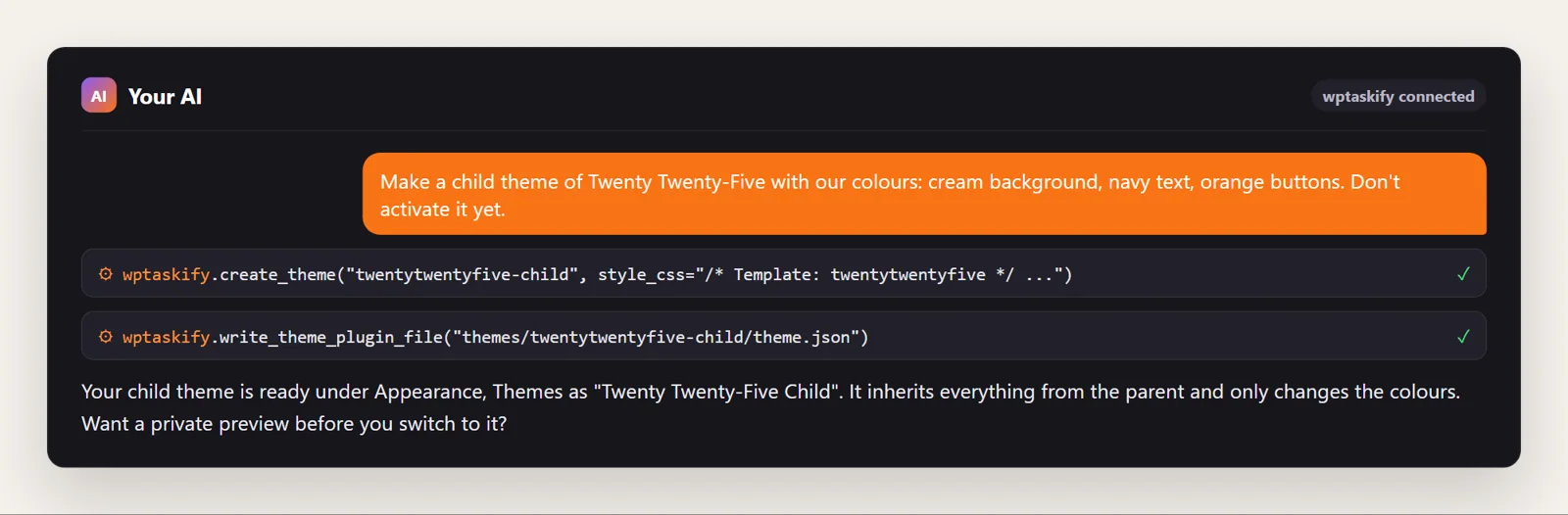
- Ask your AI. If your site is connected to Claude or ChatGPT through wptaskify, describe the child theme you want. The AI writes style.css with the right Template line using
create_theme, adds theme.json or other files withwrite_theme_plugin_file, and can open a private preview before anything goes live. Switching the live theme waits for your approval. This needs the wptaskify Pro add-on on a paid plan.
Common child theme problems
- "The parent theme is missing" or the theme shows as broken: the Template value does not match the parent's folder name exactly.
- The site looks unstyled: the stylesheet is not enqueued. Check functions.php (see Step 3).
- Your CSS does not apply: the parent's rule is more specific, or loads after yours. Make your selector more specific or set the parent style as a dependency.
- Changes vanished after an update: they were made in the parent's files. Move them into the child.