
What a WordPress backup must include
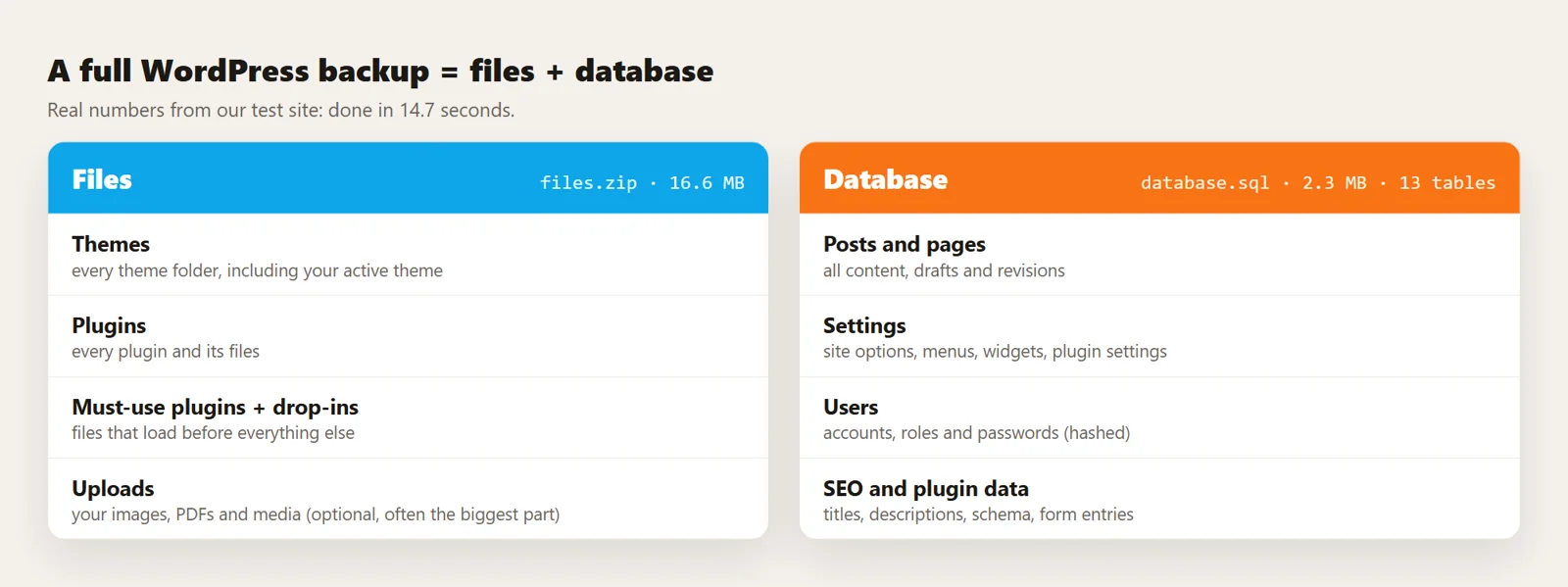
A WordPress site lives in two places, and a backup needs both:
- Files. Mostly the
wp-contentfolder: your themes, plugins, must-use plugins and uploads (images and media). WordPress core files can be downloaded again, so they matter less. Keep a separate copy ofwp-config.php, because it holds your database details. - The database. Every post, page, setting, menu, user, comment and plugin setting. Without it, the files are an empty shell.
On our test site (a plumbing business with 131 pages), a full backup came to a 16.6 MB files archive and a 2.3 MB database file with 13 tables, and took under 15 seconds.
Tools, then Export is not a backup
WordPress has an Export tool under Tools, then Export. It downloads your posts and pages as an XML file, which is useful for moving content to another WordPress site. It does not include your theme, plugins, images, settings, menus or users. If your site breaks, that file will not bring it back.
Method 1: Your hosting company's backups
Most hosts back up sites automatically. Before you rely on it, check three things in your hosting panel:
- How long backups are kept (7 days? 30?).
- Whether you can restore one yourself, and whether it restores files, the database or both.
- Where they are stored. If the backups sit on the same server and the server fails, you lose both.
Host backups are a good safety net. They should not be your only copy.
Method 2: A backup plugin
Backup plugins zip your files, export your database, and can send the copy to cloud storage such as Google Drive, Dropbox or Amazon S3 on a schedule. Look for:
- Files and database in the same backup.
- Off-site storage, not just a folder on your own server.
- A schedule you can set (daily for shops, weekly for most other sites).
- A clear one-click restore, and a way to restore even when wp-admin is down.
Method 3: A manual backup (free, no plugin)
- Download your files. Connect with SFTP (for example FileZilla) or your host's File Manager and download the whole
wp-contentfolder pluswp-config.php. - Export your database. Open phpMyAdmin from your hosting panel, select your site's database, click Export, keep the Quick method and SQL format, and click Export.
- Store both together in a dated folder, and copy it somewhere off the server.
It takes 15 minutes and costs nothing. The weakness is that you have to remember to do it.
Method 4: Ask your AI to back up before every change
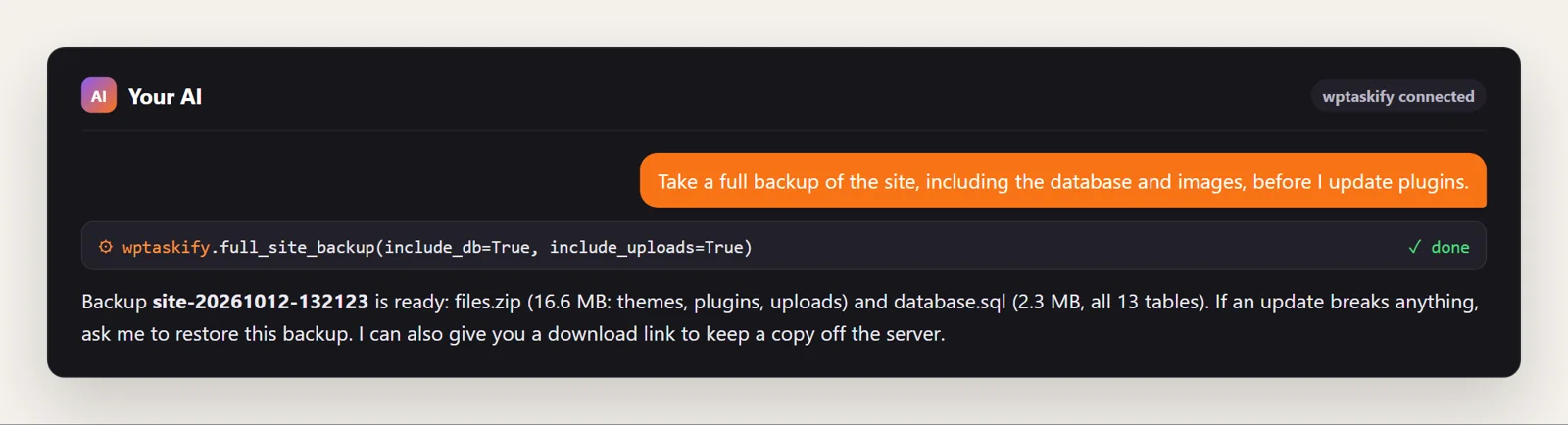
The best time to take a backup is right before you change something: updating plugins, editing the theme, a bulk change. If your WordPress site is connected to Claude or ChatGPT through wptaskify, you can ask for a full backup in one sentence. The full_site_backup tool zips your themes, plugins and (if you ask) uploads, and writes a complete database dump in resumable chunks so it does not time out on large sites.
Full backups need the wptaskify Pro add-on, which is included on paid plans.
What a real backup looks like
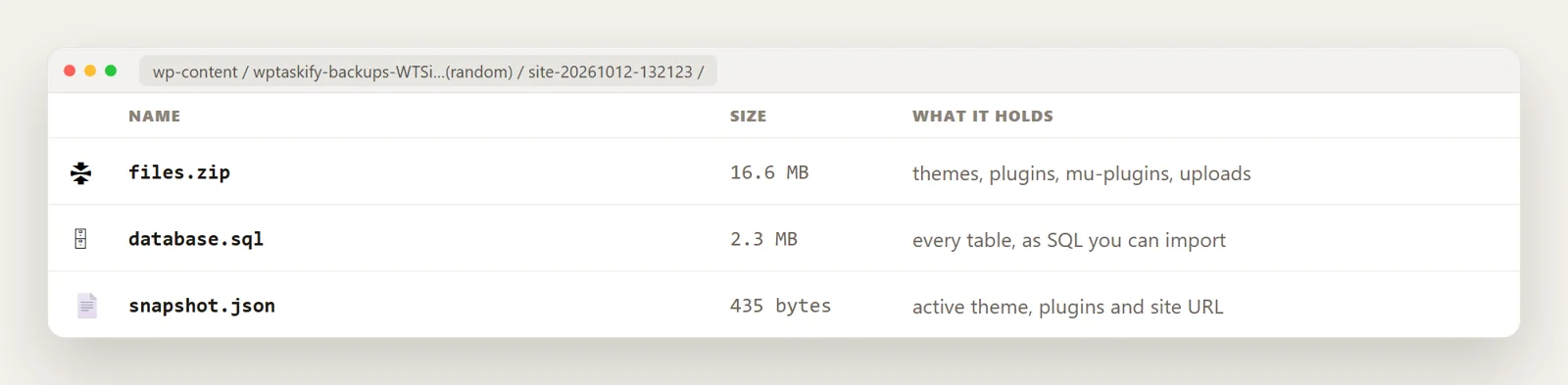
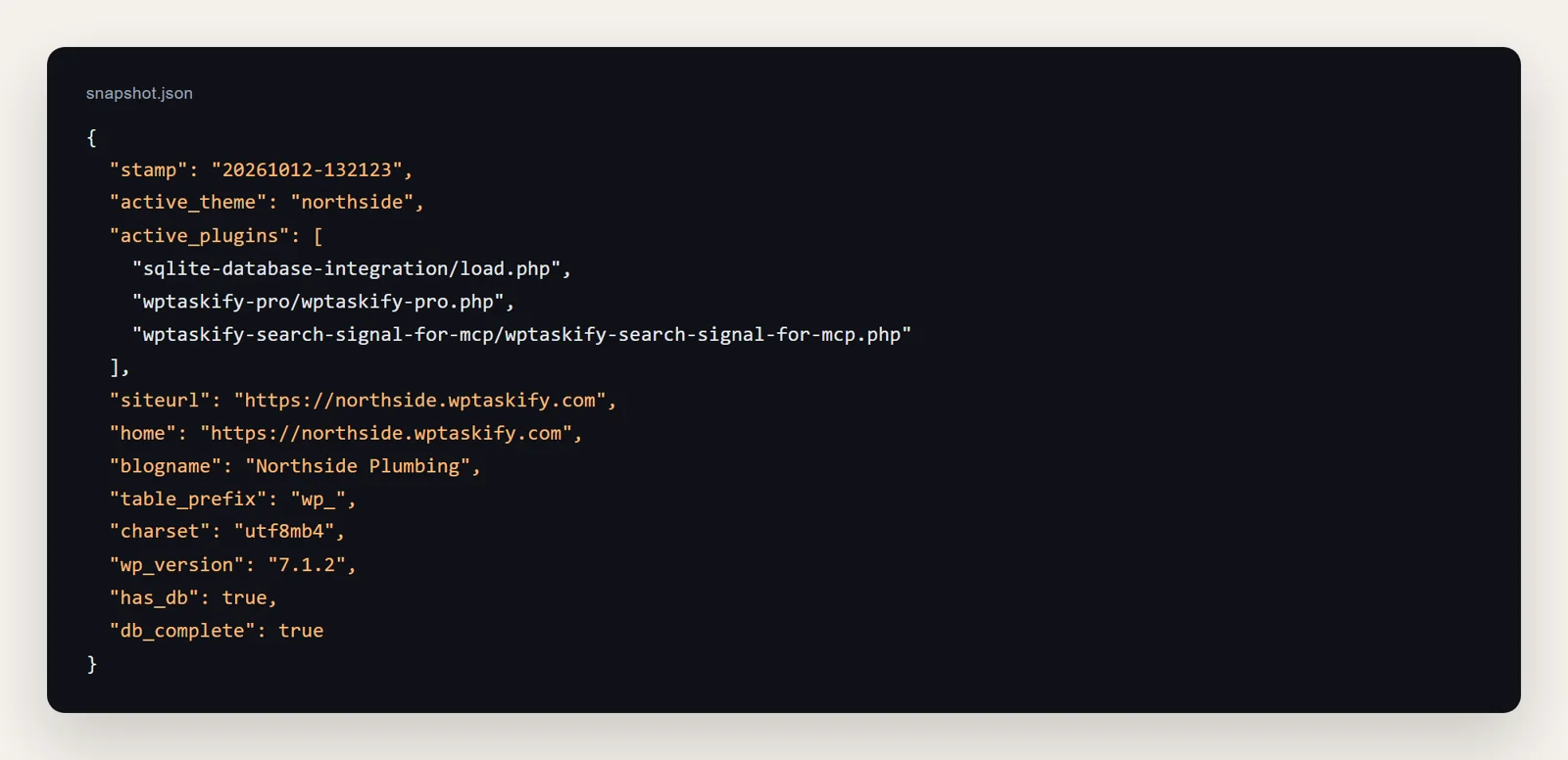
Here is the backup our test site produced: one folder per backup, named with the date and time, holding three files. The folder sits under wp-content with a random suffix in its name, so nobody can guess its address and download it.
Inside the database file and the snapshot
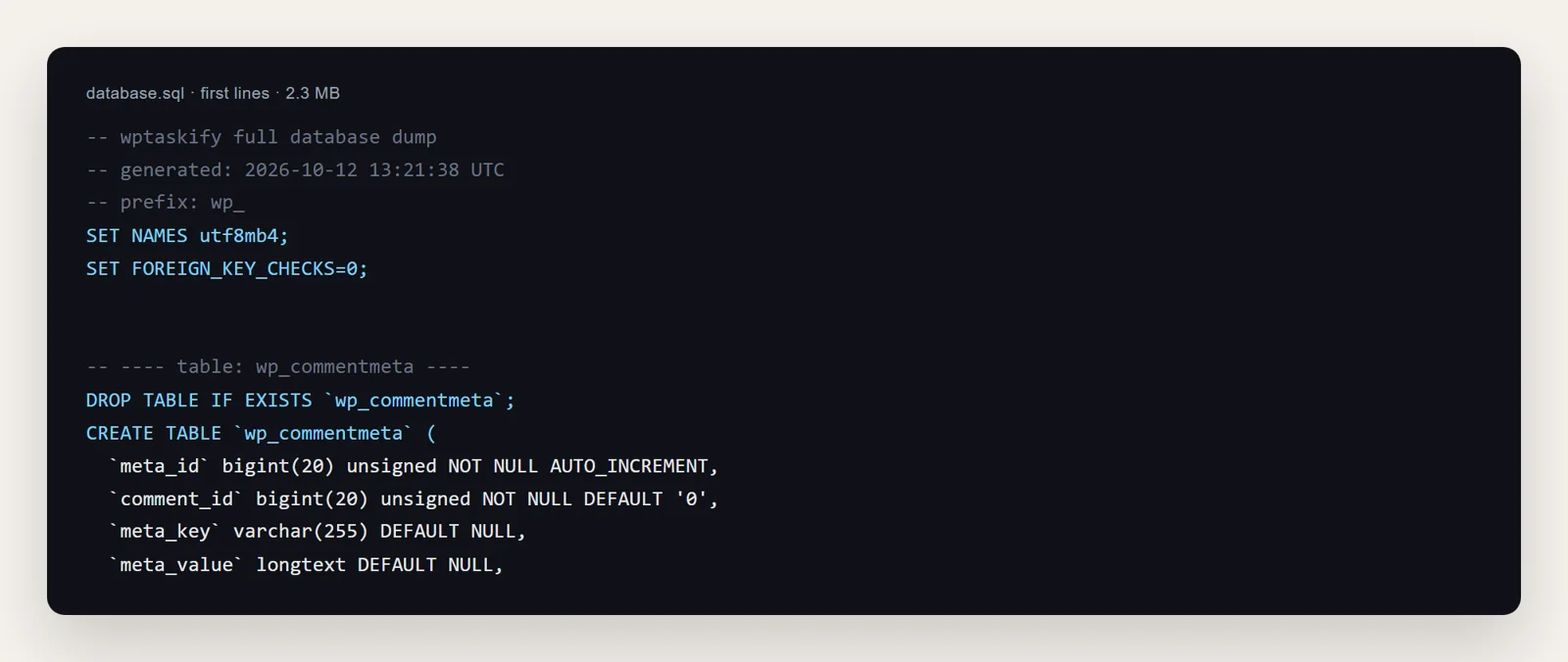
The database file is plain SQL: it drops and recreates each table, then inserts the rows. Any MySQL tool, including phpMyAdmin, can import it on a new host.
The snapshot records which theme and plugins were active, the site address and the WordPress version. That matters when you restore to a new server or domain, because the database stores the old address and you need to know what to replace.
How often should you back up WordPress?
- Online stores, membership sites, busy blogs: daily, because orders and comments change every day.
- Business and brochure sites: weekly is usually enough.
- Every site: right before any update, theme edit or bulk change. A fresh backup turns a bad update into a five-minute fix.
Follow the 3-2-1 rule: three copies, on two different kinds of storage, with one copy off-site.
How to restore a WordPress backup
- Decide what you need back. If only a plugin or theme broke, restoring the files is enough. Restoring the database also rolls back every post, order and comment since that backup.
- Files: upload the backed-up folders over the current ones with SFTP, or use your plugin's restore button.
- Database: in phpMyAdmin, select the database, click Import and choose the .sql file. This replaces the current data.
- New domain? Replace the old address in the database with a search-replace tool, then re-save permalinks under Settings, then Permalinks.
- Check the site in a private window: home page, a post, the login page and a form.
With wptaskify, restore_site_backup restores the files from a backup and only imports the database when you explicitly ask, after a warning, because that step overwrites everything. If a broken update has taken the whole site down, see how to fix "There has been a critical error on this website".
Test your backups before you need them
A backup you have never restored is a hope, not a plan. Once every few months, restore a backup to a staging site or a local copy and click around. You will find out whether the database imports, whether images are there, and how long it really takes, on a quiet day instead of during an emergency.