
What is robots.txt in WordPress?
robots.txt is a short text file at yoursite.com/robots.txt that tells crawlers which parts of your site they may visit. Google, Bing and well-behaved AI crawlers read it before they crawl.
In WordPress there is usually no actual file. WordPress builds the text on the fly whenever someone requests it, which is why you will not find robots.txt in your folders. If you upload a real robots.txt file to the site root, the web server sends that file instead and WordPress's version, plus any plugin changes to it, is ignored.
What WordPress puts in robots.txt by default
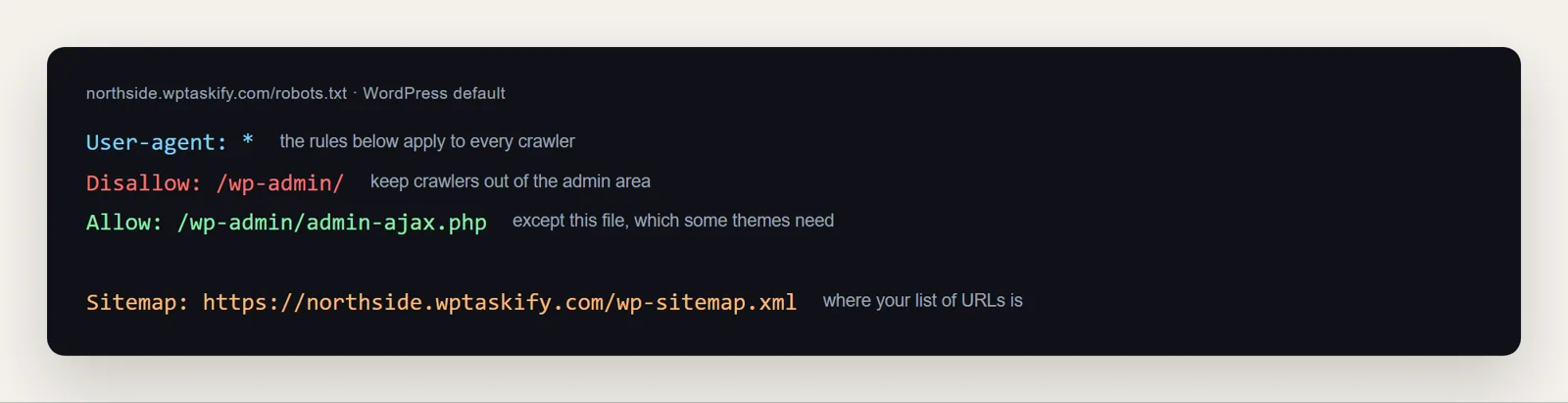
On a normal site WordPress serves four lines:
User-agent: *: the rules apply to every crawler.Disallow: /wp-admin/: keep crawlers out of the admin area.Allow: /wp-admin/admin-ajax.php: except this one file, which some themes and plugins use on the front end.Sitemap: .../wp-sitemap.xml: where your list of URLs lives.
That is a sensible default. Most small sites never need anything else.
Does "Discourage search engines" change robots.txt?
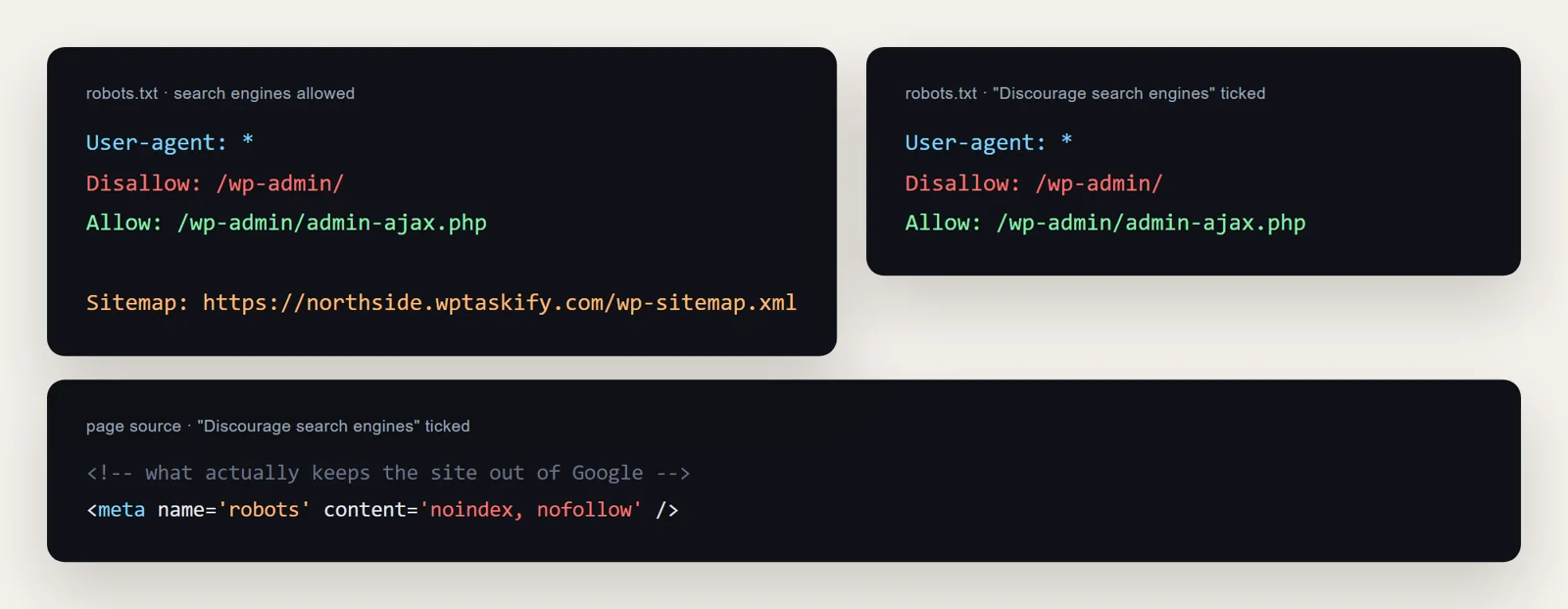
Less than most people think. When you tick Discourage search engines from indexing this site under Settings, then Reading, current WordPress versions do not add Disallow: /. They remove the Sitemap line from robots.txt and add a noindex, nofollow robots meta tag to every page. That meta tag is what keeps the site out of Google.
So if your site is missing from Google, checking robots.txt alone is not enough. Check that box in Settings, then Reading, and look for noindex in your page source.
What should you add to robots.txt?
Only add a rule when you have a clear reason. Common, safe additions:
- Your sitemap, if your SEO plugin uses its own sitemap instead of WordPress's:
Sitemap: https://yoursite.com/your-sitemap.xml. - Internal search results, which create endless thin URLs:
Disallow: /?s=andDisallow: /search/. - Endless filter or calendar URLs that a plugin generates, if they show up in Search Console as crawled but low value.
- Specific AI crawlers you do not want to train on your content (see below).
A complete, sensible file for a typical WordPress site looks like this:
User-agent: *
Disallow: /wp-admin/
Allow: /wp-admin/admin-ajax.php
Disallow: /?s=
Disallow: /search/

Sitemap: https://yoursite.com/wp-sitemap.xml
What you should never block
Disallow: /on a live site. It asks every crawler to stay away from everything. It is often left over from a staging copy./wp-content/or/wp-includes/. Your CSS, JavaScript and images live there. Google renders pages like a browser, and blocking these makes your pages look broken to it.- Pages you want removed from Google. Use a
noindextag instead (next section). - Private pages, as a way to hide them. robots.txt is public, so listing a secret URL in it tells everyone where it is. Protect private pages with a password or login.
Disallow vs noindex: which one do you need?
They are often mixed up, and using the wrong one is a classic mistake.
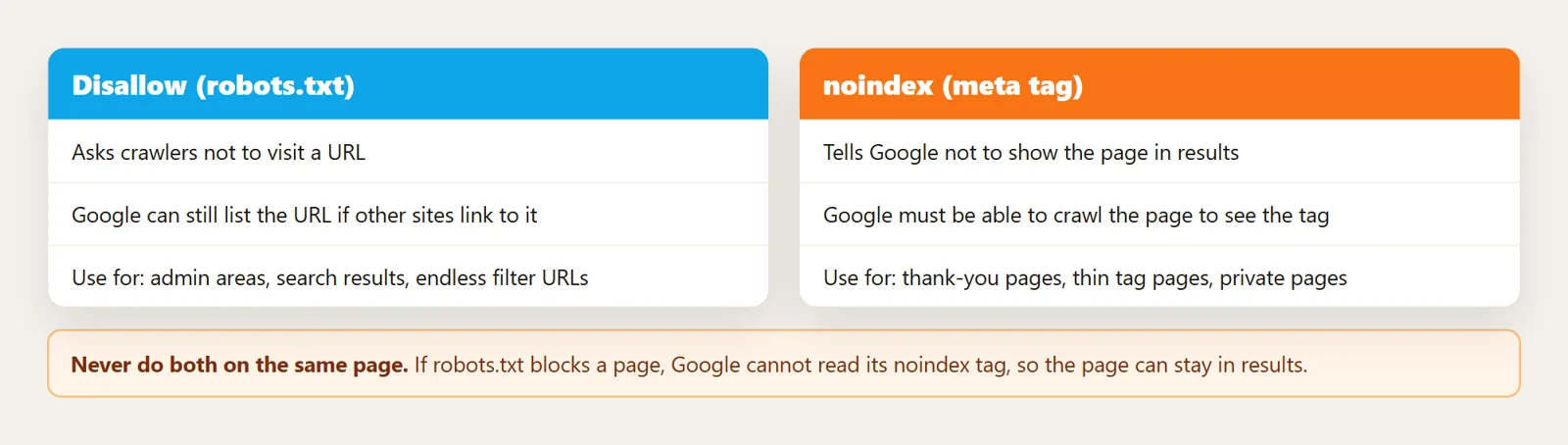
- Disallow (robots.txt) asks crawlers not to visit a URL. Google can still list it in results, without a description, if other pages link to it.
- noindex (a meta tag on the page) tells Google not to show the page in results. Google has to be able to crawl the page to see that tag.
Do not do both on the same page: if robots.txt blocks it, Google never sees the noindex. To take a page out of Google, use noindex and leave it crawlable until it drops out.
Blocking or allowing AI crawlers (GPTBot, ClaudeBot and others)
AI companies run two kinds of bots, and they deserve different answers:
- Training crawlers (such as GPTBot, ClaudeBot, CCBot, Google-Extended, Applebot-Extended) collect content to train models. They rarely send visitors.
- AI search and assistant bots (such as OAI-SearchBot, ChatGPT-User, Claude-SearchBot, PerplexityBot) fetch pages to answer a question right now, and can cite and link to you.
Many site owners block training crawlers and allow the search ones. To block one, add a group for it:
User-agent: GPTBot
Disallow: /

User-agent: CCBot
Disallow: /
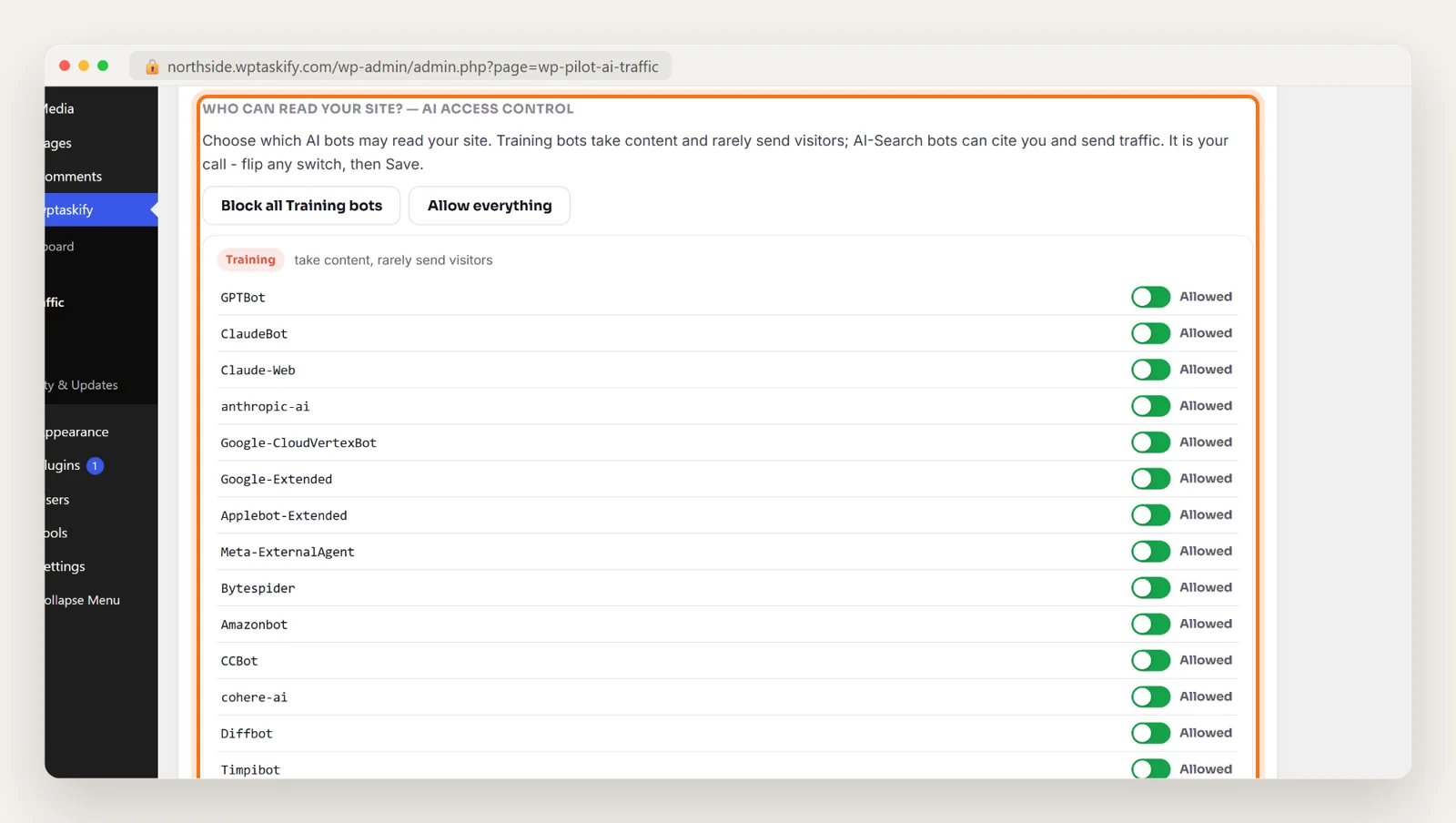
The free wptaskify plugin has an AI Access Control panel under wptaskify, then AI Traffic, with a switch per bot grouped into Training, AI-Search and Agent. It writes the rules for you. Remember that robots.txt is a request: reputable bots obey it, but some do not. For hard blocking, use a firewall or a CDN such as Cloudflare. To see which bots actually visit you, read which AI bots are crawling your WordPress site.
A real example
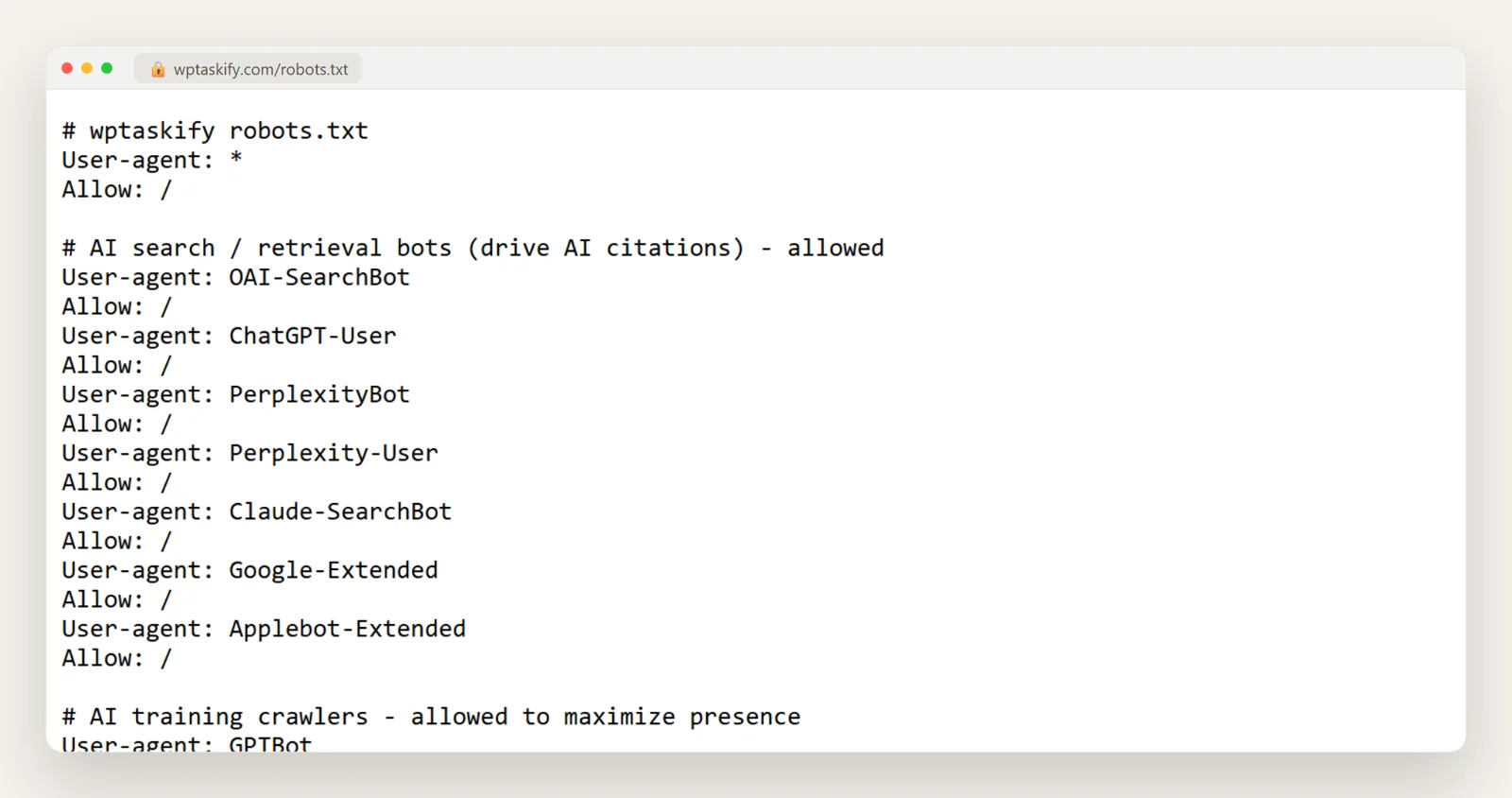
Our own robots.txt at wptaskify.com/robots.txt takes the opposite choice: it allows every AI search bot and every training crawler on purpose, because we want AI tools to know the product. It groups bots with comments so anyone reading it can see why each rule is there. That is a good habit whichever way you decide.
How to edit robots.txt in WordPress (3 ways)
- With an SEO plugin. Most SEO plugins have a robots.txt editor in their tools or settings. The plugin adds your text to the virtual robots.txt, so there is no file to manage.
- With a real file. Create a plain-text file called
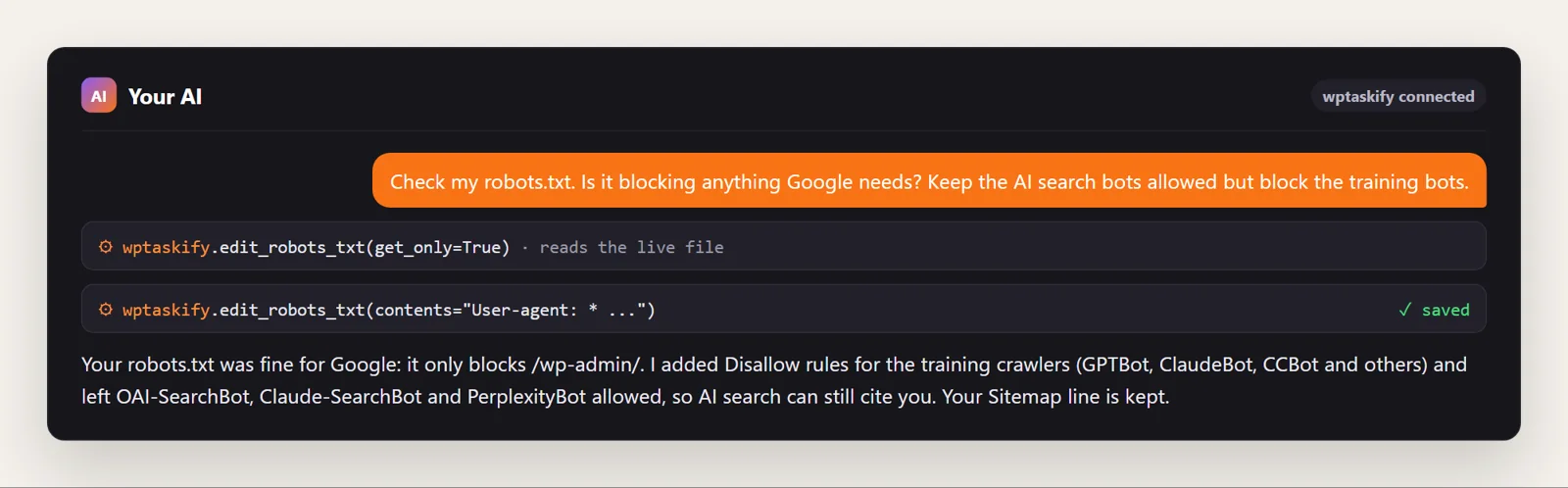
robots.txtand upload it to your site root (the folder with wp-config.php) using your host's File Manager or SFTP. It overrides WordPress's version completely, including any plugin rules, so delete it if you later switch to a plugin. - With your AI. If your site is connected to Claude or ChatGPT through wptaskify, describe what you want. The
edit_robots_txttool reads the live file first, then saves the new rules. It also warns if a physical robots.txt file would override them. This needs the wptaskify Pro add-on on a paid plan.
How to test your robots.txt
- Open
yoursite.com/robots.txtin a private window and read it top to bottom. - In Google Search Console, open Settings, then the robots.txt report. It shows the version Google last fetched and any lines it could not read.
- Use Search Console's URL Inspection on an important page. If it says the page is blocked by robots.txt, find and fix the rule that matches it.
- After any change, check a few key pages again in a week.
robots.txt is one item on a longer list. For the rest, see the WordPress SEO checklist.