
What an XML sitemap is
An XML sitemap is a file that lists the pages on your site you want search engines to find, with the date each one last changed. It does not make pages rank, and Google can find most pages through links anyway. It helps most on new sites with few links, large sites, and pages that are hard to reach from your menus.
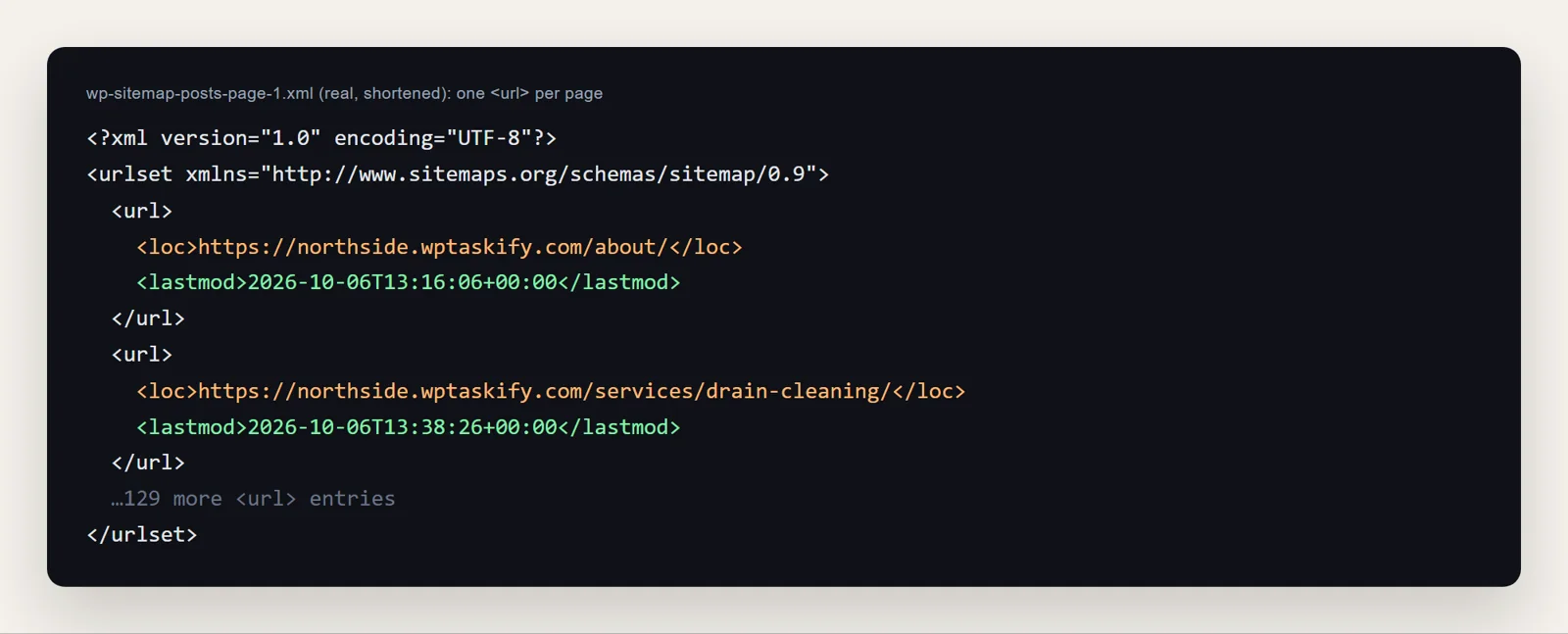
Here is part of the real sitemap from our test site, a plumbing business with 131 pages:
Where to find your WordPress sitemap
Open these addresses on your own domain until one loads:
/wp-sitemap.xml: the one built into WordPress./sitemap.xmlredirects to it./sitemap_index.xml: Yoast SEO and Rank Math./sitemap.xml: All in One SEO and several others.
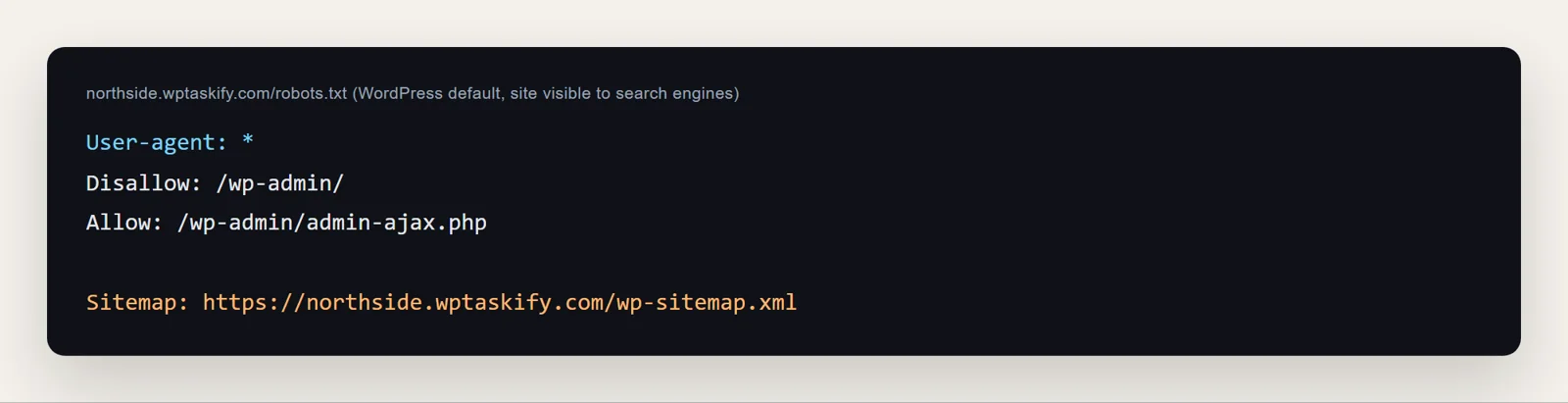
The easiest check of all: open /robots.txt. WordPress and most SEO plugins add a Sitemap: line pointing at the right file.
The built-in WordPress sitemap
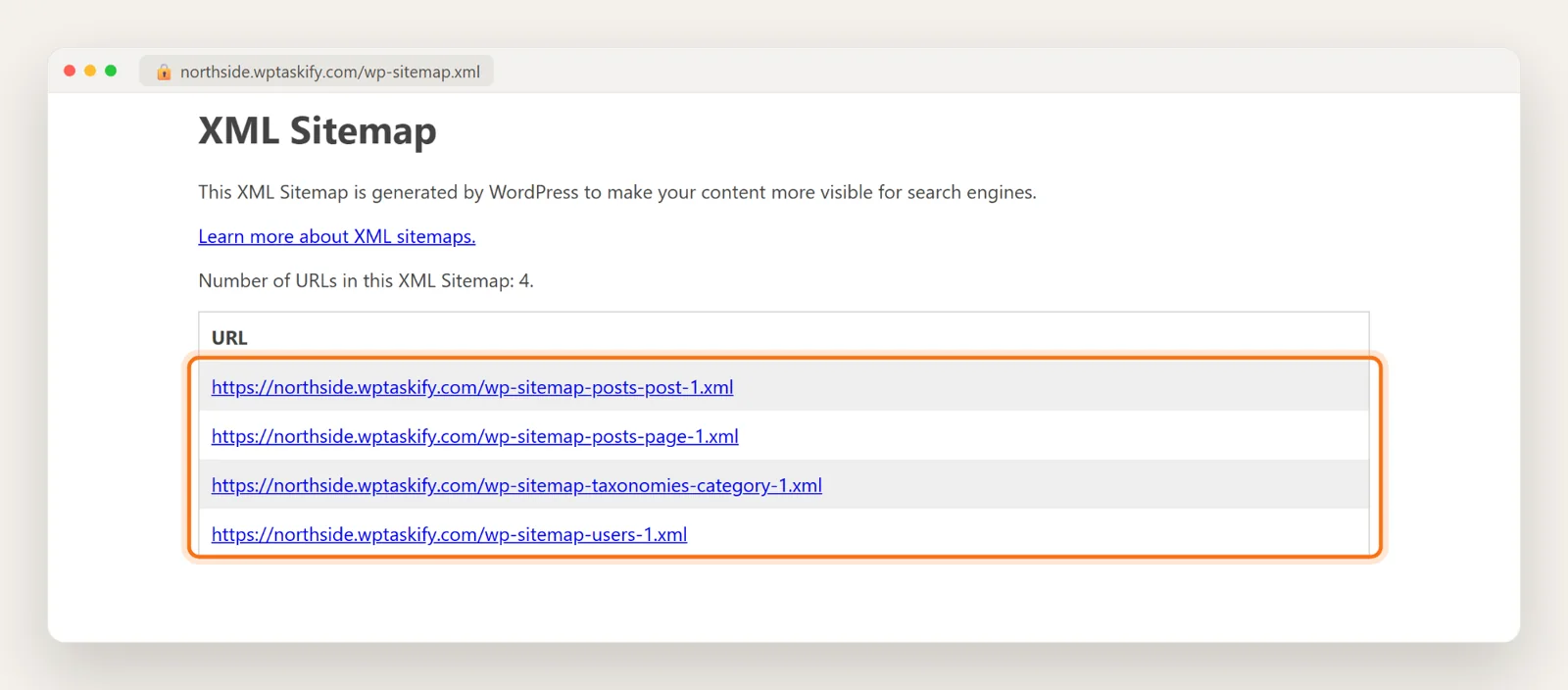
WordPress's own sitemap is an index: a short list of smaller sitemaps, one per content type. On our test site it had four: posts, pages, categories and users (author pages). Each one holds up to 2,000 addresses, and WordPress adds more files when you pass that.
What is inside each sitemap
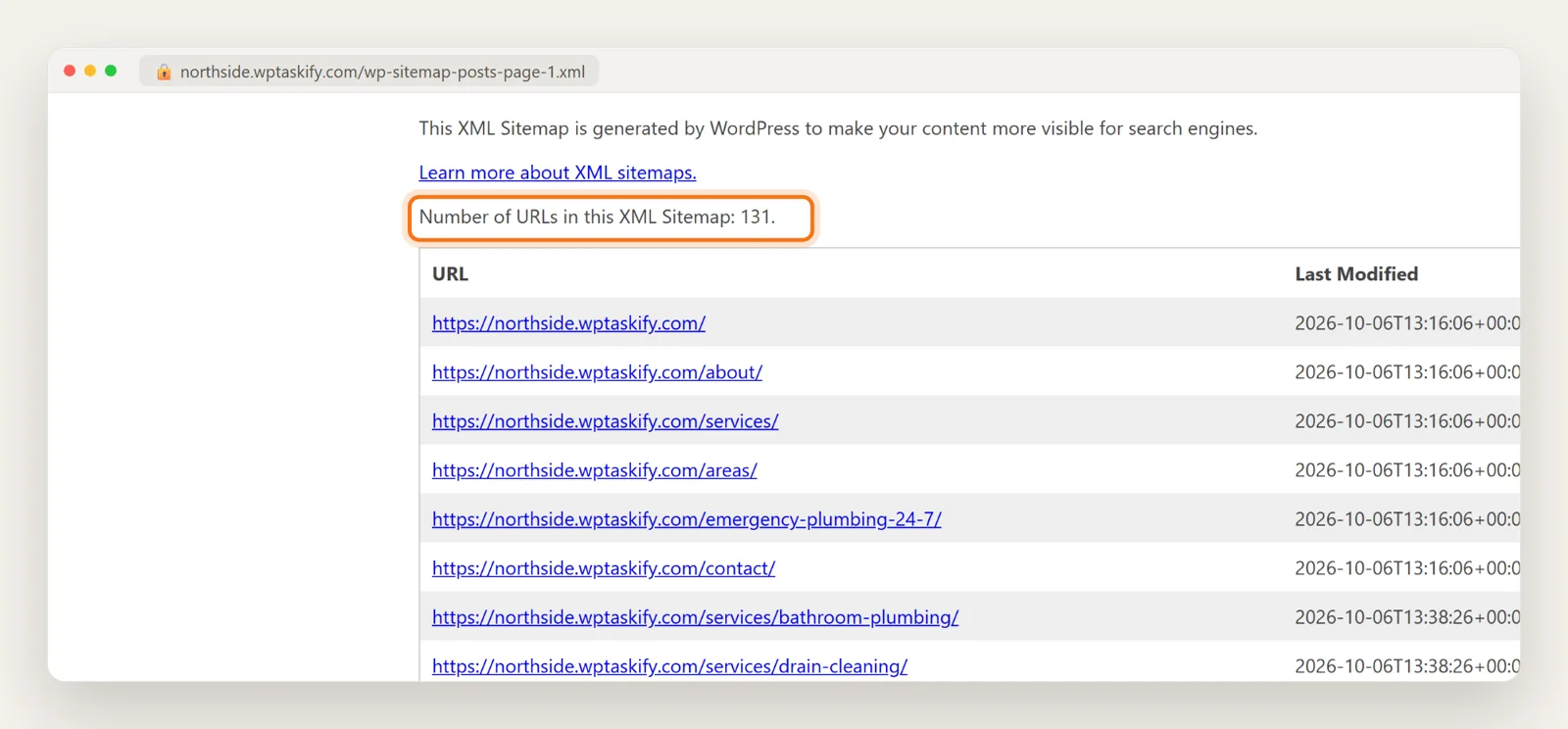
Click one and you see the pages in it with their last modified dates. Our pages sitemap listed all 131 pages. Browsers show it as a table because WordPress attaches a stylesheet; search engines read the plain XML underneath.
One thing to tidy on a business site: the users sitemap lists author archive pages (/author/admin/), which are rarely useful in search. An SEO plugin can switch those off, or a developer can remove them with the wp_sitemaps_add_provider filter.
Sitemap shows a 404? Check this setting first
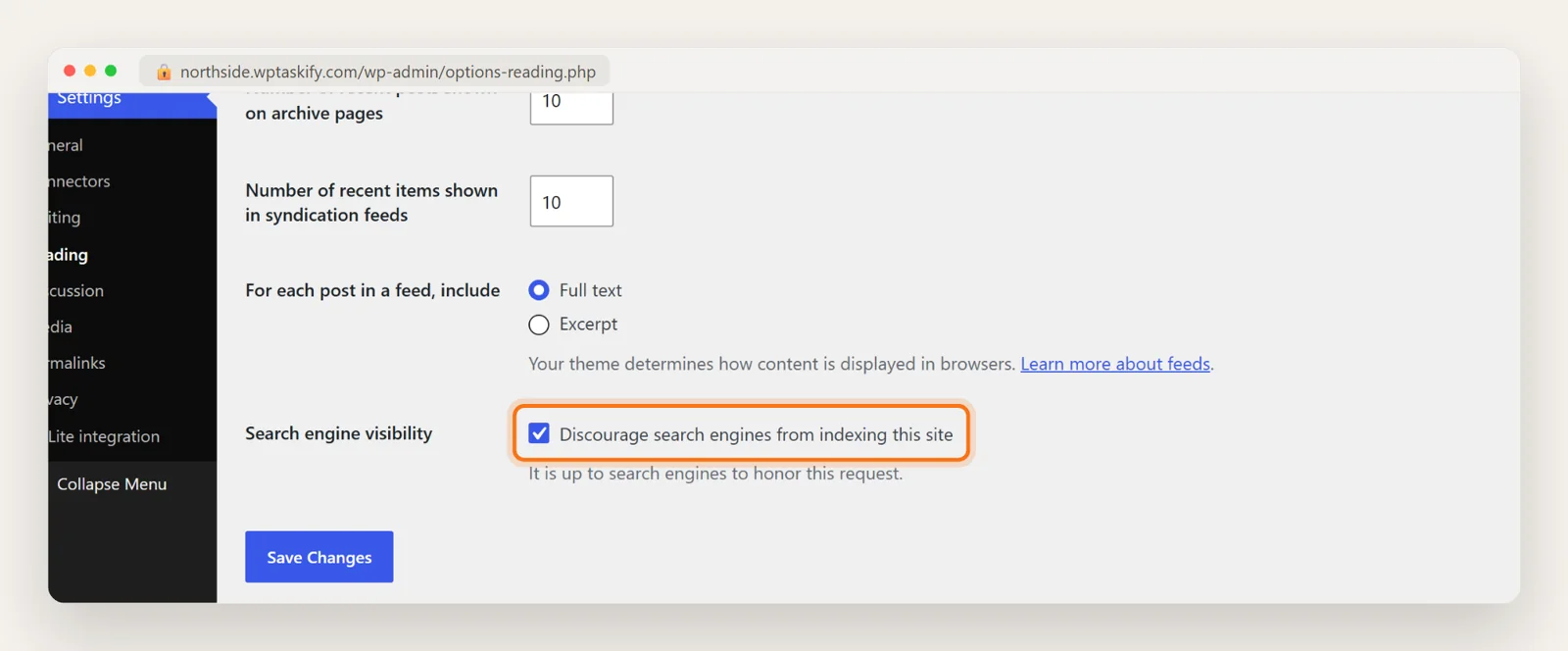
The most common reason a WordPress sitemap is missing: the box Discourage search engines from indexing this site under Settings, then Reading. When it is ticked, WordPress turns its sitemap off and /wp-sitemap.xml returns "Page not found". We saw exactly that on our test site, which is kept private on purpose.
The box is often left ticked after a site is built on staging. Untick it, save, and reload the sitemap. Other causes:
- Permalinks. Go to Settings, then Permalinks and click Save without changing anything. This rebuilds the URL rules.
- A plugin replaced it. SEO plugins switch the core sitemap off and serve their own at another address, so look for that one instead.
- Caching. Clear your cache plugin and CDN cache after changes.
Do you need a sitemap plugin?
For a small or medium site, no: the built-in sitemap is enough. A plugin sitemap is worth it when you want more control, such as leaving out certain pages, adding images, or a separate news sitemap. If you already use Yoast, Rank Math or All in One SEO, you already have a plugin sitemap; use that one.
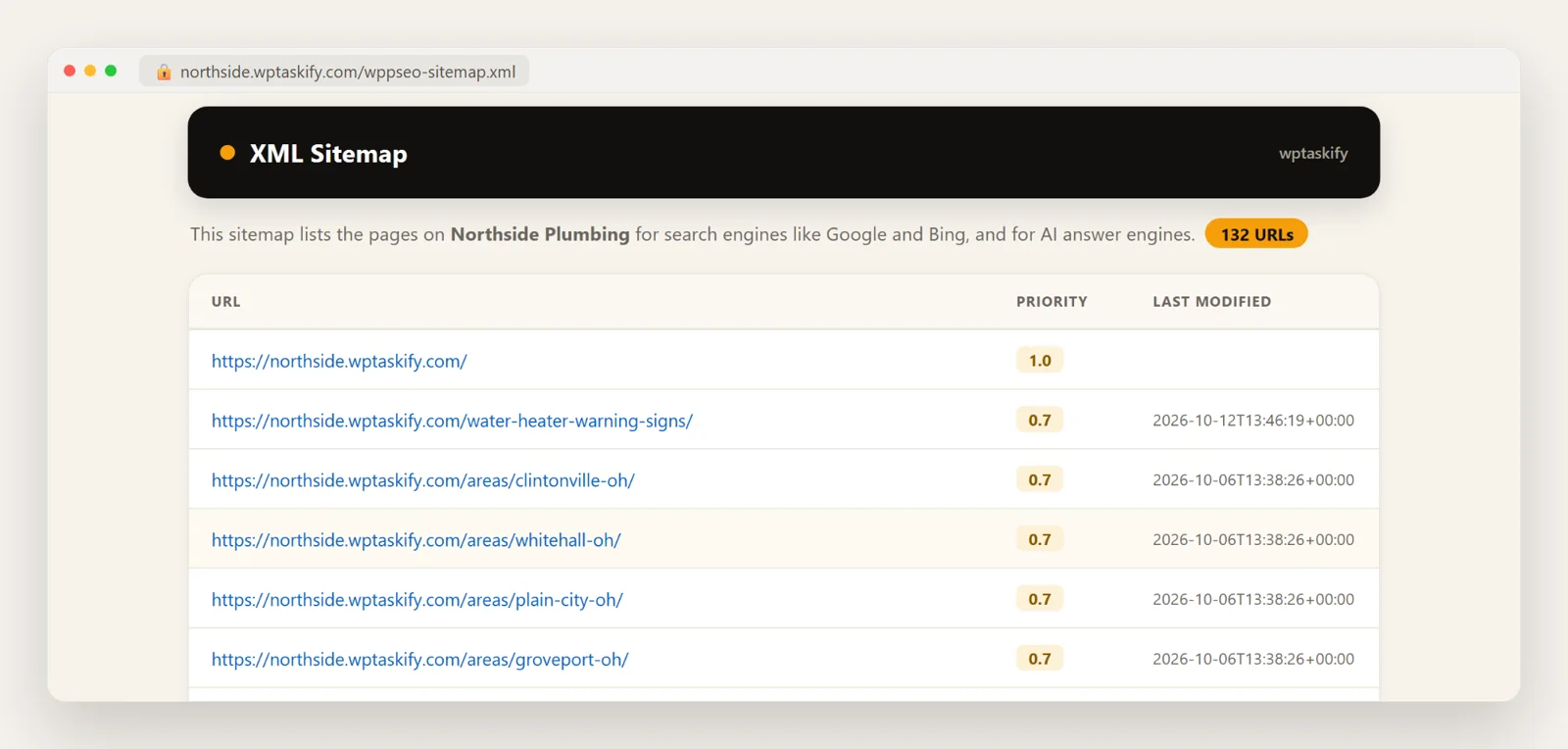
The free wptaskify plugin also has an optional sitemap. It is off by default so it never replaces one you already use. When it is on, it lists your published pages and posts, leaves out anything you set to noindex, and shows a readable table in the browser:
Priority and changefreq: ignore them
Many sitemaps, ours included, print a priority (such as 0.7) and a changefreq (such as weekly) for each page. Google has said it ignores both. What it does use is lastmod, as long as the date is accurate. So the useful thing is that the last modified date only changes when the page really changes.
How to submit your sitemap to Google
- Open Google Search Console and select your site.
- Go to Indexing, then Sitemaps.
- Type the sitemap address (for example
wp-sitemap.xmlorsitemap_index.xml) and click Submit. - Come back in a day or two. The status should say Success, with the number of pages found.
Do the same in Bing Webmaster Tools; Bing also feeds several AI assistants. You only need to submit once: search engines re-read the sitemap on their own. The old "ping" addresses for telling Google and Bing about a new sitemap were retired in 2023, so plugins that still offer pinging do nothing useful.
Submit and check it with your AI
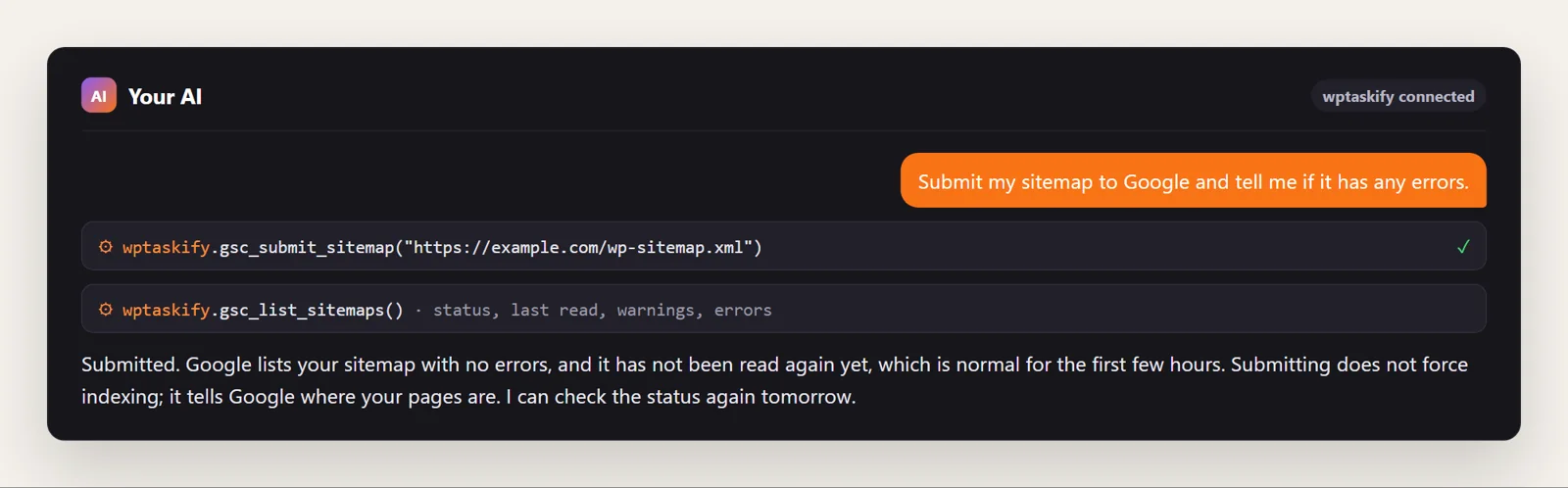
If your site and Google Search Console are connected to Claude or ChatGPT through wptaskify, you can do this in one sentence. gsc_submit_sitemap submits or resubmits the sitemap, and gsc_list_sitemaps shows its status, when Google last read it, and any warnings or errors. Search Console tools need a paid plan.
Sitemap mistakes to avoid
- Two sitemaps. Pick one source (WordPress, your SEO plugin, or wptaskify) and submit only that.
- Pages you do not want indexed. Thank-you pages, test pages and thin tag pages should be set to noindex, which also keeps them out of a good sitemap.
- Redirected or deleted URLs. A sitemap should list only live pages that return 200. If you moved pages, see how to set up 301 redirects.
- Blocking the sitemap in robots.txt. Check your rules with our robots.txt guide.