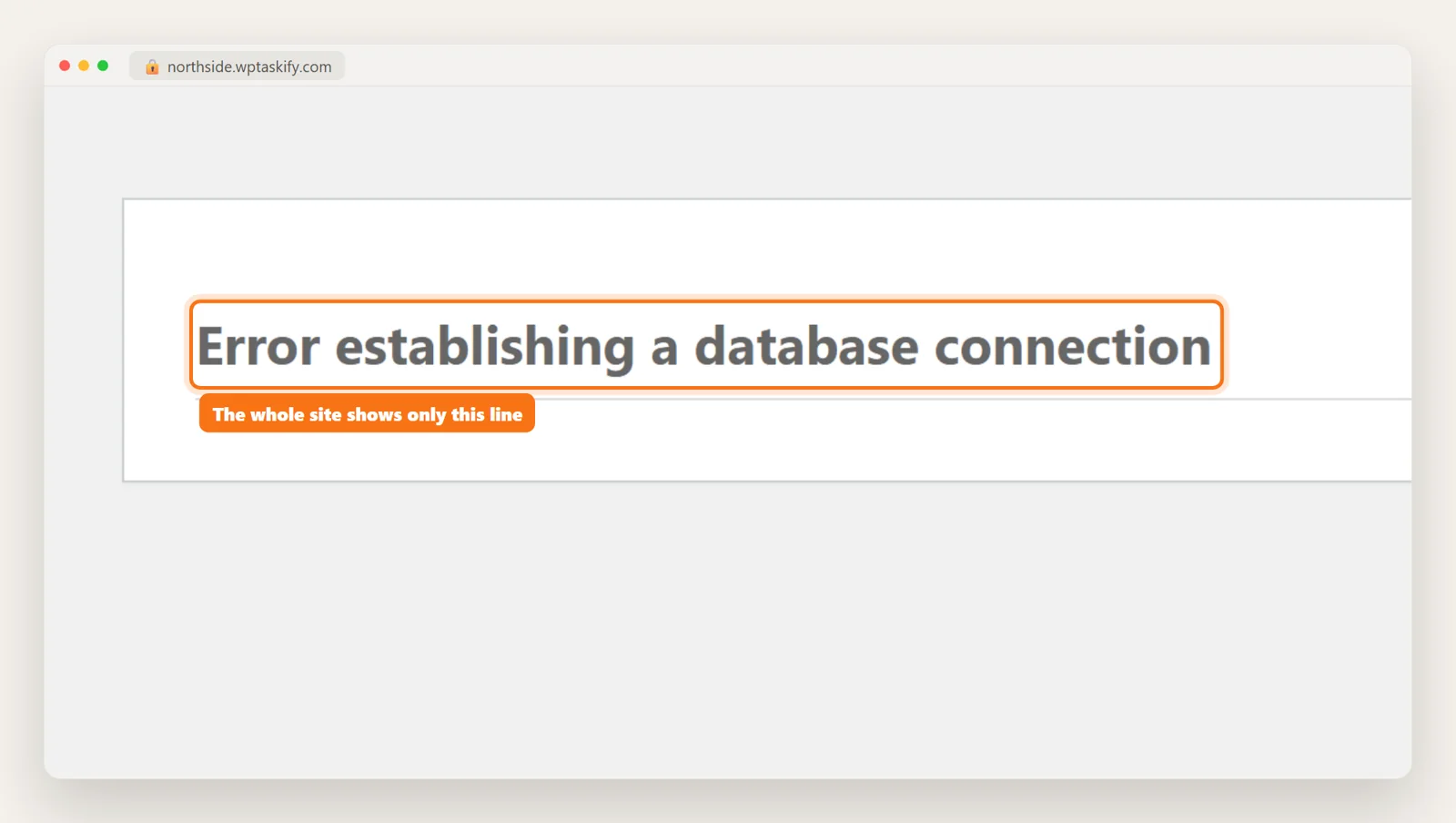
What does "Error establishing a database connection" mean?
Everything on a WordPress site lives in a MySQL (or MariaDB) database: posts, pages, users, settings, even the site address. On every page load, WordPress opens a connection to that database using the four DB_ lines in wp-config.php. If the connection fails, WordPress has nothing to show, so it stops and prints this one line.
The message does not tell you why the connection failed. In our view that is the main reason people waste an hour on this error: they start reinstalling plugins and themes, which can never fix it, because WordPress never got far enough to load a plugin or a theme.
To write this guide we broke a real WordPress copy on purpose: its wp-config.php points at a MySQL server that is not running. Every screenshot below comes from that site. The front page returned HTTP 500 with that single line and nothing else.
First check: does wp-admin show a different message?
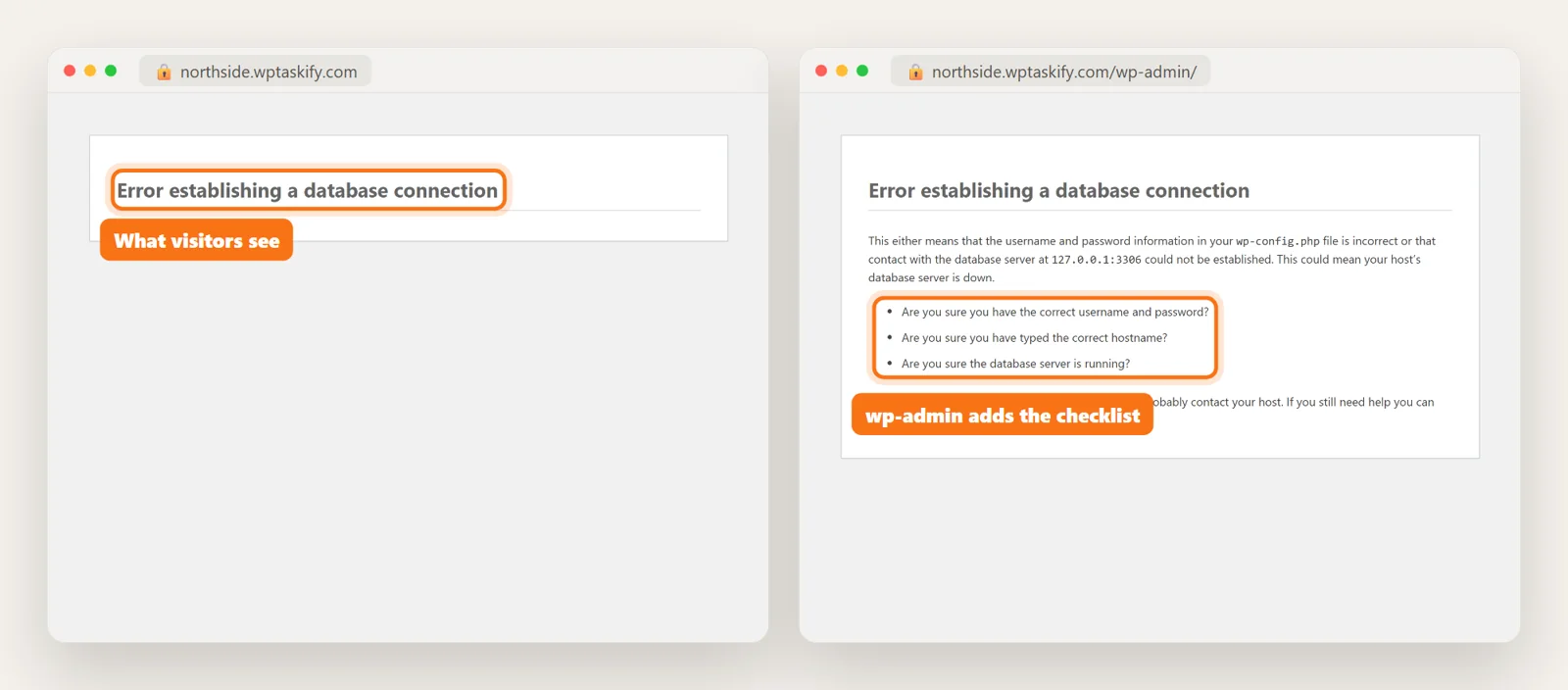
Open yoursite.com/wp-admin/. On our test site the front page showed only the one line, but wp-admin showed a longer version with a checklist: is the username and password correct, is the hostname correct, is the database server running. That longer message also prints the database host WordPress is trying to reach, which is the first thing to compare with your hosting panel.
Two other messages look similar but point somewhere else:
- "One or more database tables are unavailable. The database may need to be repaired." WordPress connected fine, but a table is damaged. Jump to the repair section below.
- "We were able to connect to the database server (which means your username and password is okay) but not able to select the ... database." The login works but DB_NAME is wrong, or the database was deleted or renamed.
Step 1: Read the real MySQL error
The quickest way to stop guessing is to make PHP tell you the exact error. Open wp-config.php in your host's File Manager or over SFTP and set:
define( 'WP_DEBUG', true );
define( 'WP_DEBUG_LOG', true );
define( 'WP_DEBUG_DISPLAY', false );
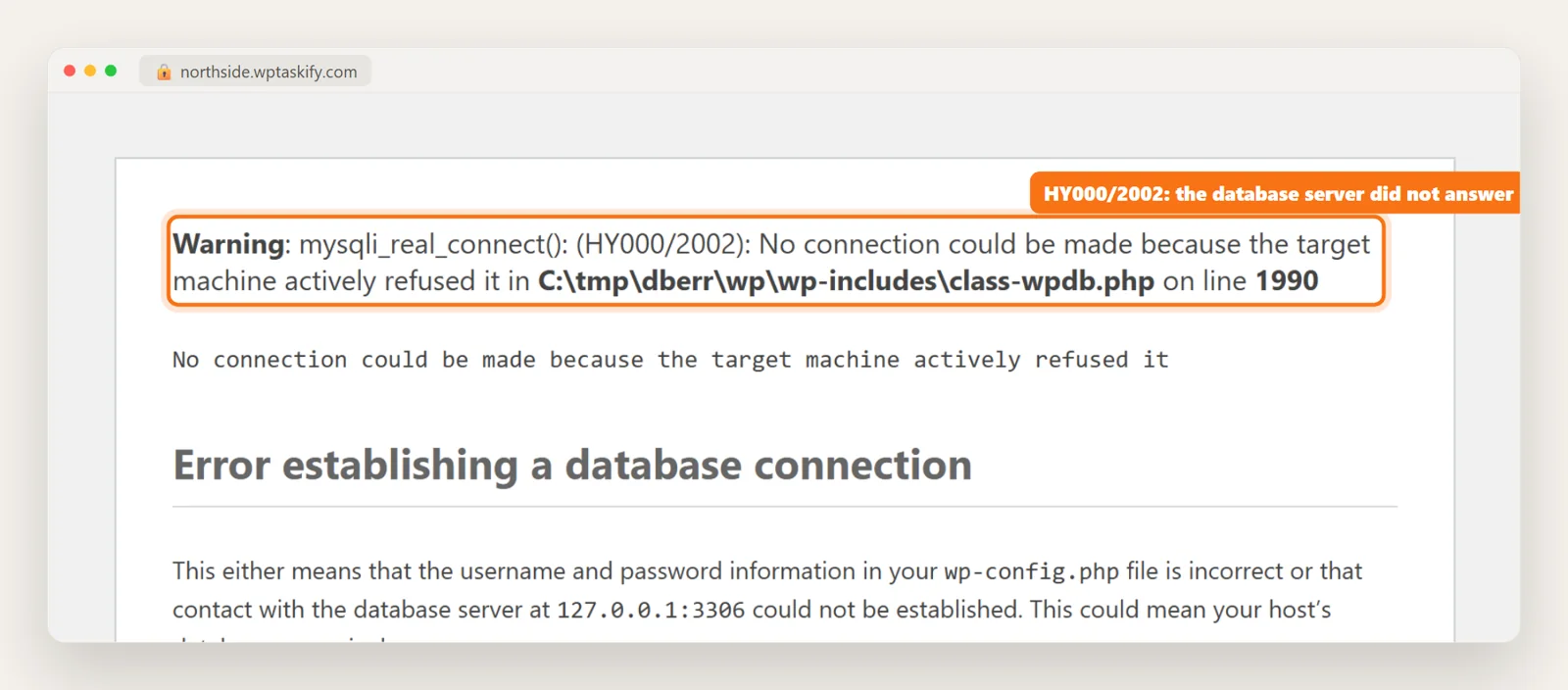
Reload the site once, then open wp-content/debug.log. Look for a line that starts with mysqli_real_connect(). The number in brackets is the MySQL error code, and it tells you which fix to use:
- 2002 ("No connection could be made" or "Connection refused"): the database server did not answer at that address. The server is down, or DB_HOST or the port is wrong.
- 1045 ("Access denied for user"): the server answered but rejected the username or password.
- 1049 ("Unknown database"): the login works, DB_NAME does not exist.
- 2005 ("Unknown MySQL server host"): the hostname in DB_HOST is misspelled or does not exist.
- 1040 or 1226 ("Too many connections", "max_user_connections"): the server is up but full, usually from a traffic or bot spike on shared hosting.
We keep WP_DEBUG_DISPLAY off on purpose. With it on, the warning prints on the page for every visitor, including your server's file path, which is exactly what our test capture shows. Set WP_DEBUG back to false once you have the code.
Step 2: Compare the four DB_ lines in wp-config.php with your hosting panel
This is the fix for code 1045, 1049 and most 2005 errors, and in our experience it is the most common cause overall. It usually happens right after one of these:
- You or your host changed the database user's password.
- You moved the site to a new host or a new folder and copied the old wp-config.php.
- A migration plugin created a new database with a new name or user prefix.
In wp-config.php, find these four lines:
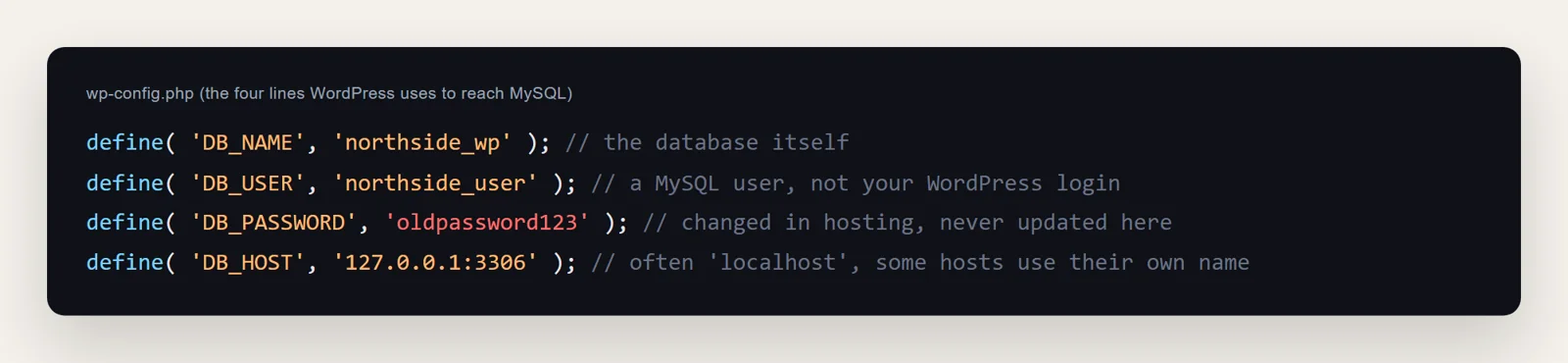
How to check the values against your host
- In cPanel open MySQL Databases (in Hostinger's hPanel: Databases, then Management). Check that a database with exactly the name in DB_NAME exists, including any prefix such as
u123456_. - Check that the user in DB_USER exists and is added to that database with all privileges. A user that exists but is not attached to the database gets "Access denied".
- Do not try to guess the password. Set a new password for the database user in the panel, then paste it into DB_PASSWORD. This takes two minutes and removes all doubt.
- Check DB_HOST. On most shared hosts it is
localhost. Some managed hosts give a separate hostname such asmysql.yourhost.comor an internal address. The panel or your host's docs state the right value. Iflocalhostfails,127.0.0.1sometimes works, because PHP then uses a network connection instead of a socket file.
Save the file and reload. Watch for one trap: wp-config.php values are wrapped in single quotes, so a password containing a single quote must be escaped as \', or simply choose a new password without one.
Step 3: Is the database server down?
If the credentials match and you still see code 2002 or 1040, the problem is on the server, not in your files. Signs that point this way:
- Other sites on the same hosting account show the same error.
- The error comes and goes, often at busy times.
- phpMyAdmin in your hosting panel will not open either.
On shared hosting you cannot restart MySQL yourself. Check your host's status page and open a ticket with the exact error code from Step 1. That code saves a round of "have you cleared your cache?" replies.
If it keeps coming back under load, the usual reasons are bots hitting uncached pages (search pages and wp-login.php are favourites), a plugin running heavy queries on every page, or a hosting plan that has outgrown its connection limit. A page cache and a firewall rule for wp-login.php take most of that load off the database.
Step 4: Repair damaged database tables
Use this when wp-admin says tables are unavailable or need repairing. WordPress has a built-in repair screen. Add this line to wp-config.php, above "That's all, stop editing":
define( 'WP_ALLOW_REPAIR', true );Then open yoursite.com/wp-admin/maint/repair.php and click Repair Database. The repair page works without logging in, which is why you must remove the line straight after. Leaving it in lets anyone run the repair on your site.
If repair cannot fix a table, restore the database from your most recent backup. Most hosts keep daily backups even if you never set any up, so ask support before assuming the data is gone.
How to test the database login outside WordPress
If you are not sure whether WordPress or the database is the problem, test the login on its own. In your host's File Manager, create a file called dbtest.php next to wp-config.php with this content, using the same four values:
<?php
$c = mysqli_connect( 'localhost', 'northside_user', 'your-password', 'northside_wp' );
echo $c ? 'Connected' : mysqli_connect_error();
Open yoursite.com/dbtest.php. "Connected" means the database is fine and wp-config.php is the place to look. An error message gives you the same MySQL code as Step 1. Delete the file as soon as you have the answer: it contains your database password.
How to fix it with your AI when WordPress is down
The normal WordPress tools in wptaskify talk to WordPress through its REST API, and during this error WordPress cannot answer anything. That is what server access is for. You add your SFTP or cPanel login once, and your AI can still reach the site's files while WordPress is down.
Here is what it can do for this error, and what it cannot:
- Read wp-config.php and the error log. It can show you the DB_NAME, DB_USER and DB_HOST values and the mysqli error code, without you opening a single file.
- Test the same login WordPress uses. Where your host allows SSH, it runs a read-only query with the credentials from wp-config.php. A failure with "Access denied" proves the password is the problem.
- Edit wp-config.php safely. When you give it the new database password from your panel, it changes that one line, checks the file is valid PHP before saving, and keeps the old copy so the change can be undone.
- What it cannot do: restart your host's MySQL server or raise your plan's connection limit. If the code is 2002 and the credentials are right, it tells you to contact your host and gives you the exact error to send.
Server access is included on every wptaskify plan, including the free one. The password is stored encrypted and is never shown to your AI.
How to stop it happening again
- Update wp-config.php the same day you change a database password. Better still, note the four values in your password manager.
- After a site move, check wp-config.php first. Migration tools usually update it, but not always.
- Cache your pages so traffic spikes and bots hit the cache, not the database.
- Keep a backup of the database that you can restore without help. A table that cannot be repaired is a five-minute fix with a backup and a very bad day without one. See full-site backups with wptaskify.
- Related errors: if the site shows "There has been a critical error on this website" or a blank white screen instead, the database is fine and the cause is PHP code.