
The six steps of a WordPress migration
Whether you use a plugin, your host's free migration service or do it by hand, every WordPress move is the same six steps underneath. Knowing them helps you spot what a tool skipped.

Before you start
- Take a full backup of files and database and download it. See how to back up WordPress.
- Lower your DNS TTL to 5 minutes (300 seconds) a day ahead, in your domain's DNS settings. Then the switch to the new host spreads in minutes instead of hours.
- Do not cancel the old hosting until the new site has run cleanly for a few days.
- Pause changes: no new posts, orders or comments during the move, or they will be missing on the new host.
Option 1: Let your new host or a plugin do it
Many hosts migrate WordPress sites for free when you sign up; ask first, it is the least work. Migration plugins such as Duplicator or All-in-One WP Migration package the site on the old host and unpack it on the new one. Watch for upload size limits on very large sites, and check the result with the list at the end of this guide either way.
Option 2: Migrate by hand
- Copy the files. Download
wp-contentandwp-config.phpfrom the old host with SFTP. Install fresh WordPress on the new host, or copy the whole folder. - Export the database. In phpMyAdmin on the old host: select the database, Export, Quick, SQL.
- Create a new empty database and user on the new host, then Import the .sql file into it.
- Update wp-config.php on the new host with the new
DB_NAME,DB_USER,DB_PASSWORDandDB_HOST. Keep$table_prefixthe same as before. - Test before switching DNS. Add a line to your computer's hosts file pointing your domain to the new server's IP, so only you see the new copy. Click around, then remove the line.
Changing the domain? Replace the old URL safely
WordPress stores your full address in the database: in settings, in every link and image inside your content, and in plugin settings. If the domain changes, all of those must change too.
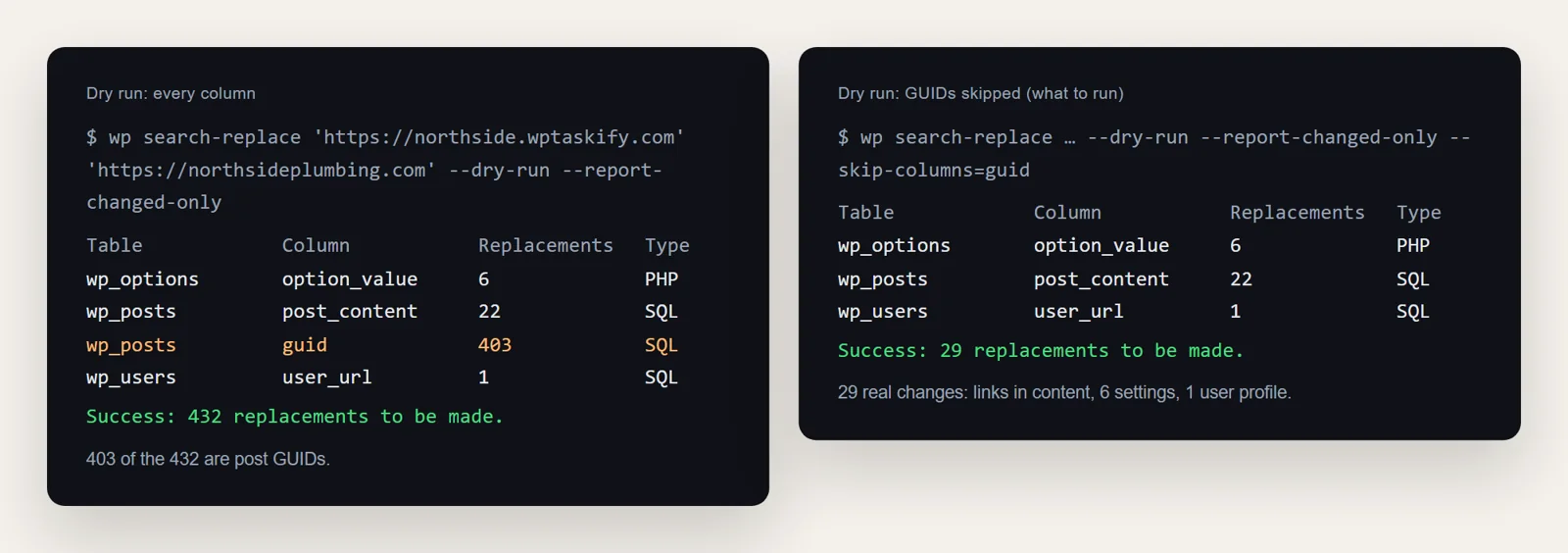
The safe way is WP-CLI's search-replace, which most hosts provide over SSH. Always run it with --dry-run first. Here is the real dry run for moving our test site to a new domain:
Why you skip the GUID column
Each post has a GUID, a permanent ID that looks like a URL. Feed readers use it to know which posts they have already shown. WordPress's own documentation says not to change it, even when the domain changes. On our test site, 403 of the 432 matches were GUIDs, so --skip-columns=guid leaves the 29 that matter: links in content, six settings and one user profile.
Never use plain find-and-replace on the database
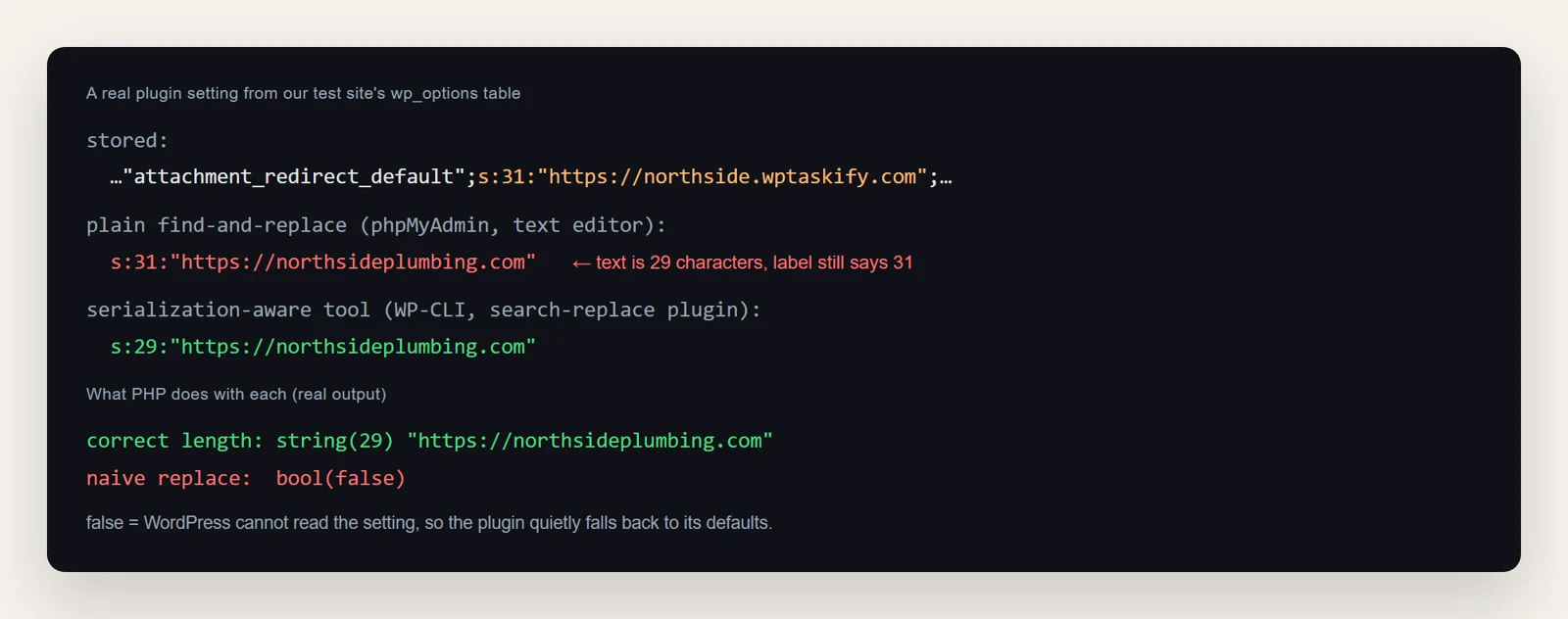
It is tempting to open the .sql file in a text editor, or run a REPLACE query in phpMyAdmin. Do not. WordPress and plugins store many settings as serialized data, where each piece of text is saved with its length. Change the text without changing the length and PHP can no longer read the setting.
Here is a real setting from our test site. The old address is 31 characters, the new one 29. We tested what PHP does with each version:
No SSH? Use a search-replace plugin
If your host has no WP-CLI, install a search-replace plugin that handles serialized data (Better Search Replace is a common free one), run a dry run, apply it, then remove the plugin. Afterwards go to Settings, then General and check that WordPress Address and Site Address show the new domain.
Point your domain and check everything
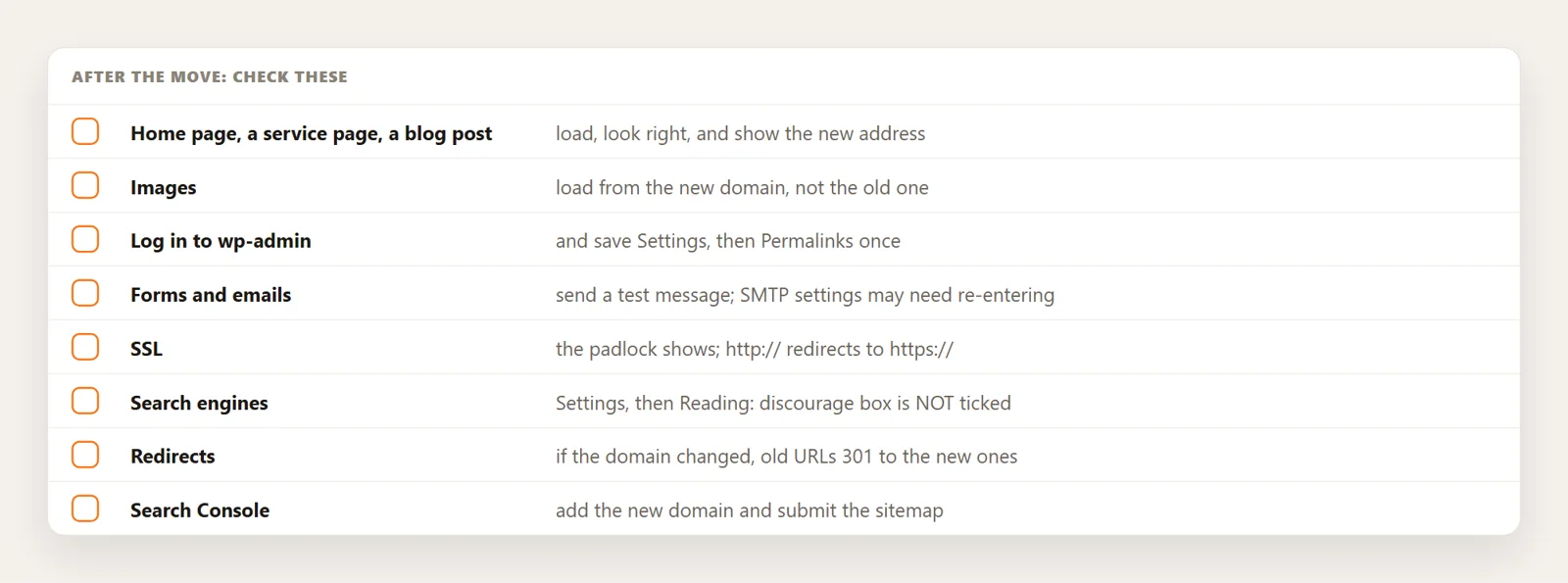
Once the new copy works, change your domain's A record (or nameservers) to the new host. With a low TTL most visitors reach the new server within minutes; some networks take up to a day or two. Then work through this list:
If the domain changed: keep your rankings
- Redirect every old URL to the same path on the new domain with a 301, set at the server or host level on the old domain. See how 301 redirects work.
- Add the new domain to Google Search Console, submit its sitemap, and use the Change of Address tool in the old property's settings.
- Keep the old domain registered and redirecting for at least a year.
Migrate with your AI and wptaskify
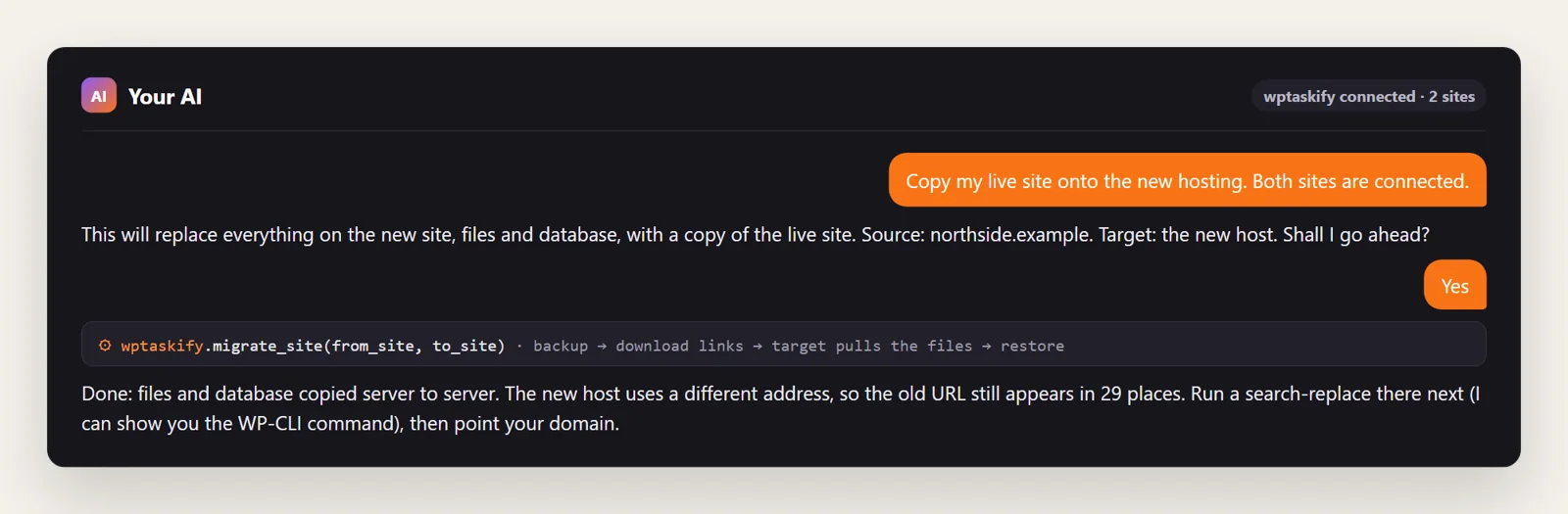
If both the old and new sites are connected to wptaskify with the Pro add-on, migrate_site does steps 1 to 4 for you: it takes a full backup on the old site, makes temporary download links, has the new site pull the files server to server, and restores them. Because it overwrites the target, the AI must confirm both sites with you first. It does not change URLs, so if the domain changes you still run the search-replace above. The old site must be reachable on the internet, so a copy on your own computer cannot be pushed to a live host this way; use a backup and upload instead.
Common migration problems
- "Error establishing a database connection": the details in wp-config.php do not match the new database.
- Redirected back to the old domain: the siteurl and home settings still hold the old address.
- Pages 404 but the home page works: re-save Settings, then Permalinks.
- Blank page: a PHP version difference or a broken file; see the white screen of death guide.
- Images missing: uploads were not copied, or content still points at the old domain.