
What the white screen of death looks like
You open your site and get nothing: a white page, no error, no menu. Often wp-admin is blank too, so you cannot log in to fix it. In Chrome the same failure can appear as "This page isn't working. HTTP ERROR 500".
We made one on purpose on our test site by leaving out a single semicolon in wp-config.php. The home page and wp-admin both returned an HTTP 500 error with an empty page: zero bytes.
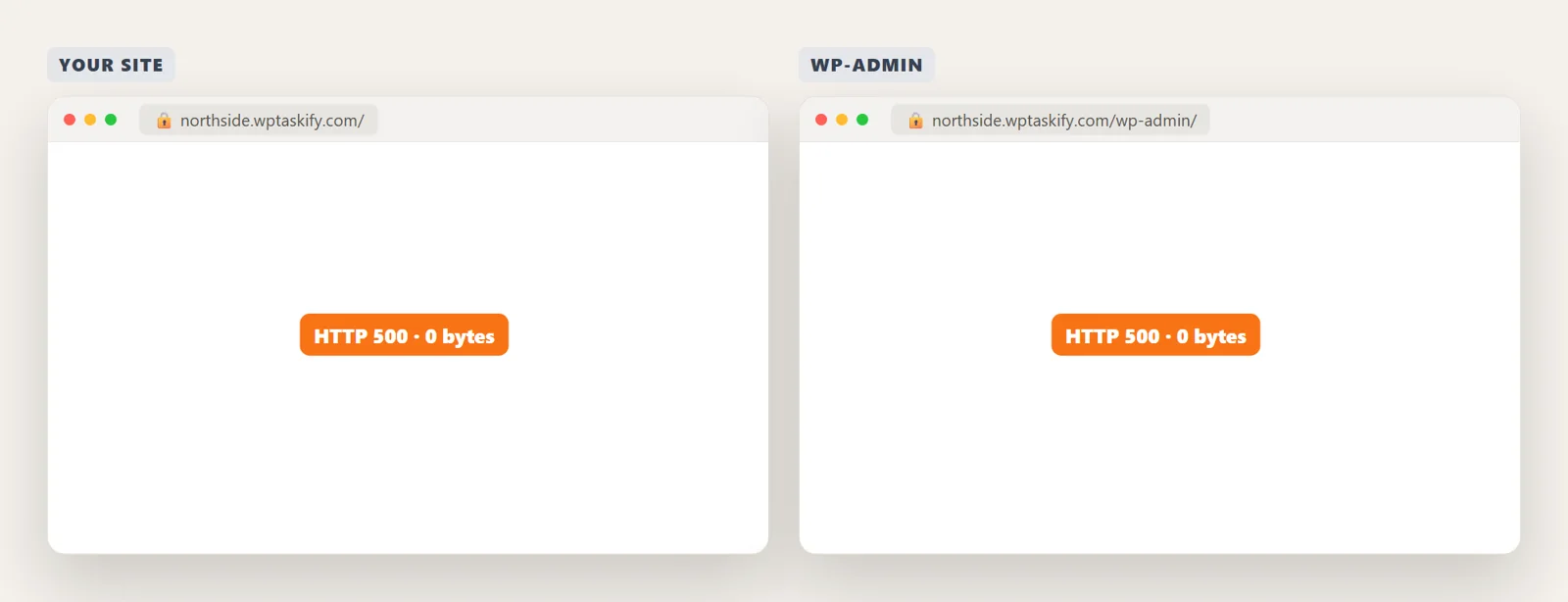
White screen vs "There has been a critical error"
Since WordPress 5.2, most PHP fatal errors no longer produce a white screen. WordPress catches them, shows the message "There has been a critical error on this website", and emails the admin a recovery link. If you see that message, follow our guide on fixing the critical error.
A true white screen means the error happened where WordPress could not catch it:
- in wp-config.php, which loads before WordPress's error handler exists,
- on a host or setup where that handler is turned off,
- or the page really is empty, for example a theme template that outputs nothing, or a cache plugin serving a blank copy.
That is also why there is no recovery email: WordPress never got far enough to send one.
Step 1: Rule out the quick ones
- Open the site in a private window and on your phone's mobile data. If it loads there, the blank page is a browser or local cache problem.
- Clear your cache plugin and CDN cache (for example Cloudflare). A cached blank page can outlive the problem that caused it.
- Think about what changed. An edit to a file, a plugin update, a PHP version change by your host. The last change is the most likely cause.
Step 2: Find the real error in the log
The page is blank because PHP errors are hidden from visitors, which is correct on a live site. The error itself is still written somewhere. Look in your hosting panel for Error log or PHP errors (cPanel, Plesk and most managed hosts have one), or in a file called error_log in your site's root folder.
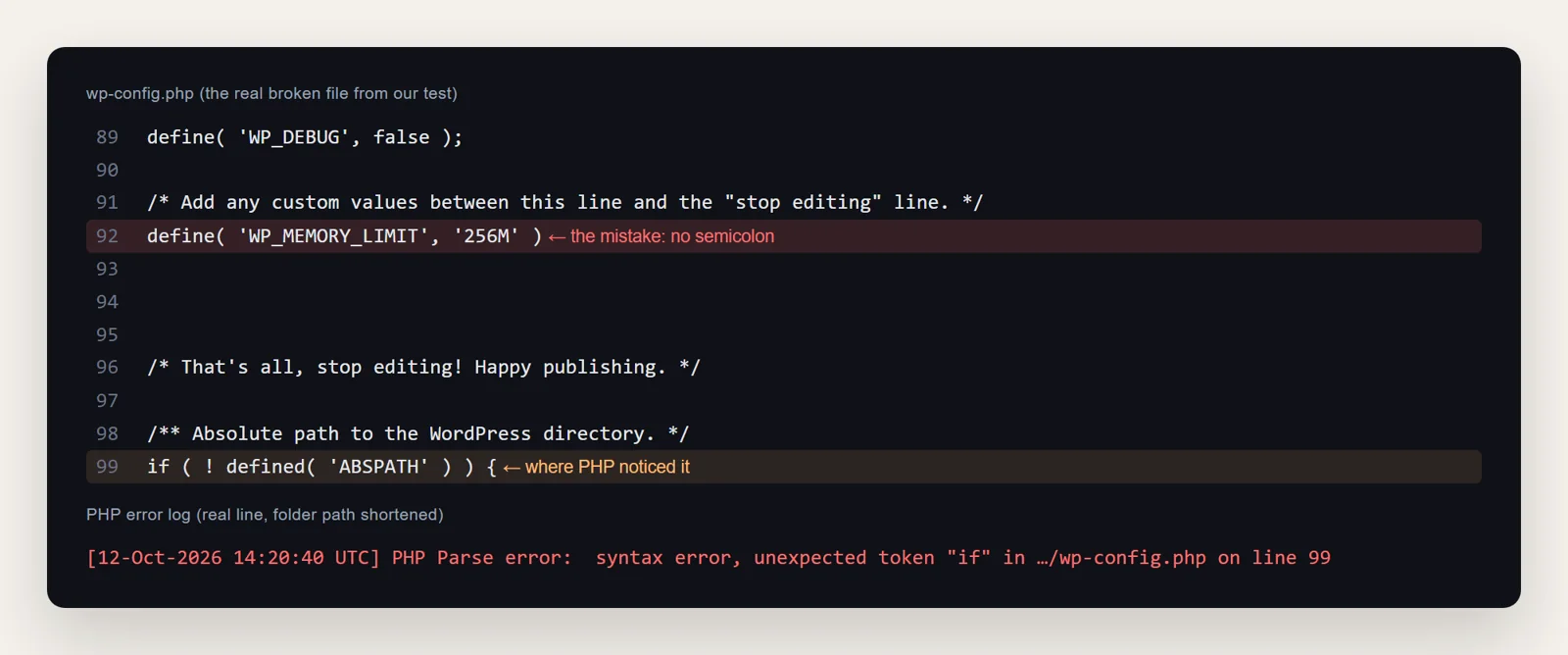
On our test site, the log had one line: a parse error in wp-config.php on line 99. Note the trap: the mistake was on line 92. PHP reports where it noticed the problem, which is often a few lines after the real mistake. Look at the line it names and the lines just above it.
Step 3: Turn on WordPress debug logging
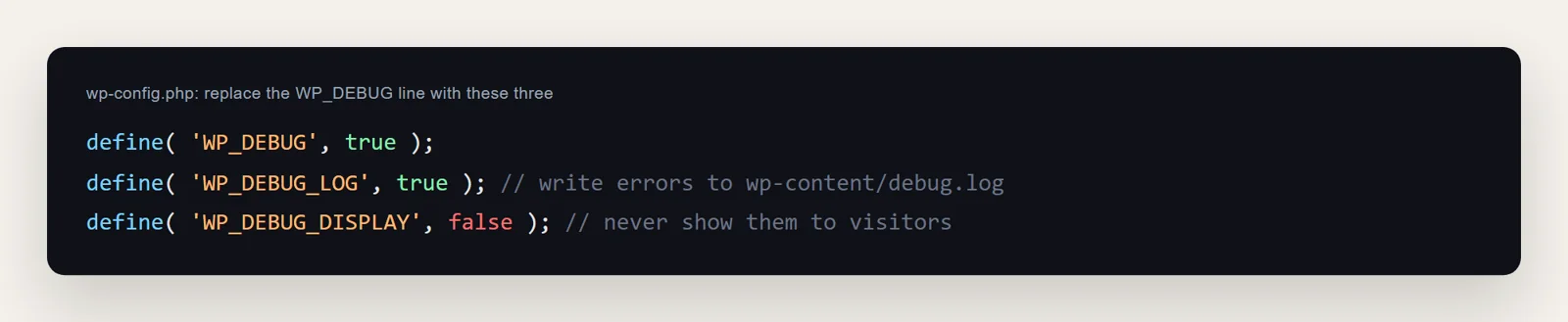
If you cannot find a host log, make WordPress write its own. Connect with SFTP or your host's File Manager, open wp-config.php in the site's root folder, and replace define( 'WP_DEBUG', false ); with these three lines:
Step 4: Read debug.log
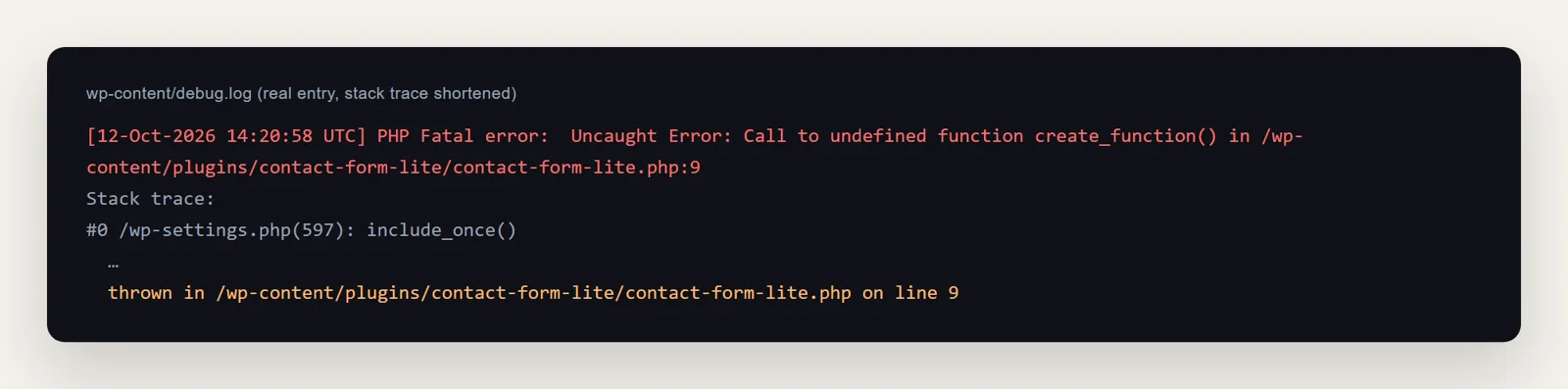
Reload the blank page once, then open wp-content/debug.log. The last lines tell you the file and line that failed. Here is a real entry from our test site, caused by an old plugin that uses create_function(), which PHP 8 removed:
The path names the culprit: anything under wp-content/plugins/NAME/ is that plugin, anything under wp-content/themes/NAME/ is that theme. When you are done, set WP_DEBUG back to false and delete debug.log, because it can grow large and reveal file paths.
Step 5: Fix the cause
Match what the log says to one of these:
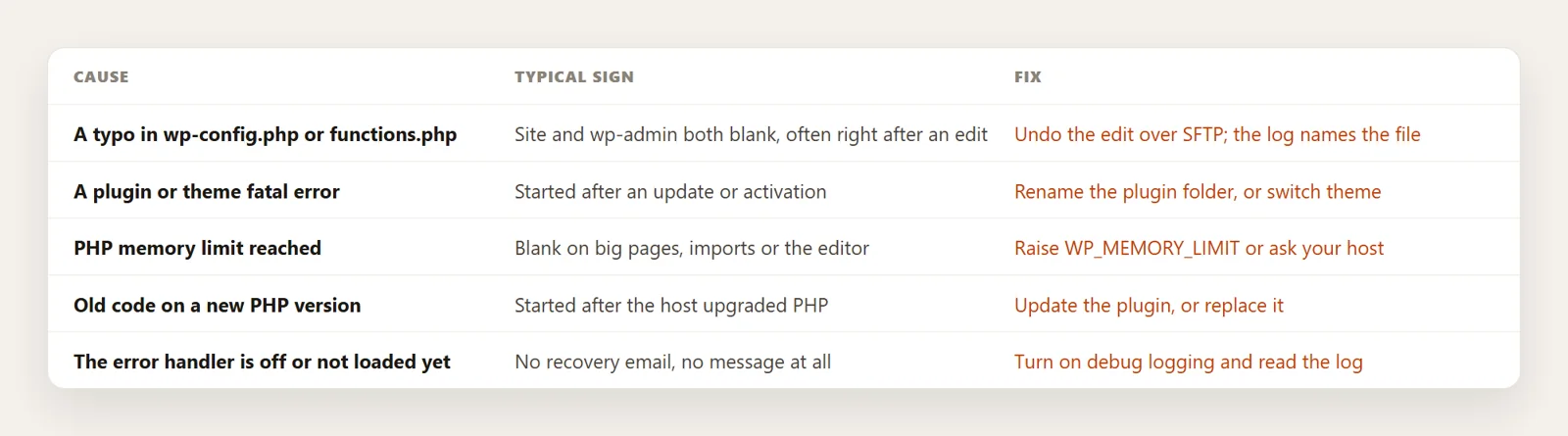
Fixes in detail
- Typo in a file you edited: open the file over SFTP and undo the change, or upload the copy from your last backup. Edit theme code in a child theme so a parent update never overwrites it.
- A plugin: rename its folder in
wp-content/plugins(for example add-offto the name). WordPress deactivates it and the site comes back. If you do not know which plugin, rename the wholepluginsfolder, then rename it back and reactivate plugins one by one in wp-admin. - The theme: rename your active theme's folder. WordPress falls back to an installed default theme such as Twenty Twenty-Five, so keep one installed.
- Memory: the log says "Allowed memory size exhausted". Add
define( 'WP_MEMORY_LIMIT', '256M' );to wp-config.php (with the semicolon). If it still fails, your host's PHP limit is lower and they need to raise it. - PHP version: update the plugin or theme. If it has not been updated in years, replace it; temporarily switching to the previous PHP version in your hosting panel buys time.
If you have a recent backup, restoring it is also a valid fix; see how to back up and restore WordPress.
Fix it with your AI, even when WordPress is down
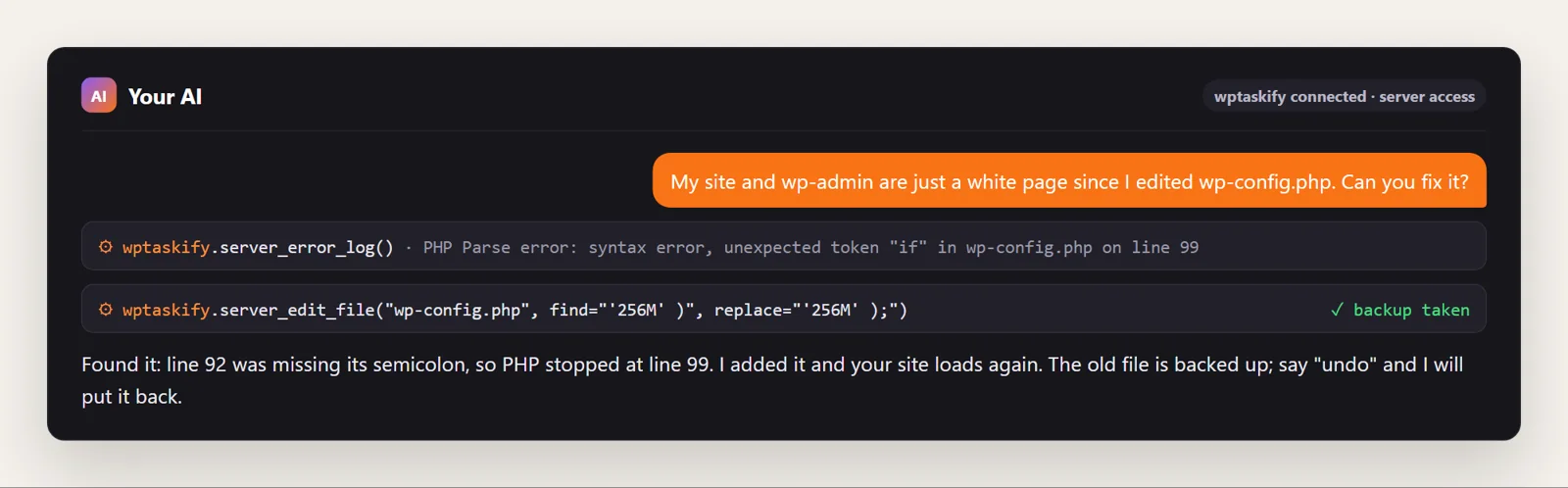
When the site is blank, the normal WordPress tools cannot connect. wptaskify's server access works on the files instead: you add your SFTP or cPanel login once, and your AI (Claude or ChatGPT) can read the error log with server_error_log, turn logging on with server_set_debug, rename a broken plugin with server_disable_plugin, or fix one line with server_edit_file. Every change is backed up first and can be undone. Server access is included on every plan, including the free one.
How to avoid it next time
- Take a backup before editing files or updating plugins.
- Never edit code in Appearance, then Theme File Editor on a live site. One typo and you are locked out.
- Test PHP version changes and big updates on a staging copy first.
- Delete plugins you no longer use, especially ones that have not been updated in years.